
These screenshots show a busier practice than the demo you can sign in to, so some of the records in them won't be there when you try it.
Tap any screenshot to open it full size. To keep a copy, use your browser's Print and choose Save as PDF. The people and animals in the screenshots are made up.
1. Signing in
Go to demo.clientflex.co.uk/admin.html (or sign in at the main address: staff and admin accounts are taken to the portal, clients to their app). Enter your email and password and select Sign In.
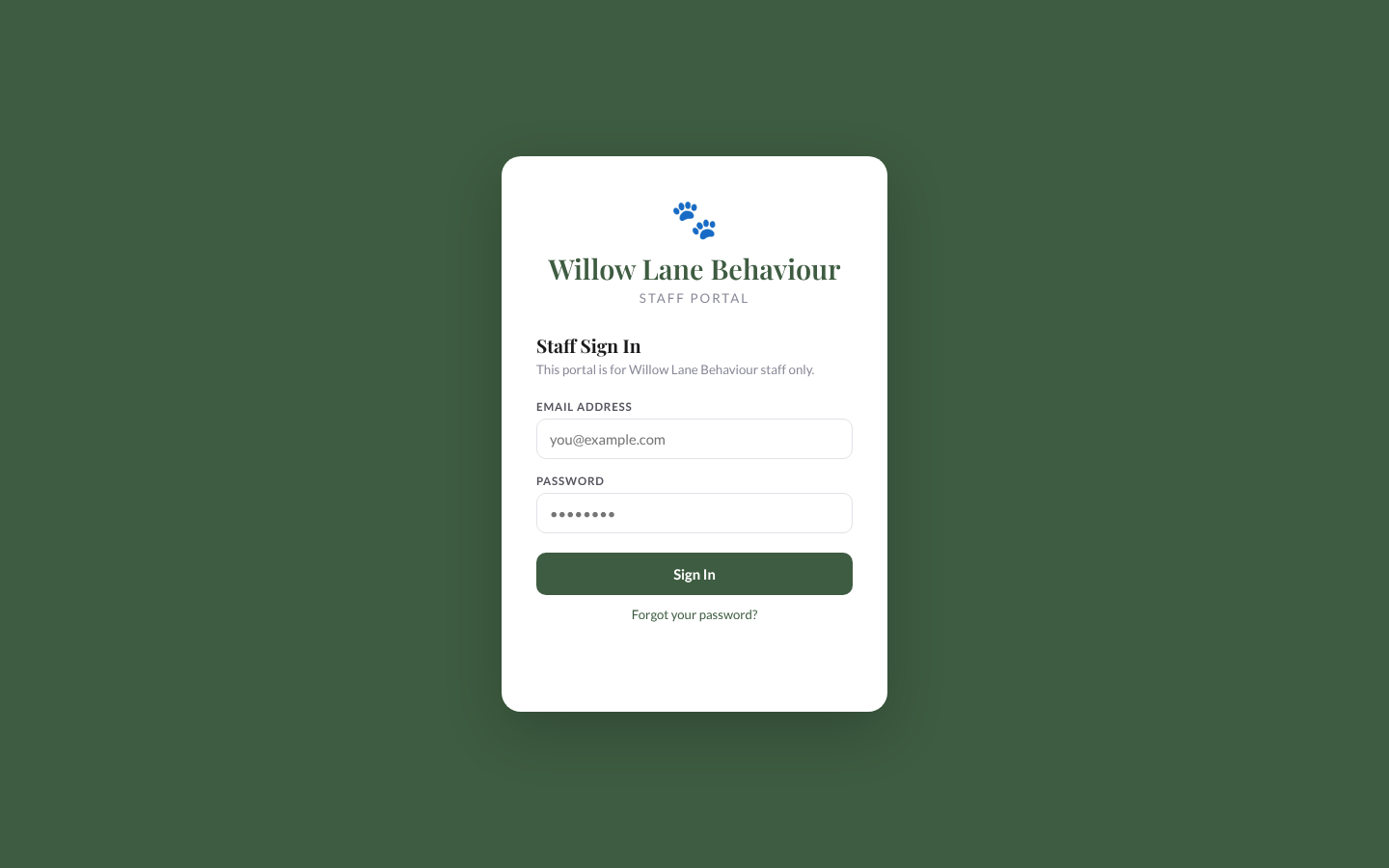
Forgotten your password? Select Forgot your password? and follow the link in the email (it works for 7 days). There is no change-password screen in the portal: use the same link to set a new one.
To sign out, open Settings (in the menu, or select your name at the bottom of the menu) and select Sign out at the foot of the page. This signs you out of every tab in that browser.
Back to top2. Finding your way around
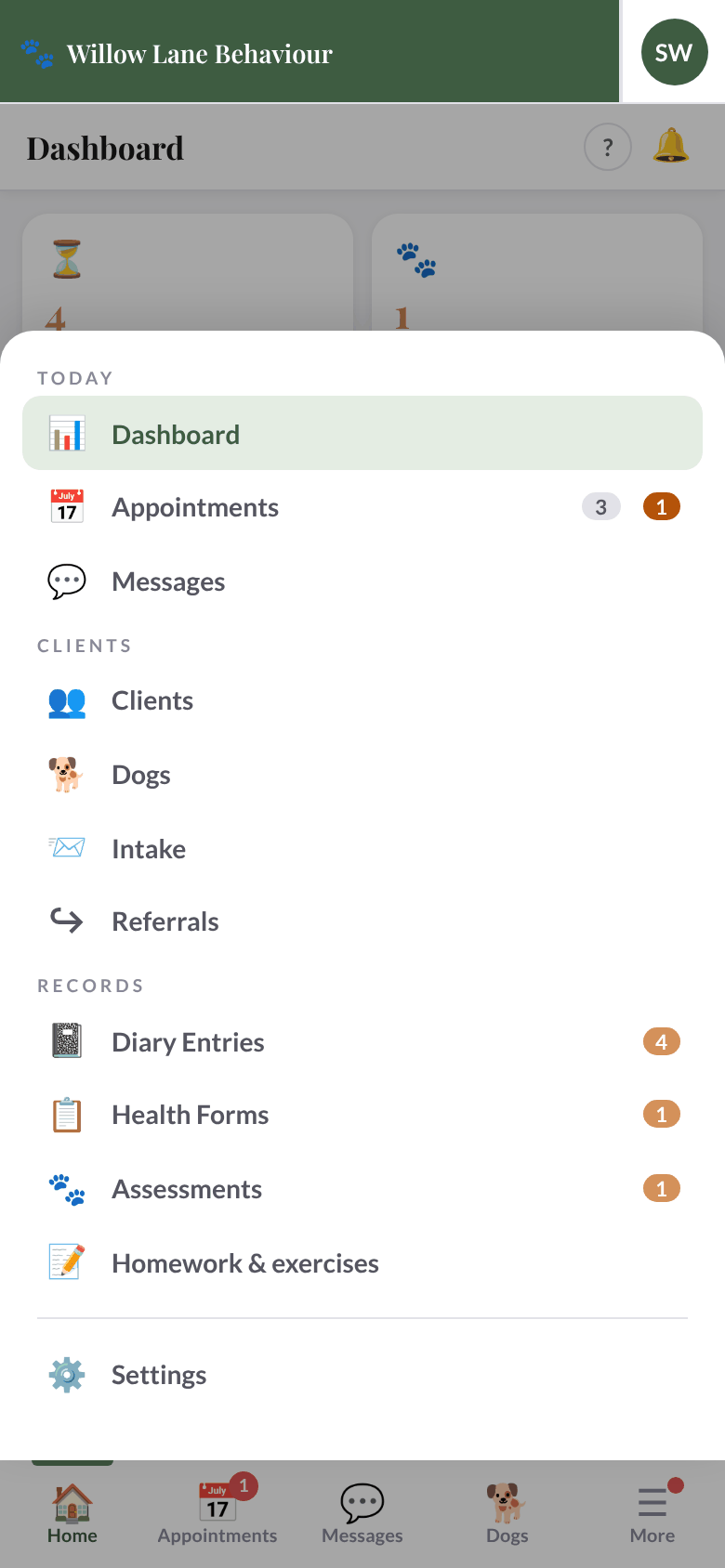
The menu on the left is in three groups: Today (Dashboard, Appointments, Messages), Clients (Clients, Dogs, Intake, Referrals) and Records (Diary Entries, Health Forms, Assessments, Homework & exercises), with Settings at the foot. Share Links is now in Settings. A number beside an item counts things waiting for you: unread messages, referrals waiting for an answer, diary entries to review, health forms, assessments. Appointments shows a grey number for appointments in the next 7 days, and an amber one, "N new", for appointment requests waiting for an answer.
| Menu item | What it is for |
|---|---|
| Today | |
| Dashboard | Today at a glance: counts, appointment requests waiting, the next 7 days, entries to review, recent health forms and assessments, and diaries that have gone quiet. |
| Appointments | The booking calendar and the list of appointments, and appointment requests. |
| Messages | Conversations with clients. |
| Clients | |
| Clients | Everyone with an account: clients and co-owners. |
| Dogs | Every dog. Select one to open its page: Edit, timeline, vet & physio notes, diary table, and Refer. |
| Intake | Intake forms sent but not yet turned into an account. |
| Referrals | Referrals sent to and received from Riverside Vet Physio, and shared care (see Referrals and shared care). |
| Records | |
| Diary Entries | Read and review what clients log, including exercise sessions. |
| Health Forms | Health forms clients send, and forms you upload as PDFs. |
| Assessments | Comfort & Movement Assessments clients send. |
| Homework & exercises | Every dog's homework and exercises in one list, to set or update them quickly. |
| Settings | At the foot of the menu: intake form, consents, exercise library, team, appointment set-up, payments, gait assessment, emails, share links, sign-in history, your calendar link, and Sign out. |
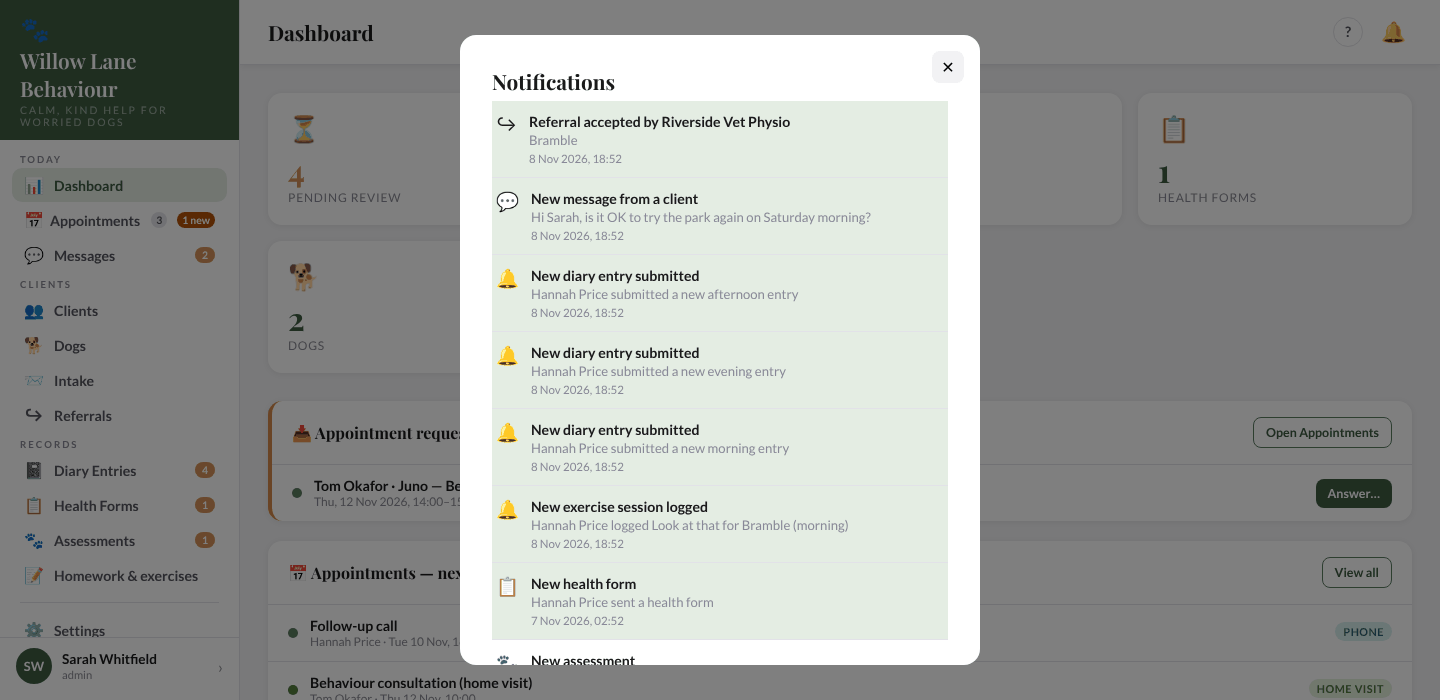
The 🔔 bell at the top right shows your notifications: new diary entries, messages, forms, referrals, appointment requests and so on. A red number counts the unread ones and updates every couple of minutes. Opening the bell shows your latest 30 and marks them read.
If you click outside a pop-up after typing in it, the portal asks Discard your changes? so you don't lose your work by accident.
On a phone
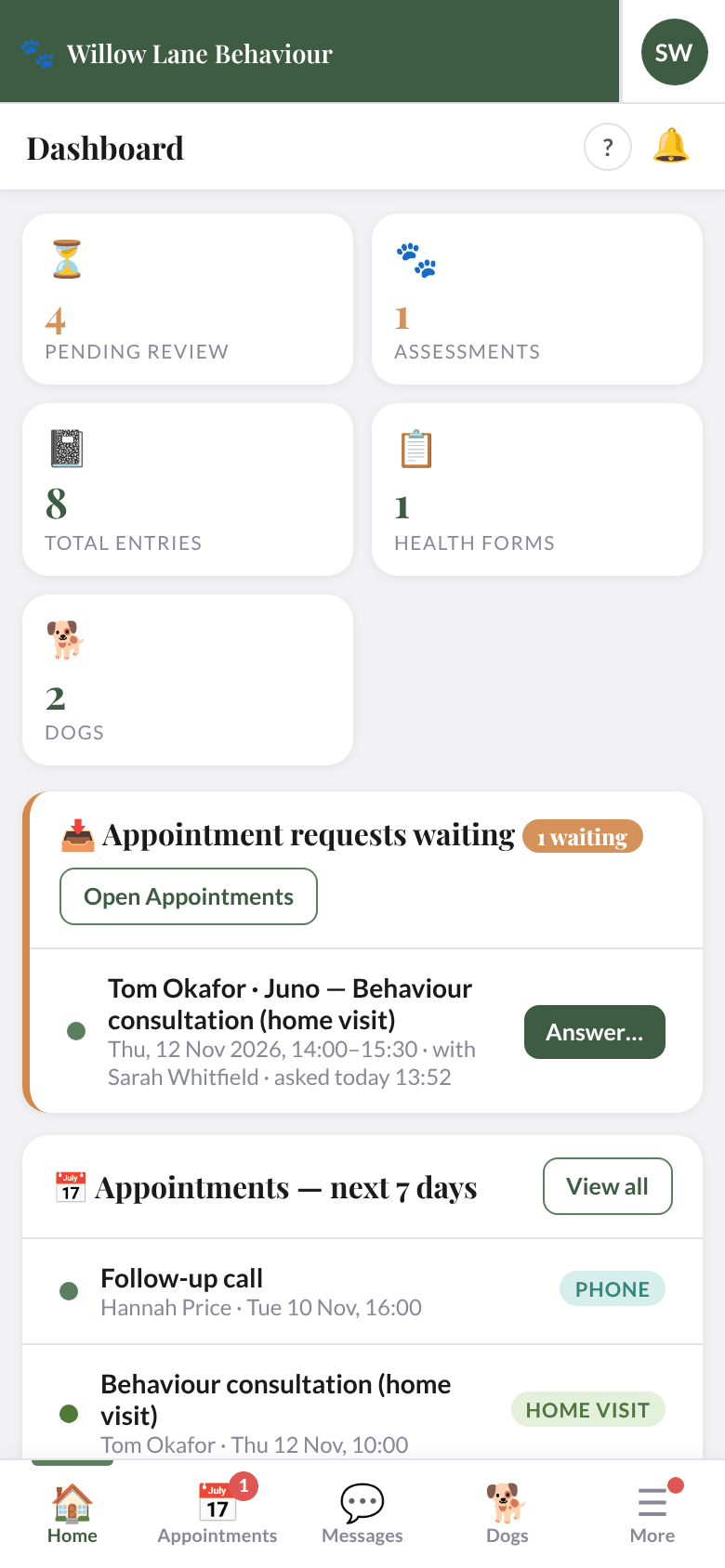
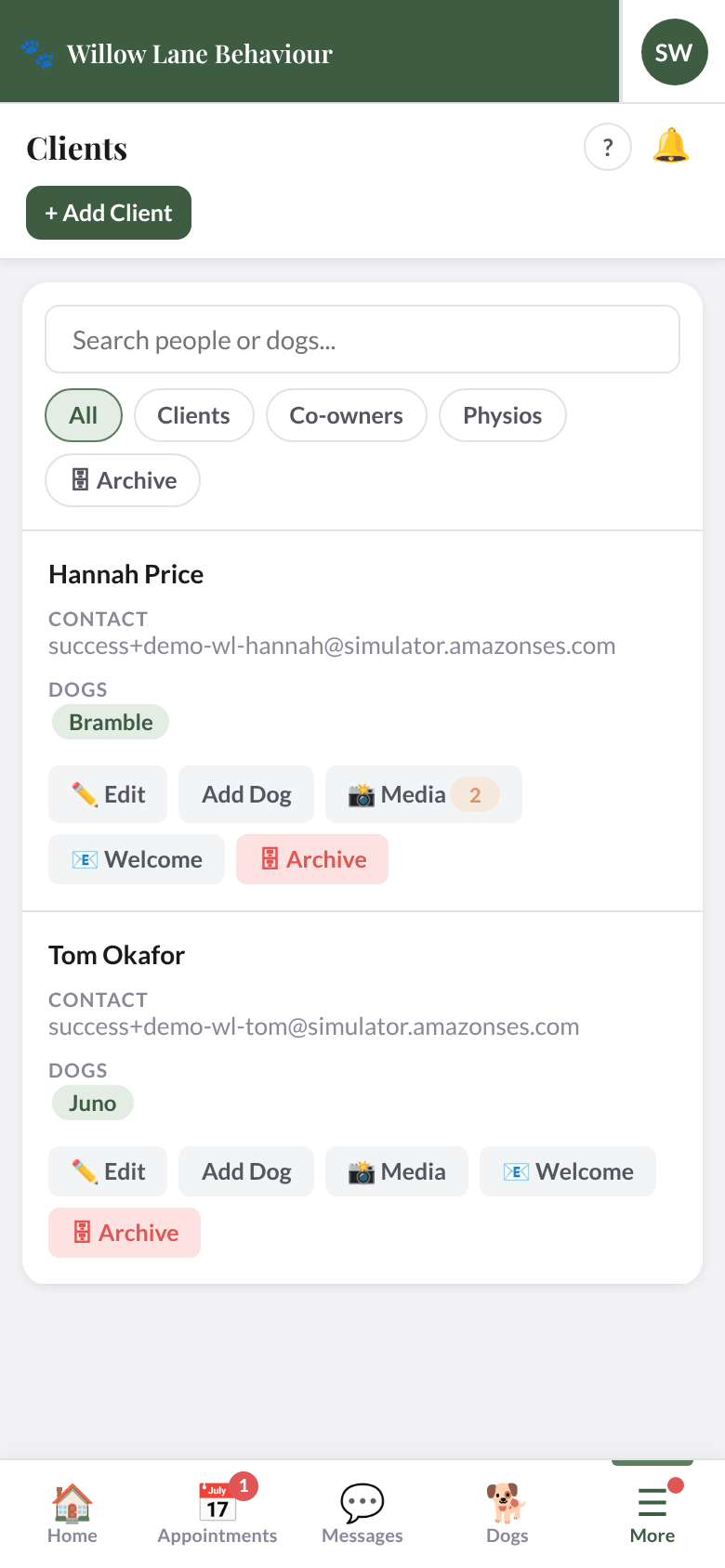
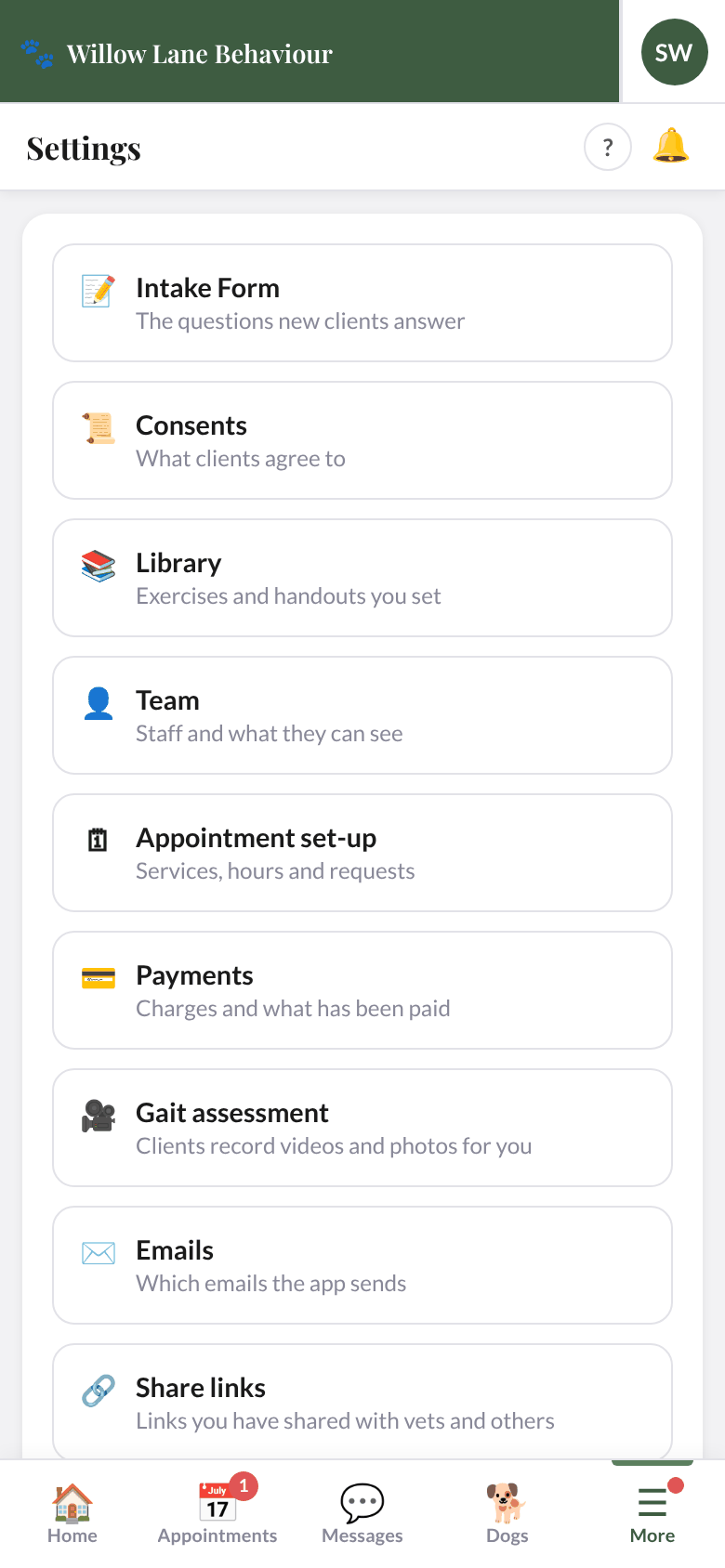
On a phone the menu becomes a bar along the bottom: Home, Appointments, Messages, Dogs and More. A red number on Appointments or Messages counts what is waiting there. More opens the whole menu from the bottom of the screen, with Settings at its foot; a dot on More means something in it is waiting. The top bar keeps the practice name and your initials: tap them to open Settings. Many lists turn into cards, one per person or dog.
Admins and staff. Staff can do the day-to-day work. Only admins can: add or change services, appointment settings, travel and packages; set other people's availability or time blocks; manage the Team; see Payments and mark a payment unpaid; change the email switches; correct a client's email on an intake submission; and see the Sign-in history.
Back to top3. The dashboard
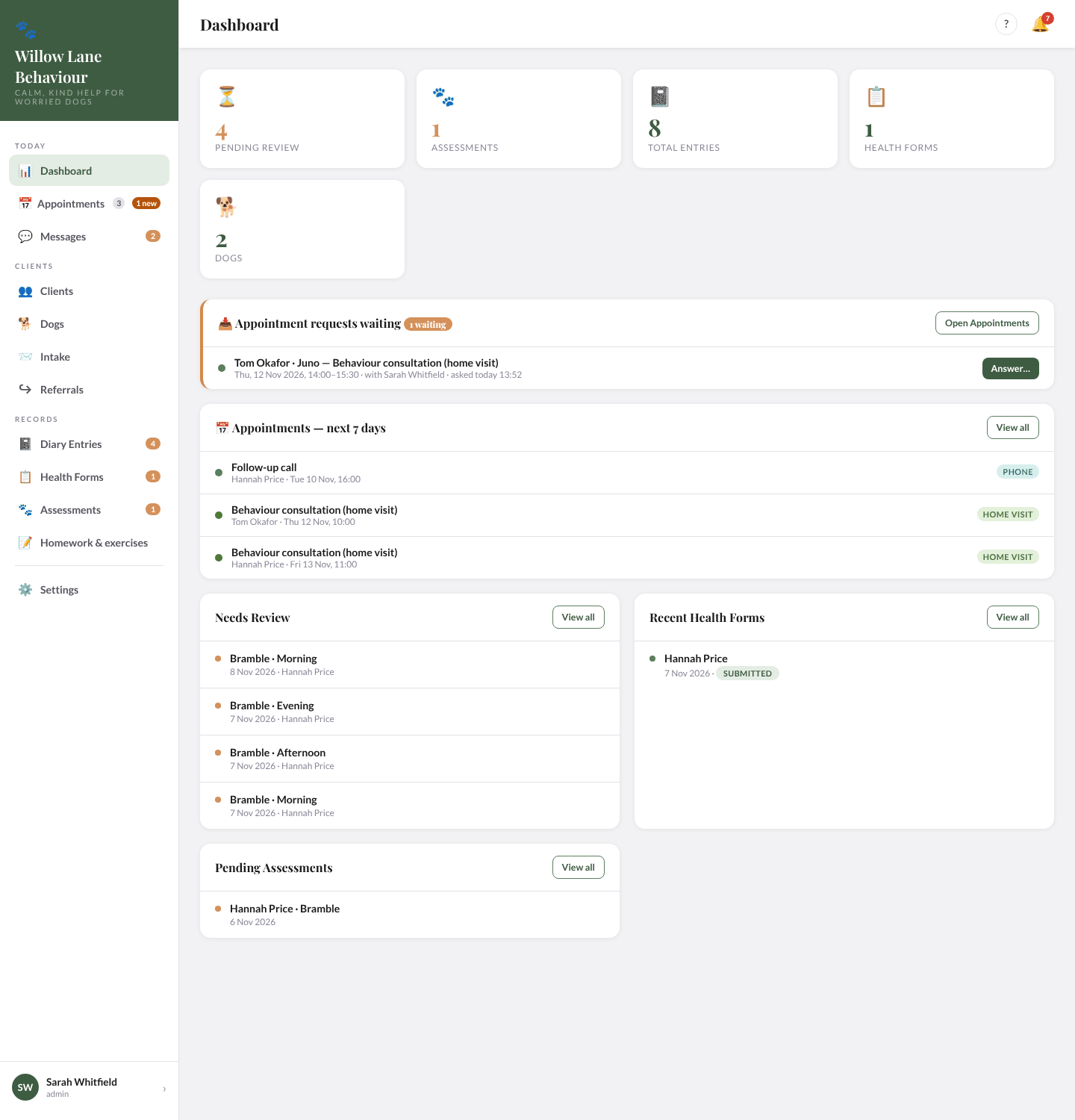
The tiles at the top count entries Pending Review, Assessments waiting, Total Entries, Health Forms (all of them) and your Dogs. The Pending Review and Assessments tiles turn amber only when something is waiting. Select a tile to go to that page: Pending Review opens Diary Entries on its Pending tab.
📥 Appointment requests waiting appears when a client has asked for an appointment. Select Answer… to accept or decline one, or Open Appointments (see Appointment requests).
Below are 📅 Appointments — next 7 days (the whole practice's, not just yours), Needs Review (up to five entries waiting; View all opens the Pending tab), Recent Health Forms and Pending Assessments.
⏰ Overdue Diaries lists clients whose dog has rating scales but no diary entry for 48 hours. Select Send reminder to email them "A gentle reminder about <dog>'s diary". After a reminder the row says how long ago it went; you can send another after 24 hours. A client who has opted out shows opted out, and one with no email shows no email (with call client if they have a phone number). Switching the Diary reminder email off in Settings › Emails hides this list.
4. Clients
Clients lists everyone with an account. Use Search people or dogs… to find someone by name, email or dog name, and the All / Clients / Co-owners / Physios filters (you have no physios), and 🗄 Archive for archived clients. Each row shows the person's contact details and dogs; a dashed chip marks one they co-own.
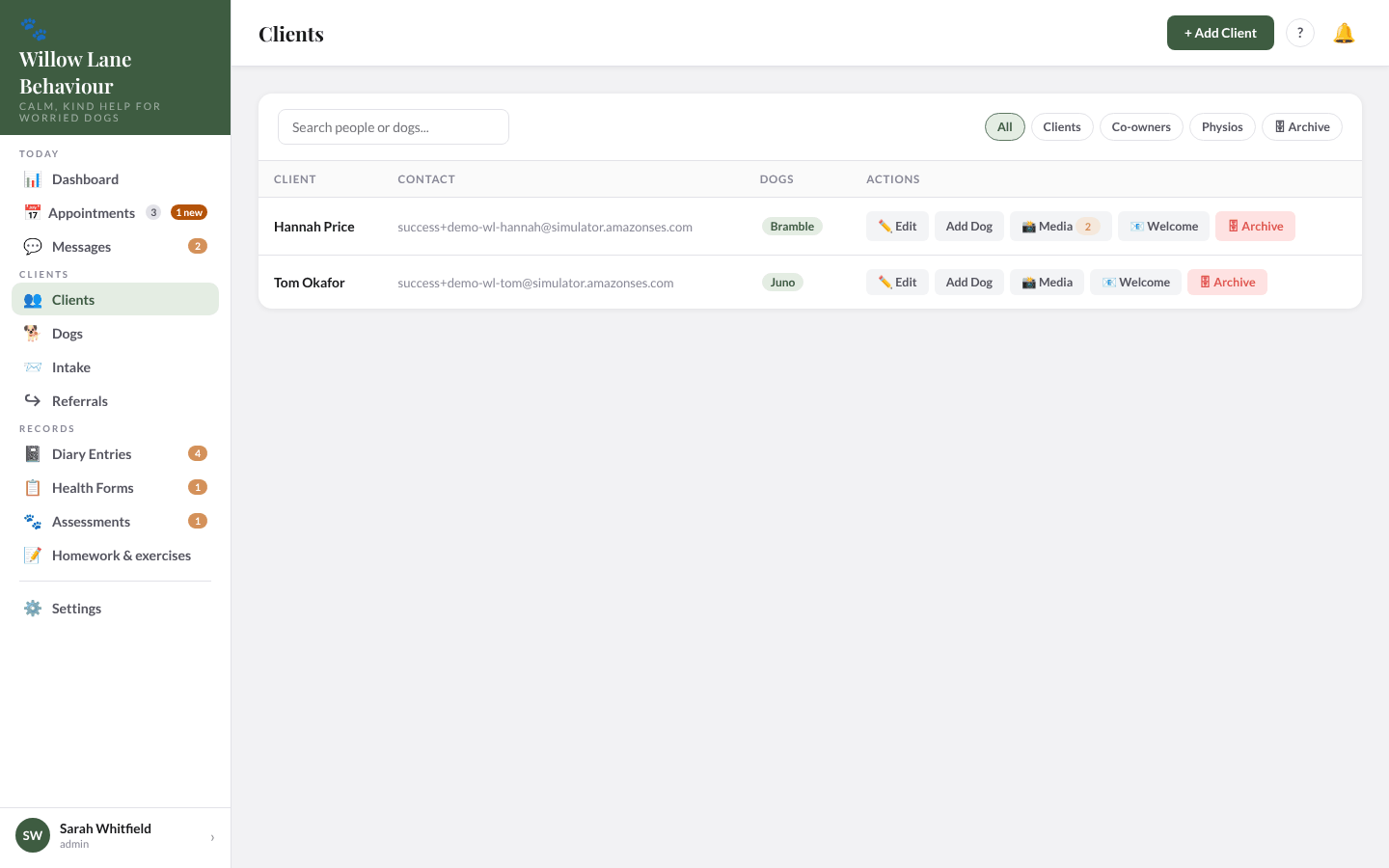
The buttons on each row: ✏️ Edit, Add Dog, 📸 Media (with a number when there is media to review), 📧 Welcome (emails a set-your-password link) and 🗄 Archive (see below).
Add a client
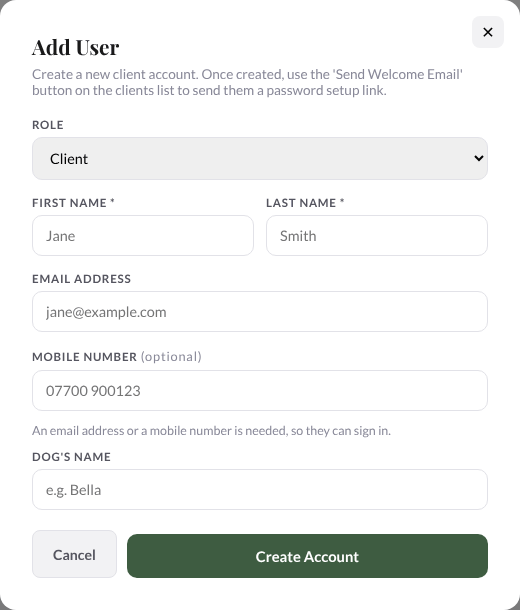
Most clients arrive through your intake form (see Intake). To add someone yourself, select + Add Client and choose a role: Client (an owner), Co-owner (someone sharing an existing dog) or Physio. Give a first and last name and an email address or a mobile number (one is enough: the mobile number is optional when there is an email). For a client you can name their first dog; for a co-owner, choose which dog to link them to. Then select Create Account and use 📧 Welcome on their row to send them a link to set their password.
Edit a client
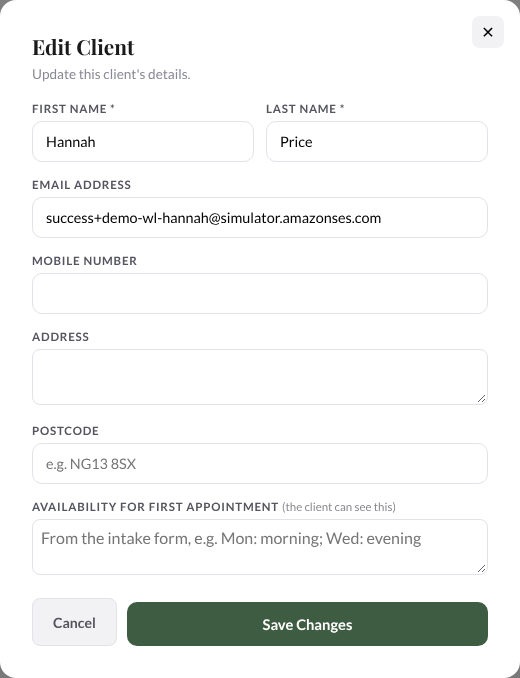
Select ✏️ Edit to change a client's name, email, mobile, address and postcode, and Availability for first appointment (from their intake form; the client can see it). Select Save Changes.
Add a dog for a client
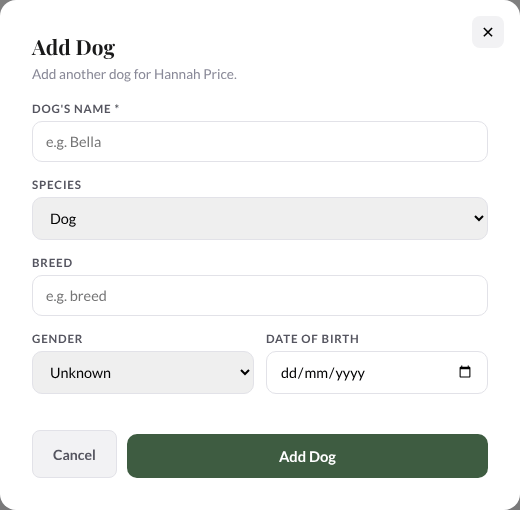
Select Add Dog on the client's row, give its name, species (Dog, Horse, Cat or Other), breed, gender and date of birth, and select Add Dog.
Client media and share links
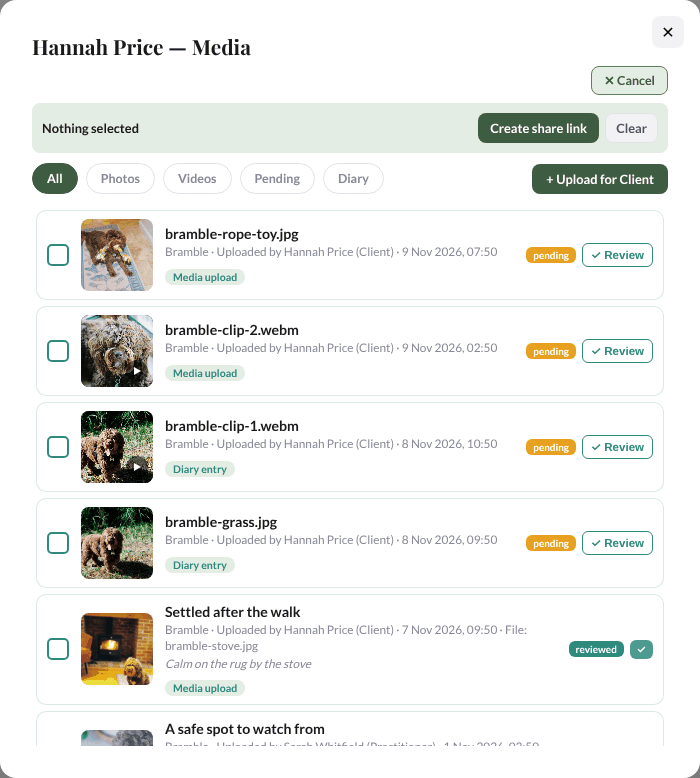
Select 📸 Media to see everything shared for that client: photos and videos they upload, and those attached to diary entries. Filter by All, Photos, Videos, Pending or Diary. What the client uploads arrives as pending; select ✓ Review to mark it seen. Use ✎ to give an item a title and a description the client will see.
🗑 deletes a photo or video for good, after asking. If it is in a link you have shared with a vet the question says so; once it is deleted, the link no longer shows it. Clients can delete their own uploads in the app, unless they are in a shared link.
+ Upload for Client adds photos or videos yourself (JPEG, PNG, WebP, MP4, MOV or WebM, up to 10 files of 100 MB each); you choose the dog and the client gets an email.
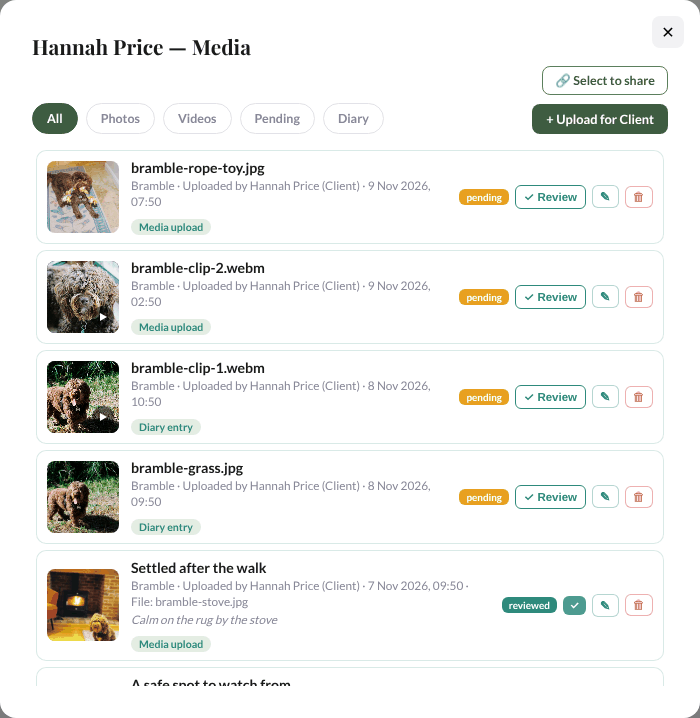
To send some of it to someone without an account, such as a vet or farrier, select 🔗 Select to share, tick the items and select Create share link, then Copy the link. The person sees just those photos and videos, grouped by dog. A link can't be added to later, and it works until you Revoke it. Every link is listed on the Share Links page.
Archive, restore or delete a client
When someone stops working with you, select 🗄 Archive on their row. Their dogs go with them: they leave your Clients and Dogs lists and the pickers for appointments and messages, they are signed out of the app and can no longer sign in, and they get no more emails or reminders. Nothing is deleted.
The Archive client window checks first. An upcoming appointment or appointment request stops it: cancel or move it, then archive. An open package or an unpaid payment is listed under Worth knowing before you archive but does not stop it; an unpaid payment stays on your books and can still be marked paid.
Select 🗄 Archive beside the filters to see everyone archived, with their dogs and when and by whom they were archived. ↩ Restore brings a client back into your lists, and they sign in again with their own password. 🗑 Delete permanently removes the client and everything linked to them (dogs, diary entries, forms, assessments, notes, photos and videos, messages, appointments and consents) for good; payments already received stay on your books. It asks you to type the client's name first. A client can only be deleted from the Archive.
Back to top5. Dogs
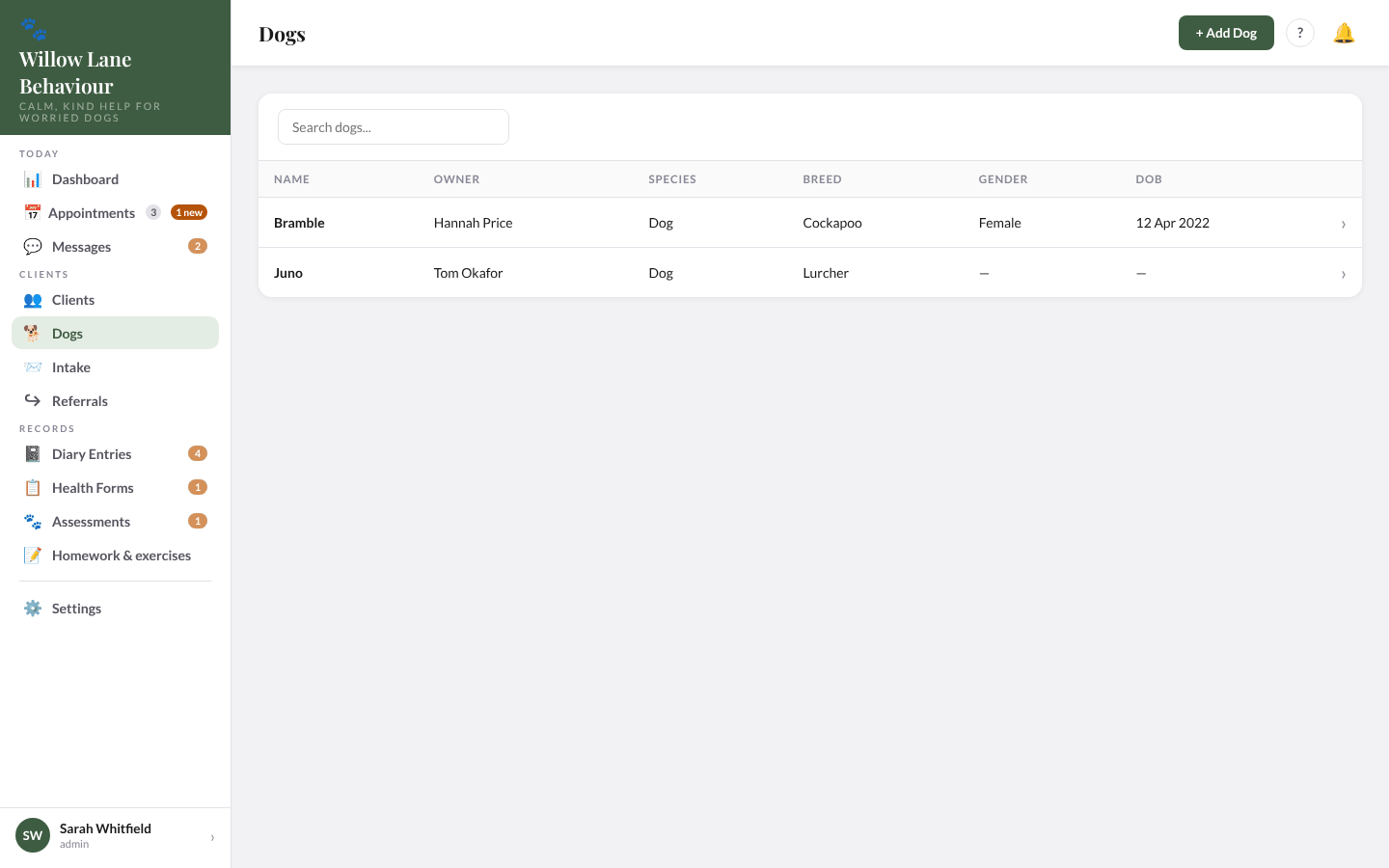
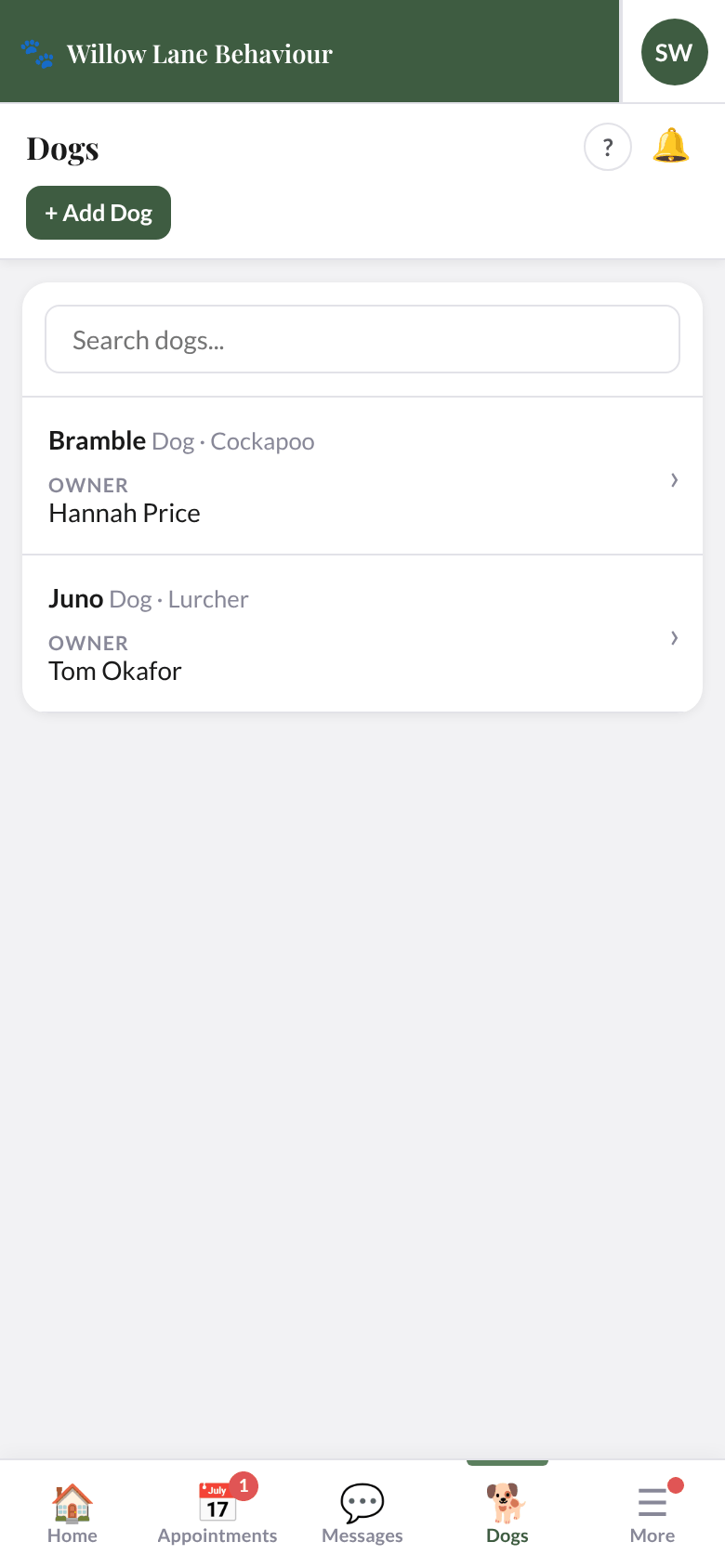
Dogs lists every dog with its owner, species, breed, gender and date of birth. Search by dog name or owner. + Add Dog adds one for any client. Select a dog to open its page.
A dog's page
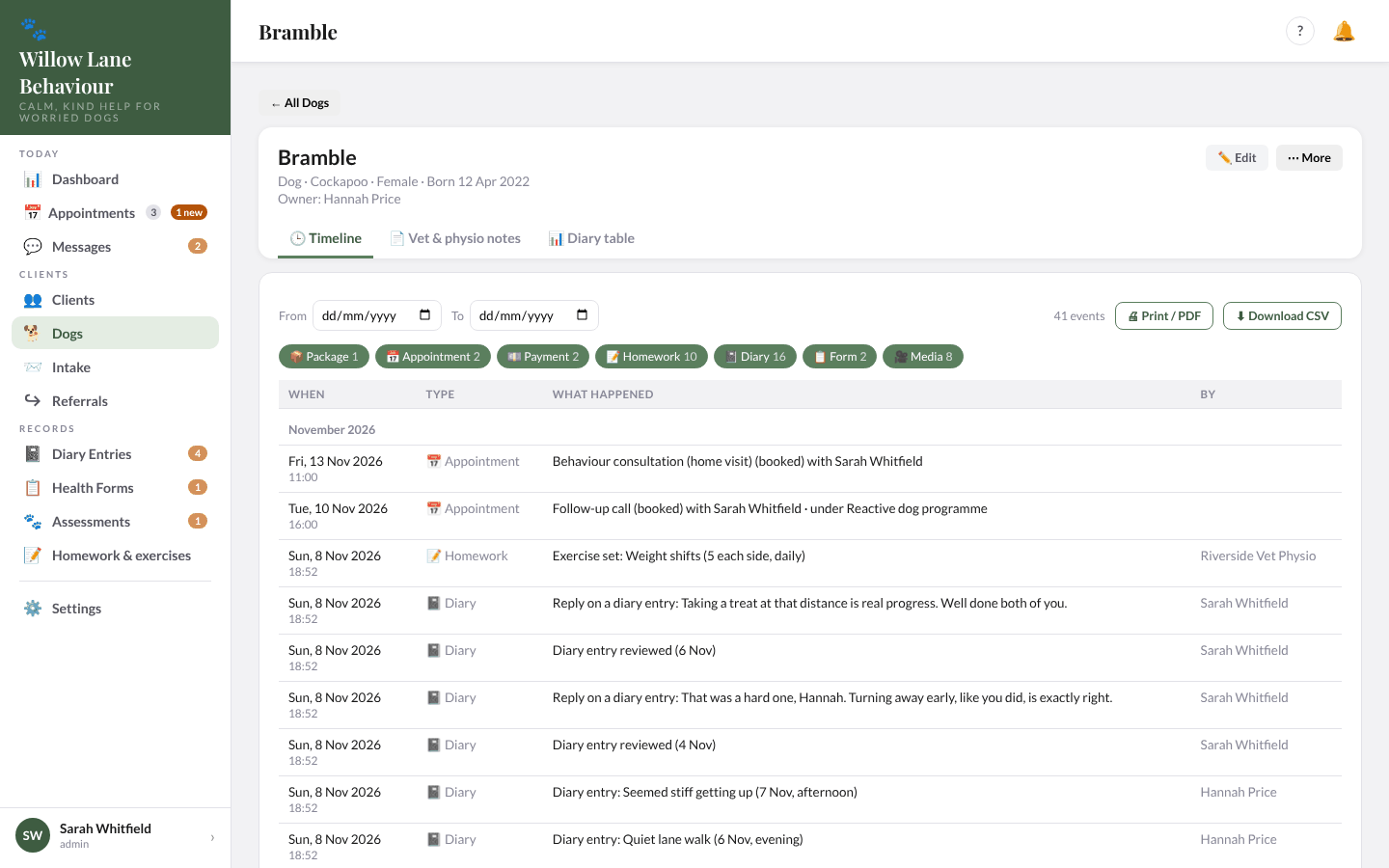
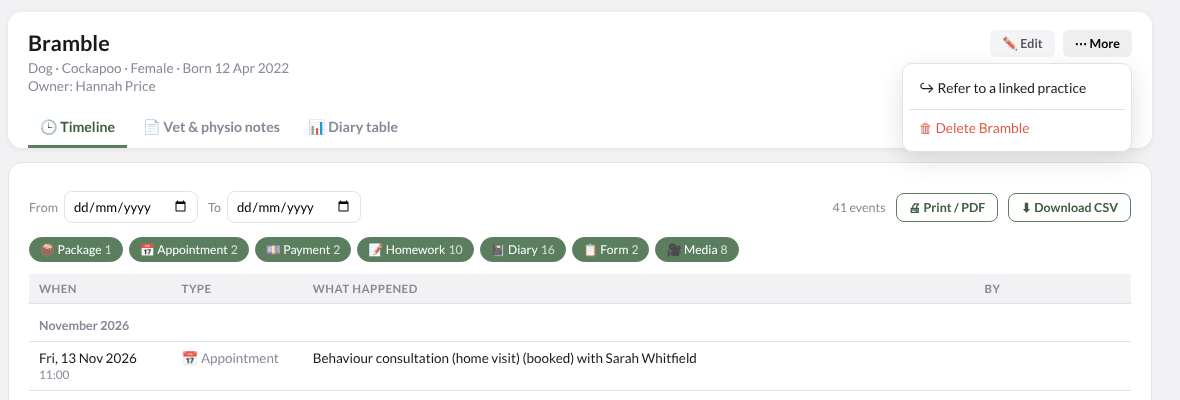
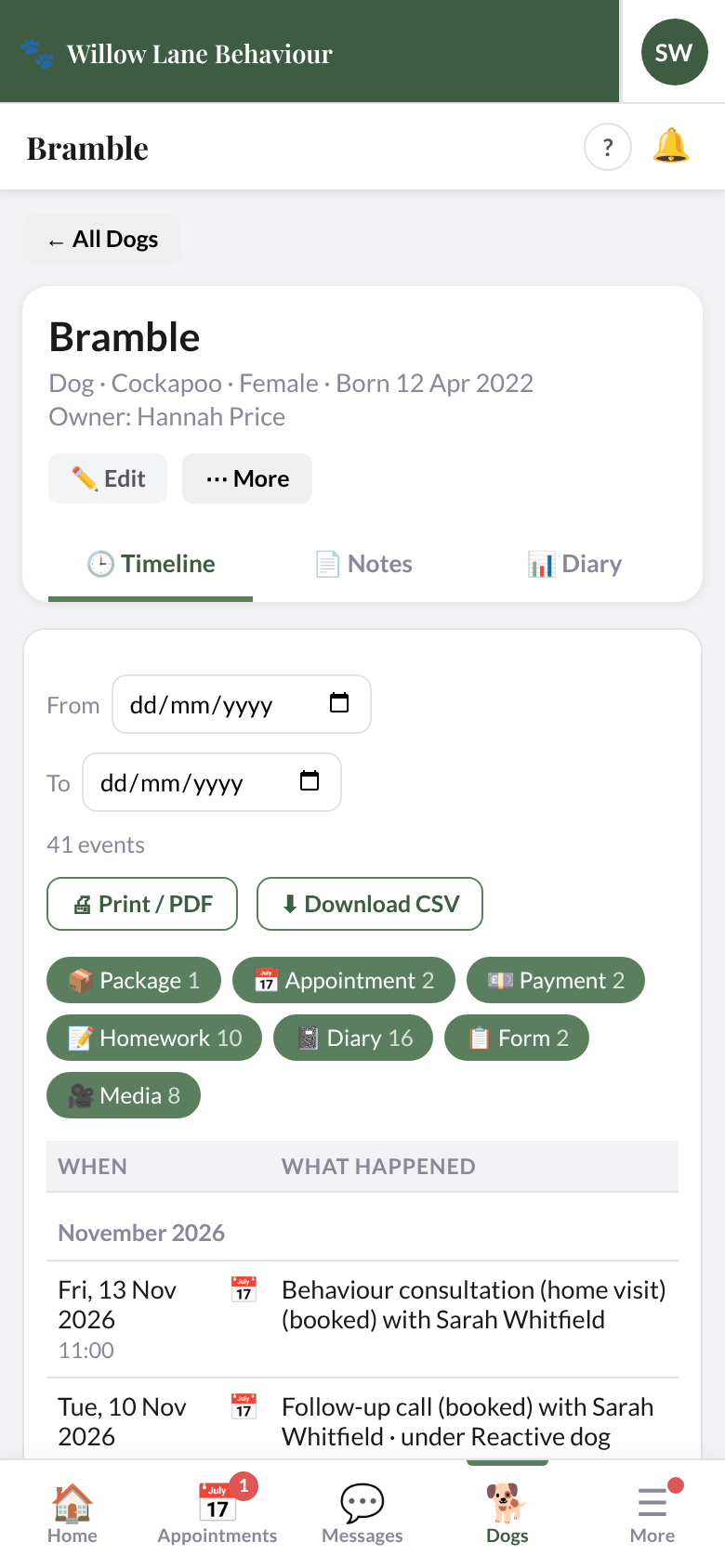
The page shows the dog's name, species, breed, gender, date of birth and owner. At the top right are ✏️ Edit and ⋯ More, which holds ↪ Refer to a linked practice and 🗑 Delete <name> (it asks first). Below are the tabs: 🕒 Timeline (the page opens on it), 📄 Vet & physio notes, 📊 Diary table. ← All Dogs goes back to the list. On a phone the tabs are called Timeline, Notes, Diary.
Edit a dog
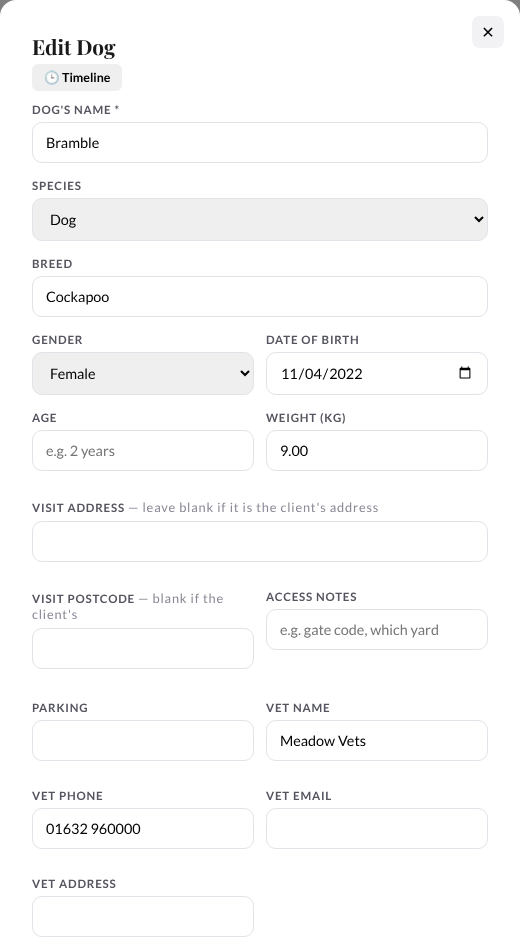
Select ✏️ Edit on the dog's page. 🕒 Timeline at the top of the form takes you to the timeline tab. The form holds the dog's details and the working parts of its plan:
- Details: name, species, breed, gender, date of birth, age and weight.
- Visit address and Visit postcode: a visit address and postcode if the dog is kept somewhere other than the client's address, access notes and parking.
- Vet: vet name, phone, email and address.
- Homework: a list of things for the client to work on (see below).
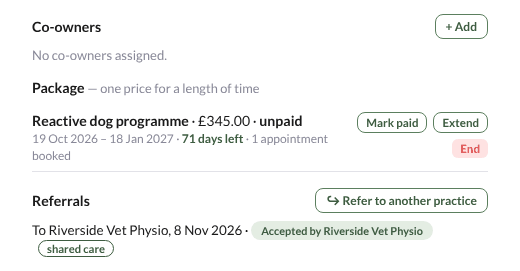
- Co-owners: link other people to this dog. They see it in their app and can log diary entries for it.
- Package: + Start a package (such as the Reactive dog programme) for this dog, then Add the charge, Mark paid, Extend or End it. Sessions under a package are not counted or limited. The client's Home shows "Part of your package" on an appointment under it; any extra price you set on that appointment still shows.
- Referrals: referrals for this dog, with ↪ Refer to another practice (see Referrals and shared care).
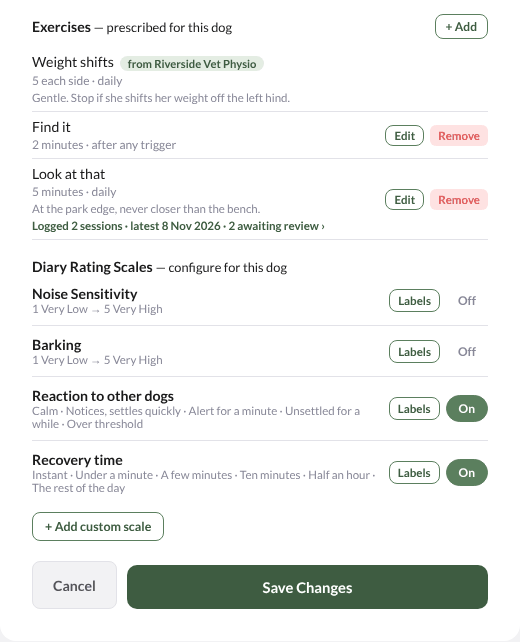
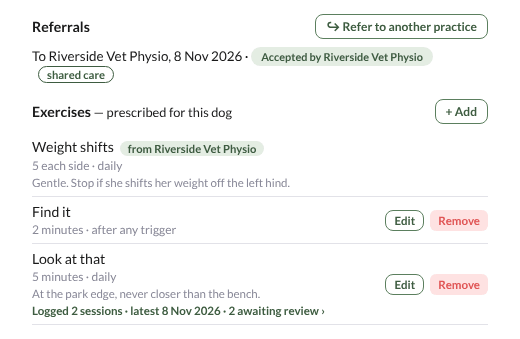
- Exercises: prescribe exercises from your Library, with reps or time, how often and notes. Each shows how many sessions the client has logged and how many are waiting for review; select that line to open them.
- Diary Rating Scales: choose which 1–5 scales the client rates in each diary entry. Switch each On or Off, use Labels to describe each level, and + Add custom scale to make your own.
Save Changes saves the details. Homework, co-owners, exercises, the package and rating scales save as soon as you change them.
Homework
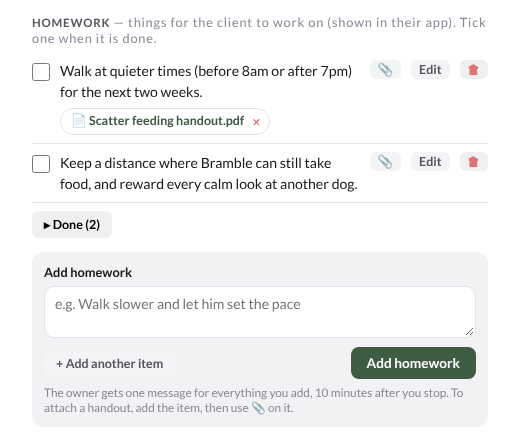
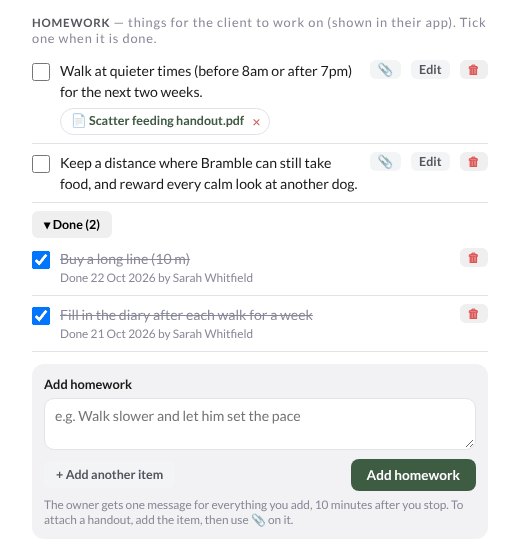
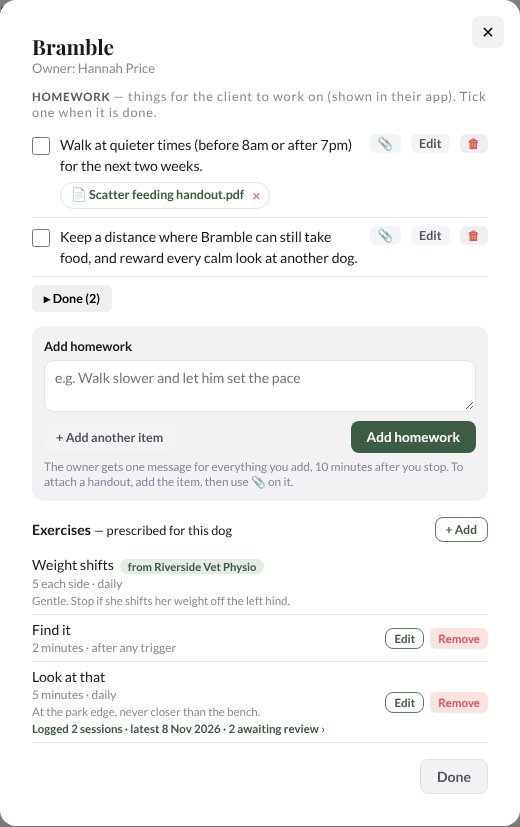
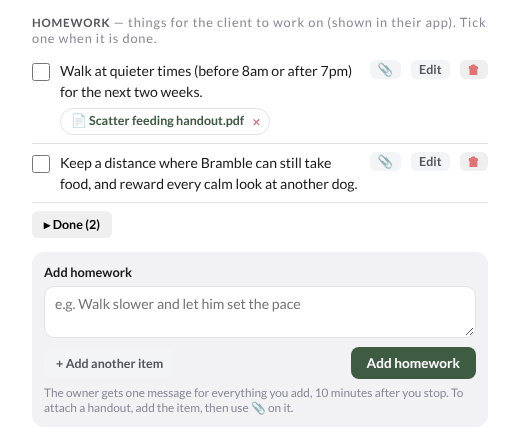
Homework is a list. Type an item in Add homework; select + Add another item to add several at once (up to 20, each up to 4,000 characters), then Add homework. Each open item has:
- a tick box: tick it when the item is done. It moves to ▸ Done (N), struck through, with the date and who ticked it. Untick it there to put it back on the list. Only the practice ticks items; clients can't.
- 📎 to attach a handout: a PDF or a photo (JPG, PNG or WebP), up to 20 MB, at most 5 per item. Each file shows as a chip under the item; select it to open it, or × to remove it.
- Edit to reword the item, and 🗑 to remove it (the client no longer sees it).
The client is told when the plan changes. When you add homework, reword an open item, attach a handout to an open item, or add an exercise, the owner and any co-owners get one email and one notification, "<your first name> at Willow Lane Behaviour has updated <dog>'s plan", about 10 minutes after your last change (never more than 30 minutes after the first). Ticking an item done, unticking it, removing it, or editing an exercise already on the plan sends nothing, and you are never sent it yourself. If a deploy happens during those 10 minutes that one message is lost. To stop these emails, switch off Homework or exercises updated in Settings › Emails.
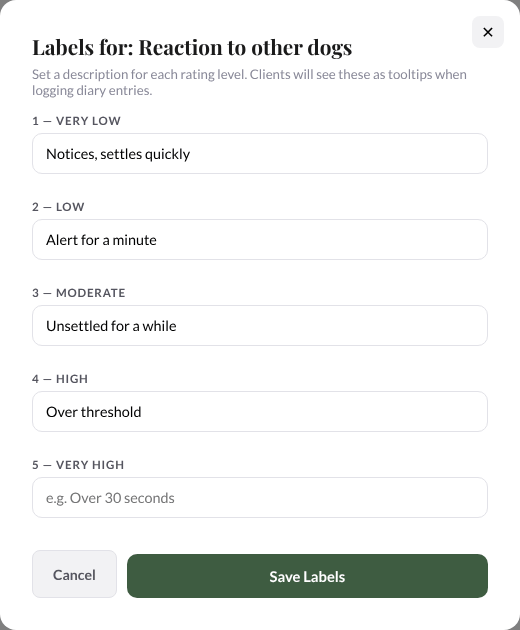
The scale labels window lets you describe each level so the client knows what to pick, for example "Alert for a minute" for a 3.
Vet & physio notes
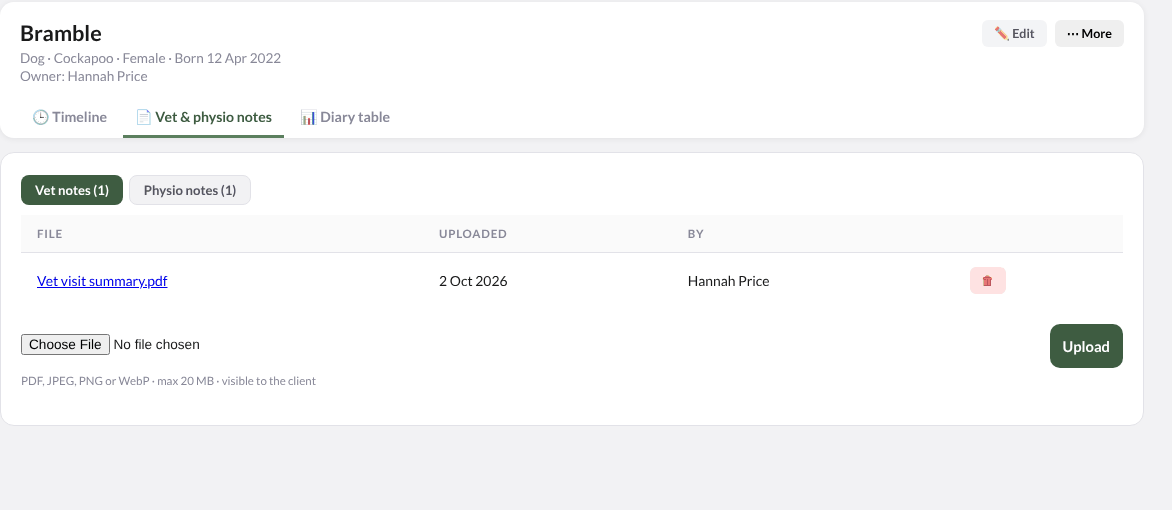
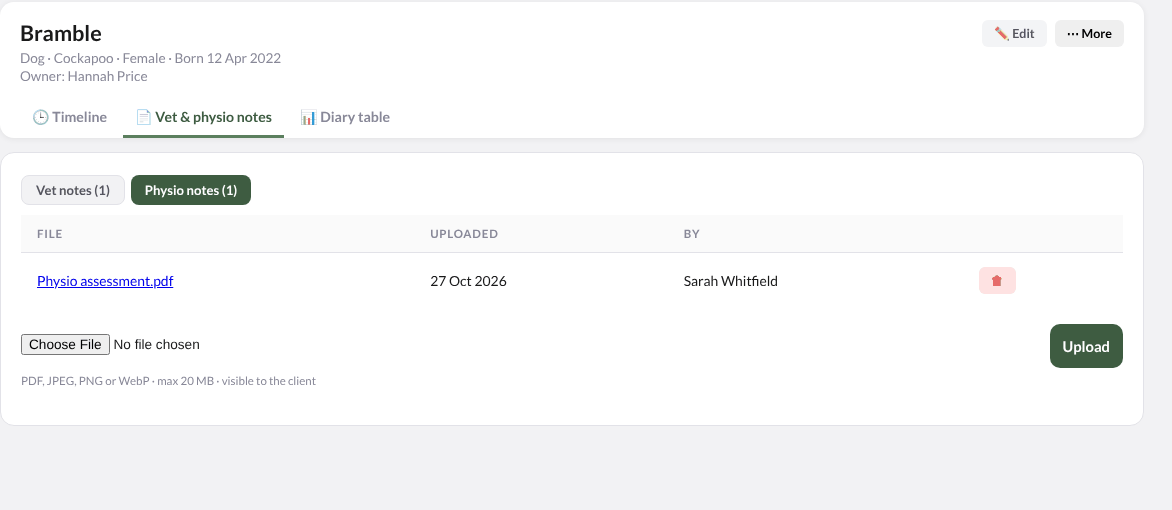
Open the 📄 Vet & physio notes tab on the dog's page. Notes are kept in two lists, Vet notes and Physio notes, each with a count, and show who added each one. To add one, choose the right list, choose a PDF or photo (JPEG, PNG or WebP, up to 20 MB) and select Upload; 🗑 removes one (it asks first). Notes are visible to the client and co-owners, and the client can add their own from the app. Documents that arrive with a referral you accept are filed here too. Adding a note sends no email.
Diary table
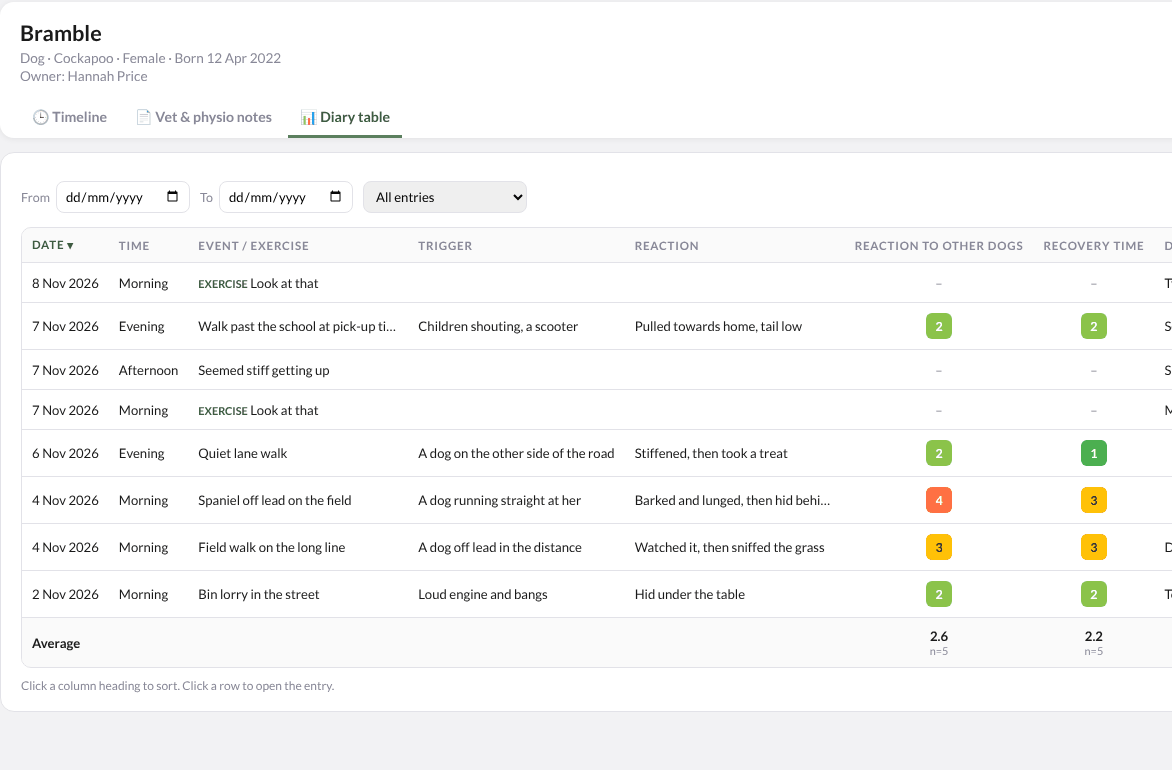
The 📊 Diary table tab shows the dog's diary as a table: date, time, event, trigger and reaction, one column per rating scale, details, status and replies, with an average for each scale. Choose a date range, and (once there are exercise sessions) show diary entries, sessions or both. ⬇ Download CSV saves it for a spreadsheet. Click a column heading to sort, or a row to open the entry.
Timeline
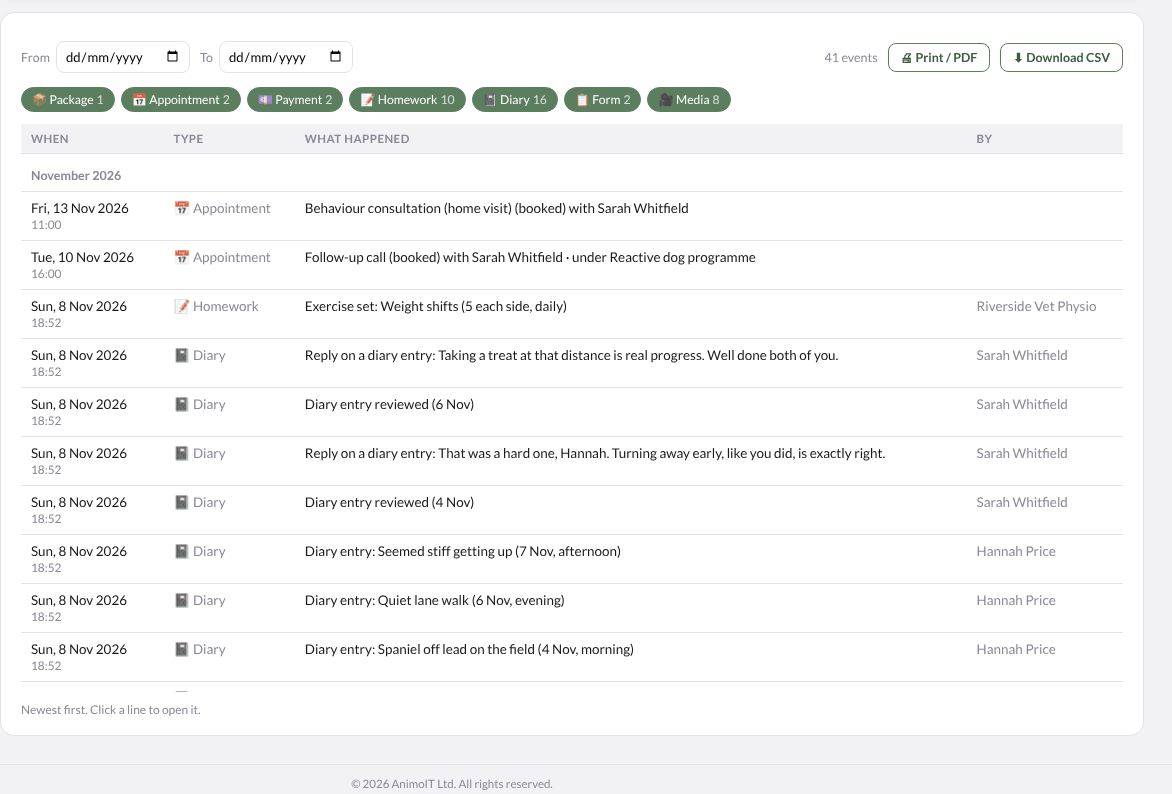
The 🕒 Timeline tab lists everything that has happened for the dog, newest first and grouped by month: appointments, payments, packages, homework changes, diary entries, forms, media and messages, with who did it. Filter by type and dates, select a line to open it, and use 🖨 Print / PDF or ⬇ Download CSV to keep a copy.
6. Homework & exercises
This page lists every dog with its owner, homework (the first open item, then "+N more" or "N done"), number of exercises, when a session was last logged, and its package, with days left. Search by name or owner, or tick No homework yet to find dogs with nothing open and no exercises.
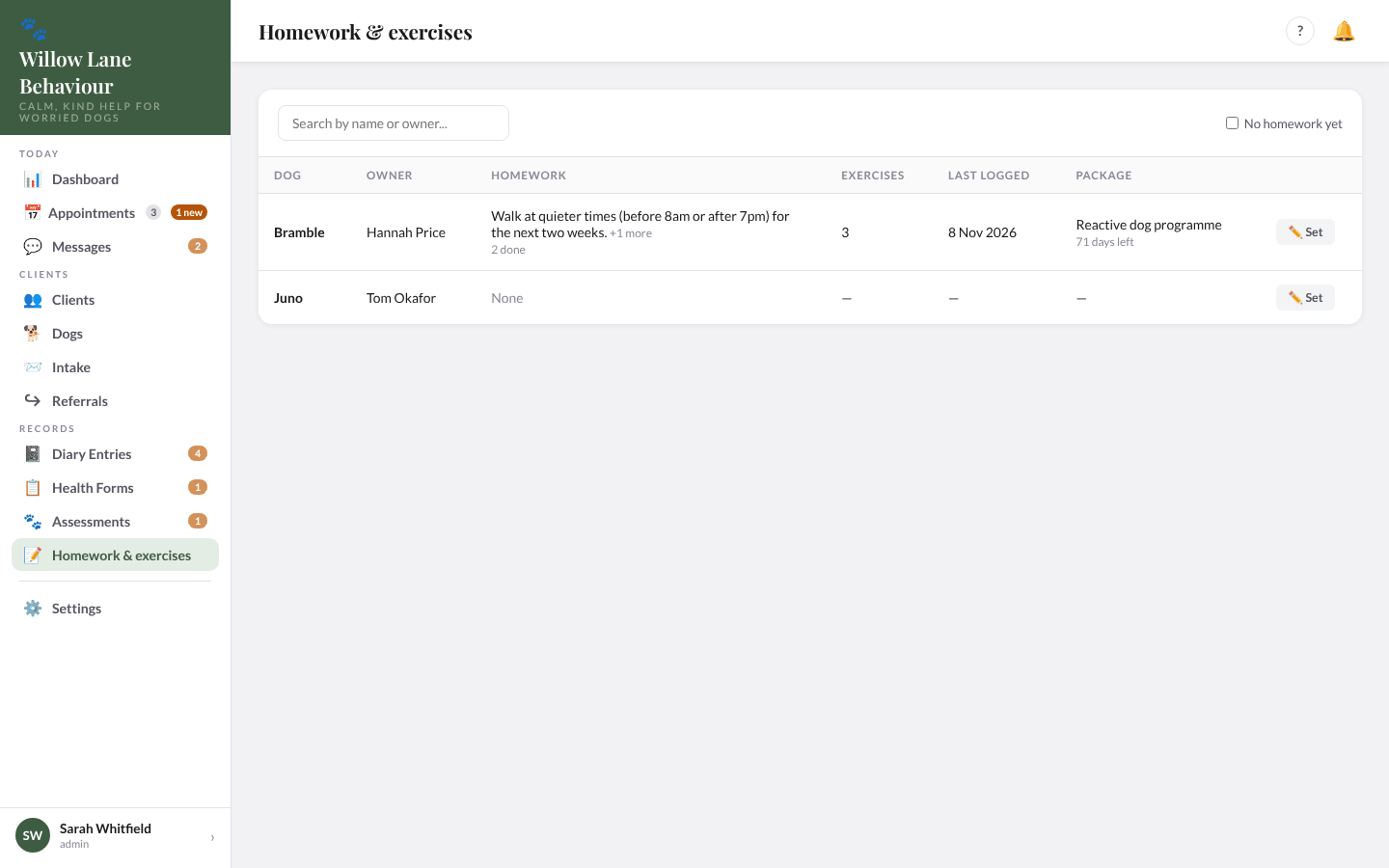
Select ✏️ Set to work on the homework list and the exercises in one window (the same as in Edit Dog), then Done. If you close it with homework typed but not added, it asks whether to add it first. The client gets the "plan updated" message described above.
7. Diary entries
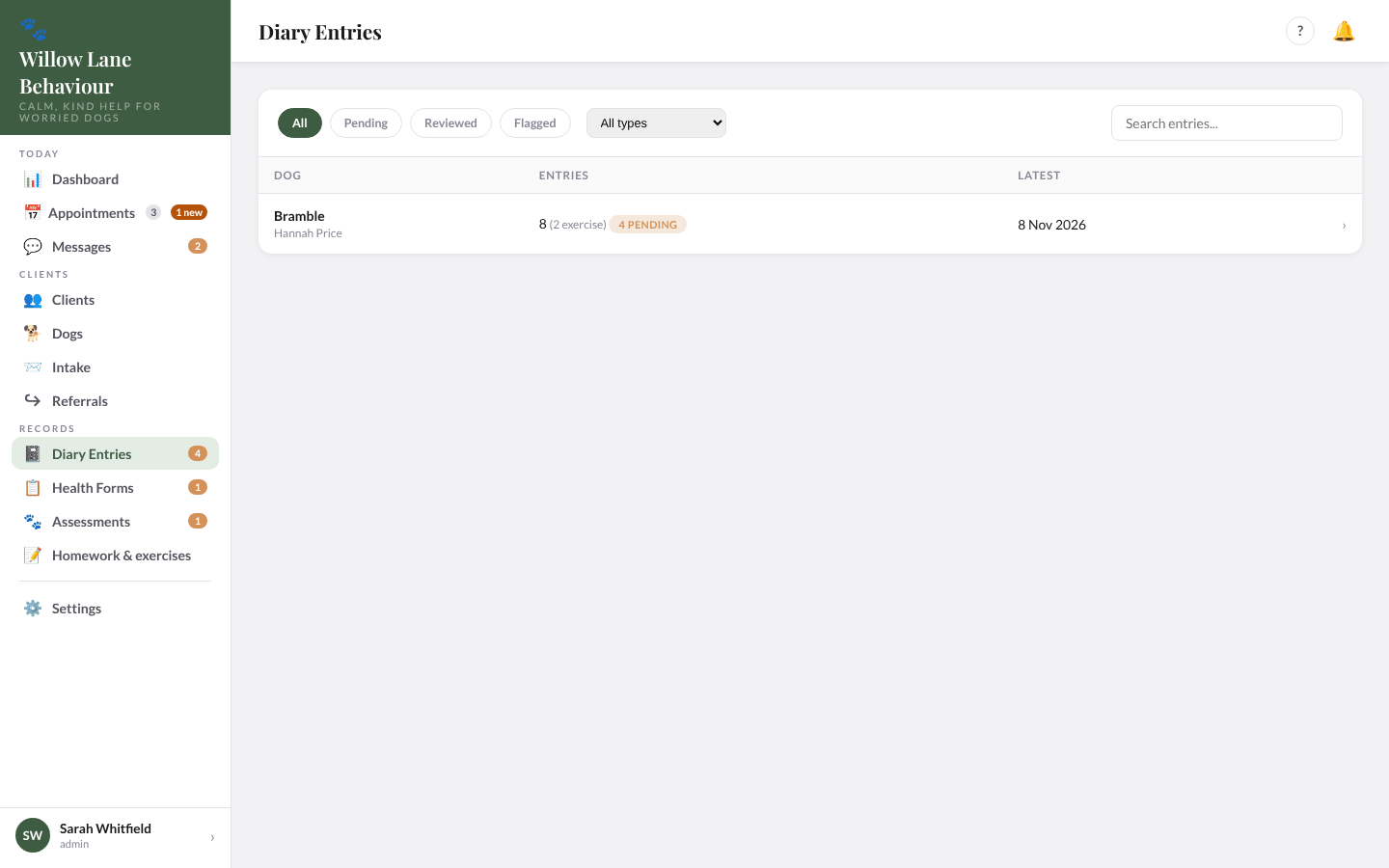
Diary Entries groups entries by dog, with the number of entries, how many are exercise sessions, and how many are pending. Use the All / Pending / Reviewed / Flagged tabs, the type list (diary entries or exercise sessions), and search.
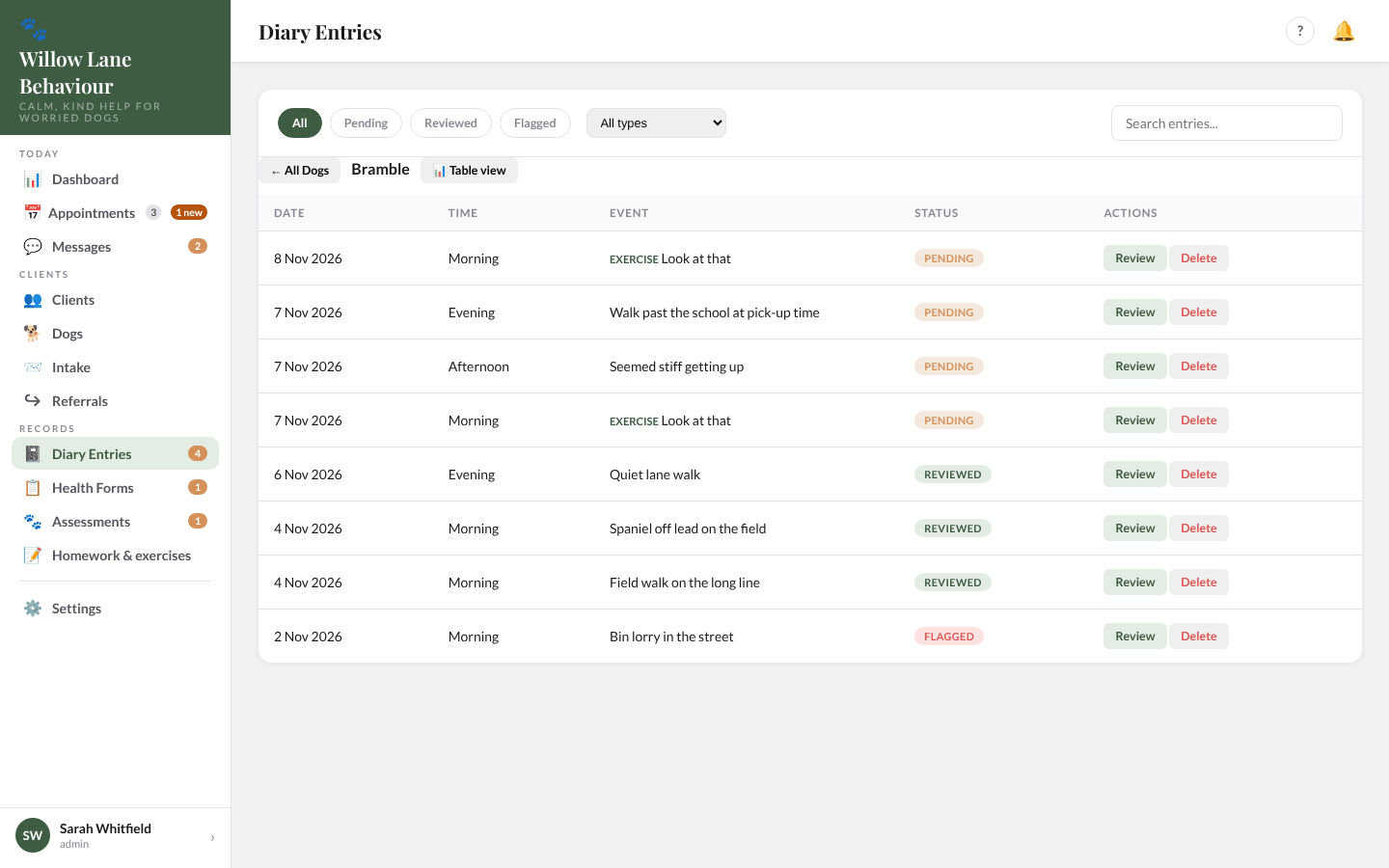
Select a dog to see its entries, with 📊 Table view and Review or Delete on each.
Review an entry
Select Review. You see the event, trigger and reaction, details, any photos or videos, the ratings, and the Discussion. Type in Write a reply… and select Send to reply; the client gets an email. You can edit (✎) or delete (🗑) replies, except those written at Riverside Vet Physio. Add an optional Your Note for the client, then ✓ Mark Reviewed, or ⚠️ Flag if it needs following up. 🗑 Delete removes the entry.
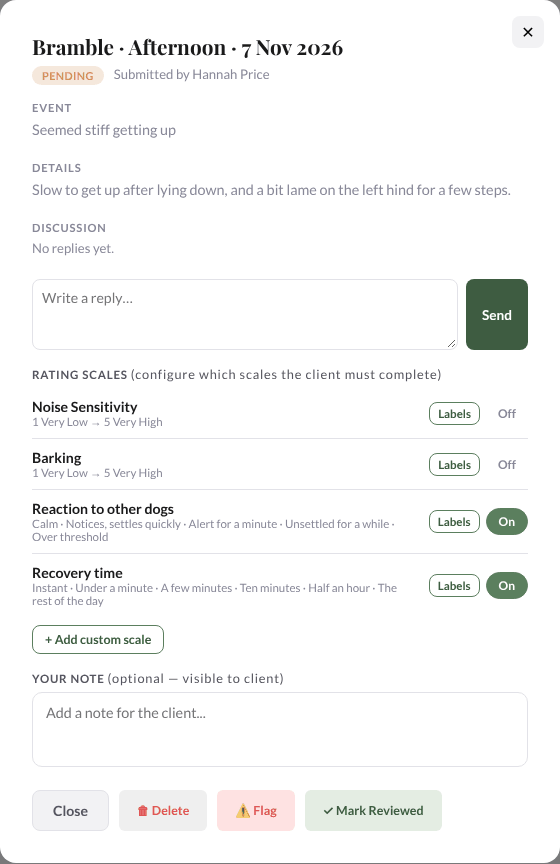
The rating scales for the dog can be changed here too, the same as in Edit Dog.
Review an exercise session
When a client logs an exercise from their plan it arrives as an exercise session, marked EXERCISE. It shows how the session went and any photos. There is no note box: your reply is the review. Sending a reply marks the session reviewed and the client gets one email.
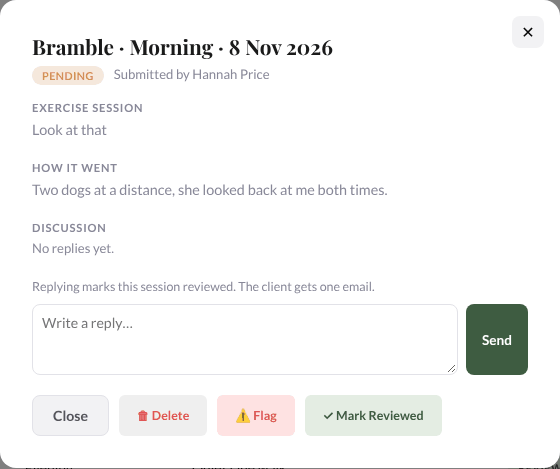
Whether the client is emailed when you mark an entry reviewed or flagged is set in Settings › Emails.
Back to top8. Health forms and assessments
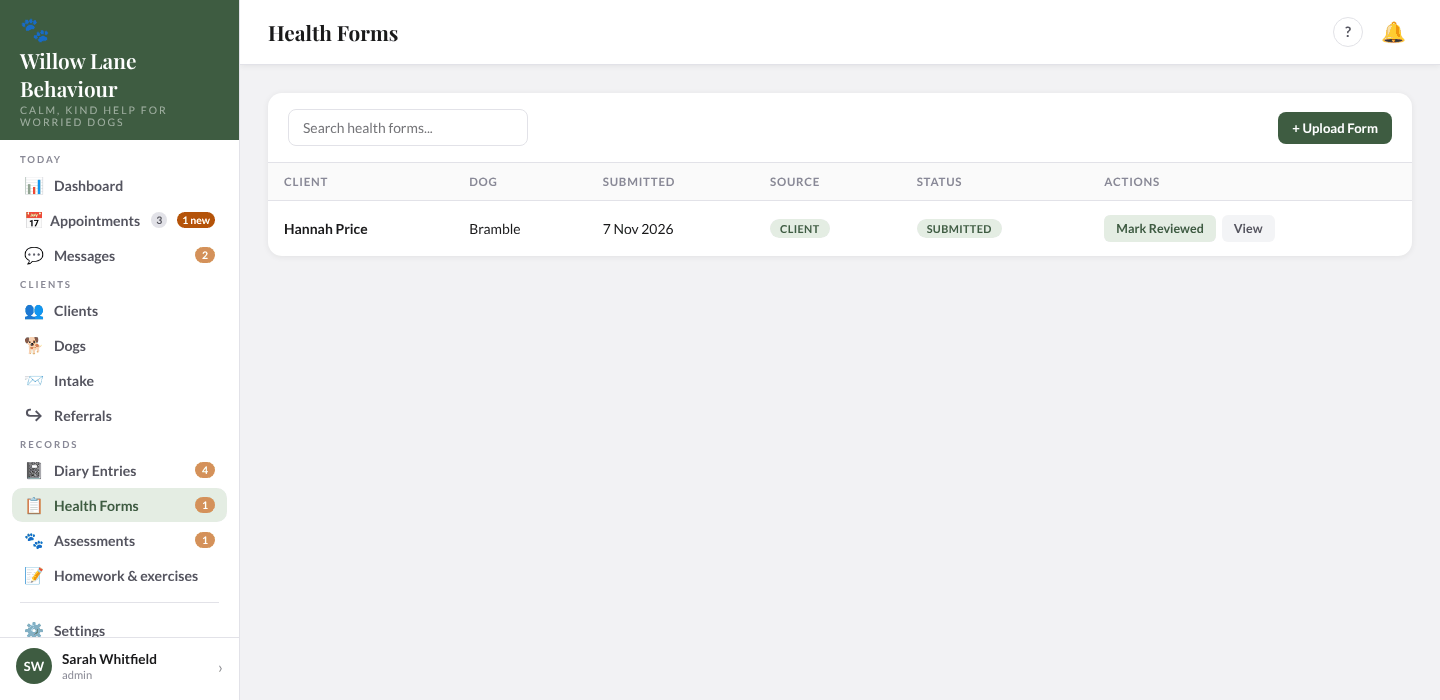
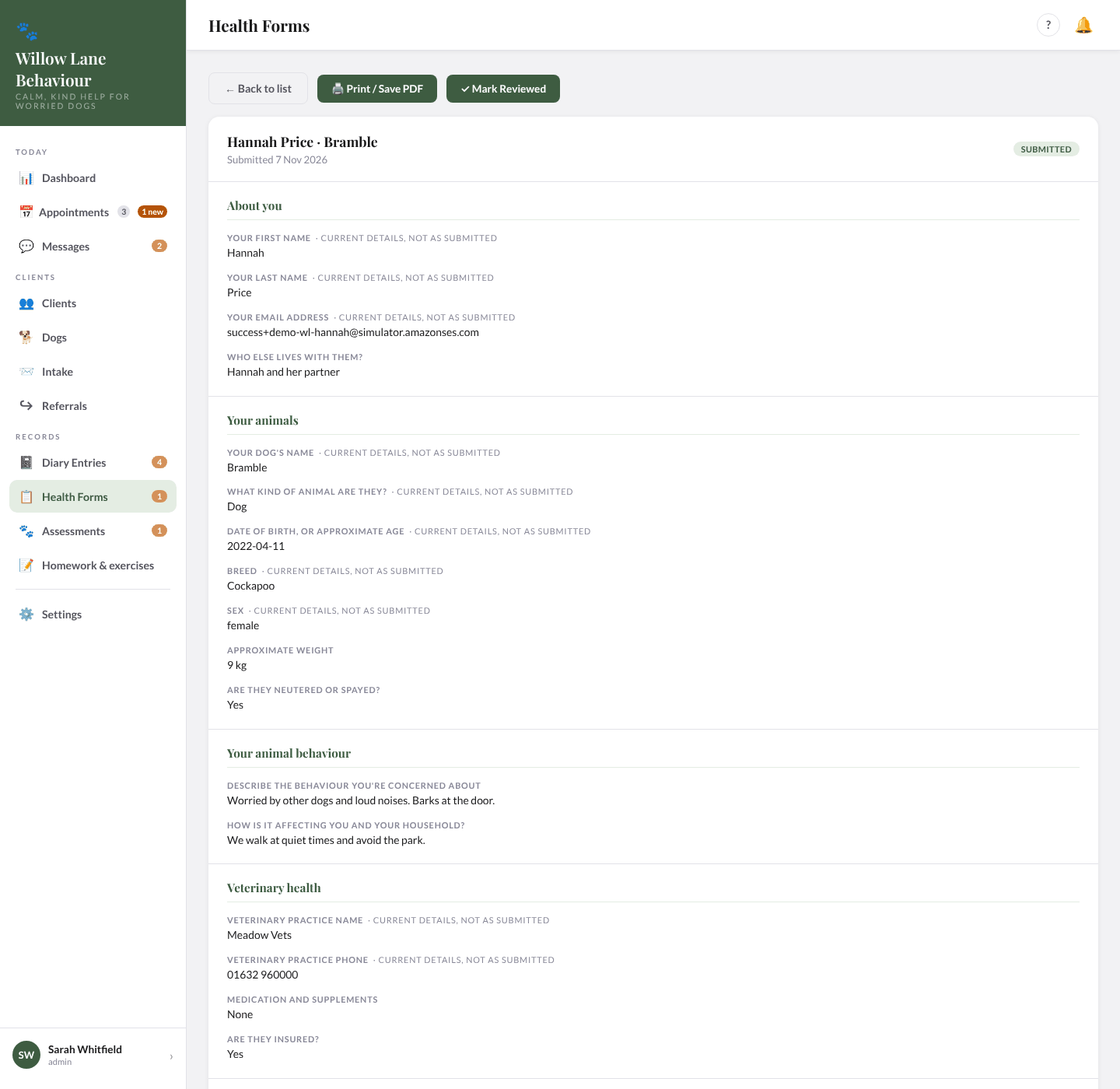
Health Forms lists the forms clients have sent (source Client) and PDFs you have uploaded (Admin upload). Clients send one from their Profile. Select View to read one (an uploaded PDF has Download PDF instead), then ✓ Mark Reviewed (the client gets an email) or 🖨️ Print / Save PDF. + Upload Form adds a PDF for a client and dog.
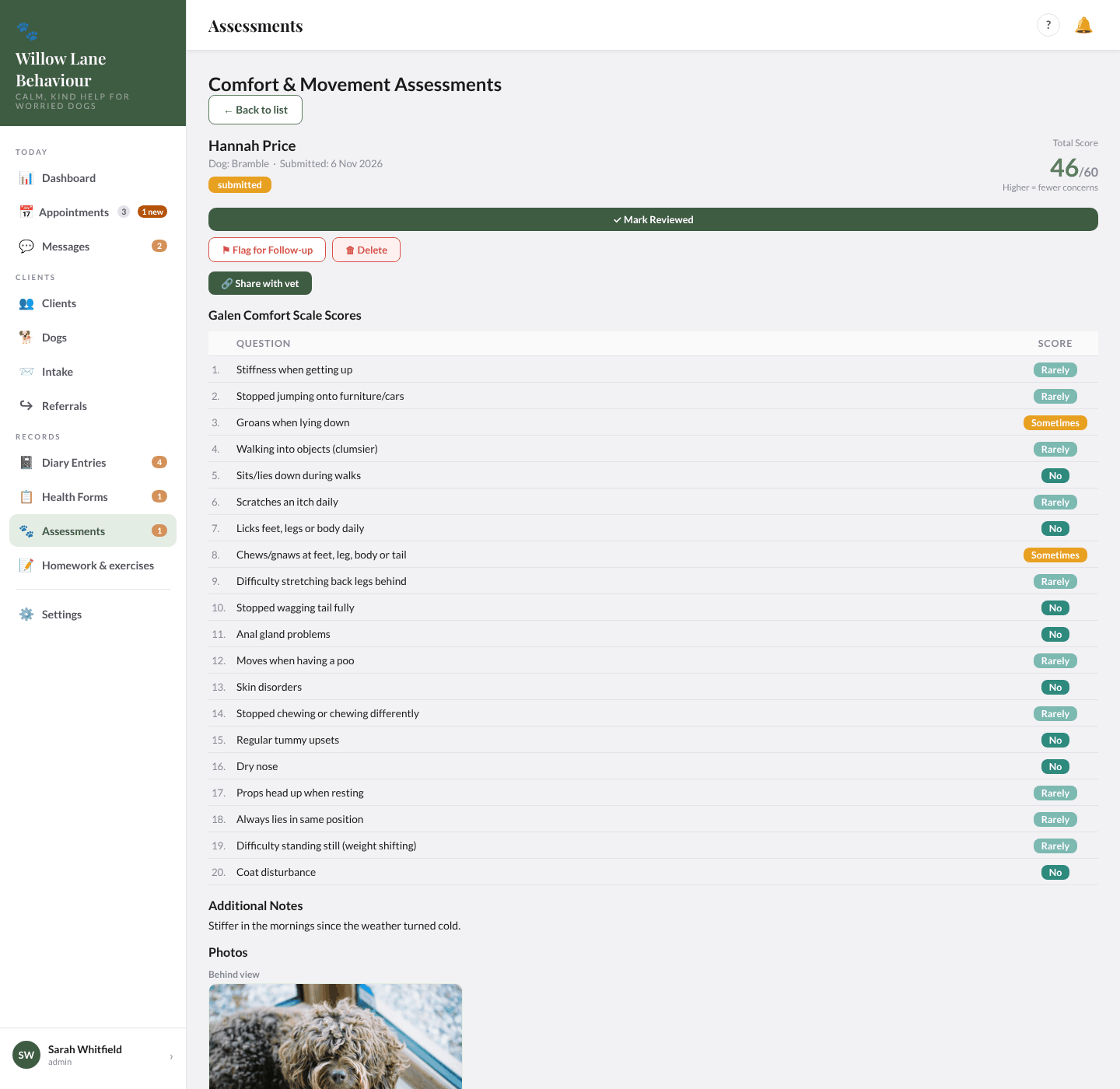
Assessments lists Comfort & Movement Assessments: 20 questions about comfort and movement, scored out of 60 (higher means fewer concerns), with photos from eight angles and three short videos. Select View, then ✓ Mark Reviewed or ⚑ Flag for Follow-up (either one sends the client "Your assessment has been reviewed"). 🔗 Share with vet makes a link to the photos and videos, and 🗑 Delete removes an assessment.
9. Appointments and the calendar
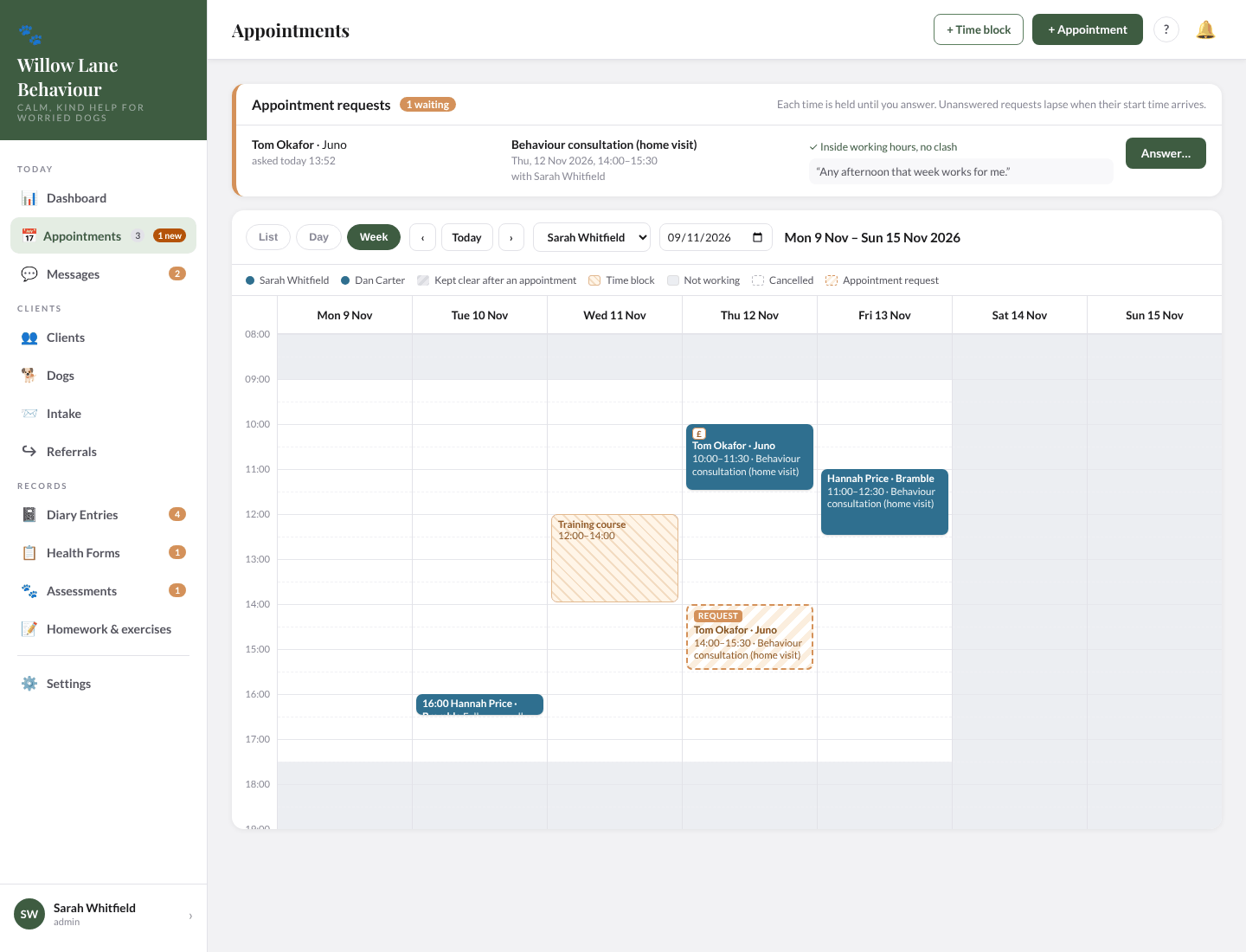
Appointments is your booking calendar. Switch between List, Day and Week, move with ‹ Today › or the date box, and choose All or one person. The legend shows each person's colour, the time kept clear after an appointment, time blocks, time not working and cancelled appointments.
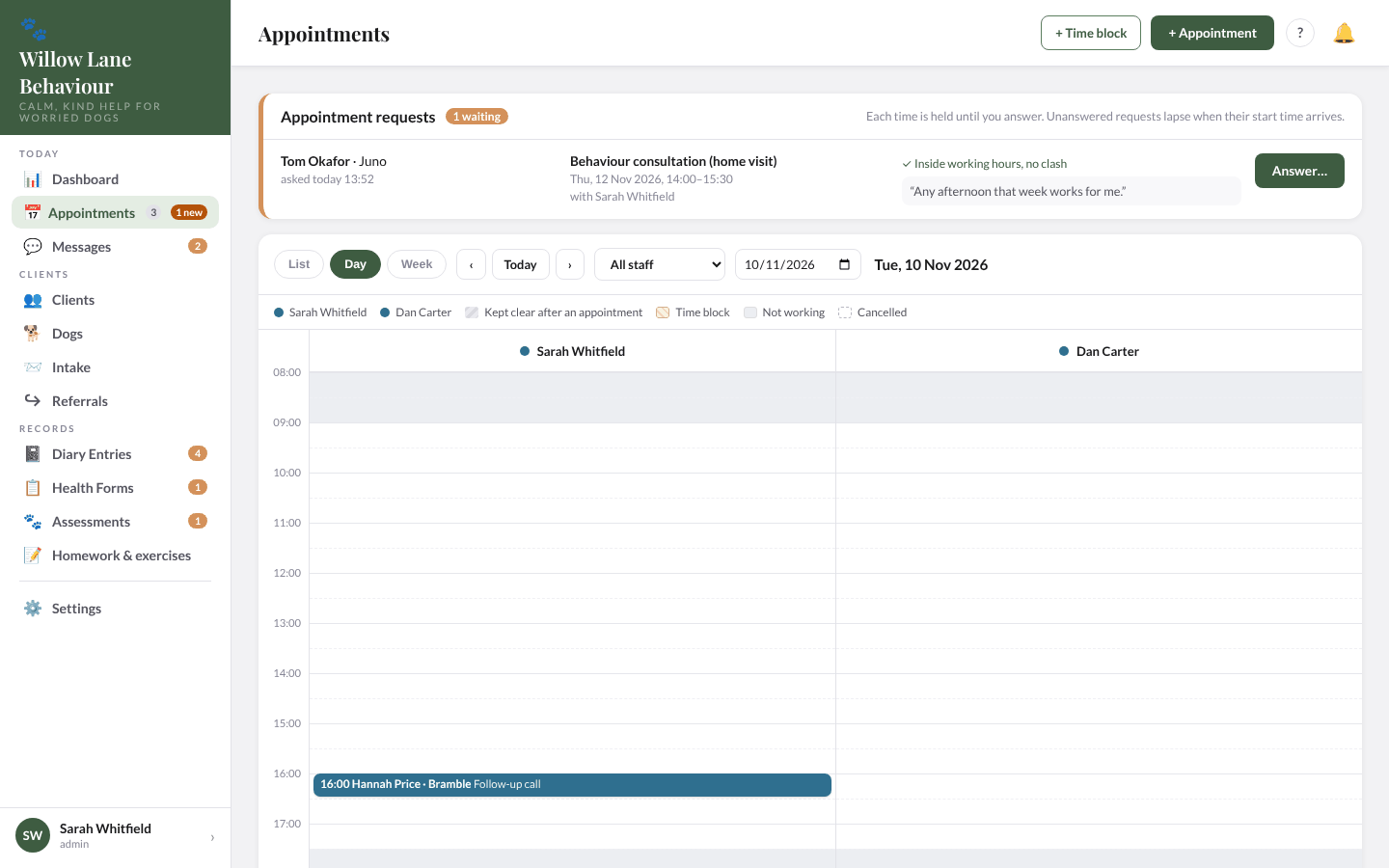
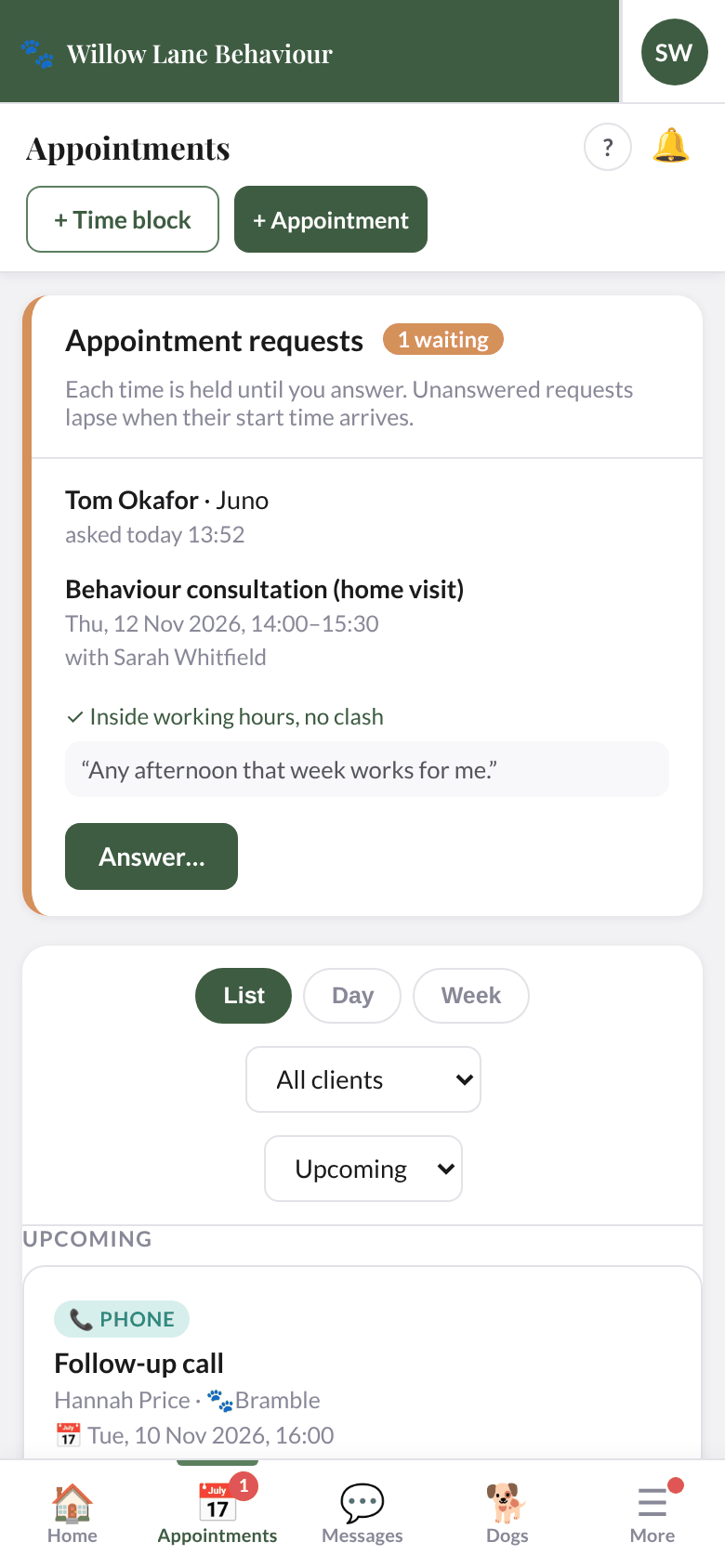
On a phone, Week becomes a day-by-day list and Day shows one person at a time.
Marks on an appointment: £ means unpaid, ✓ completed, and a striped block after it is the time kept clear.
Book an appointment
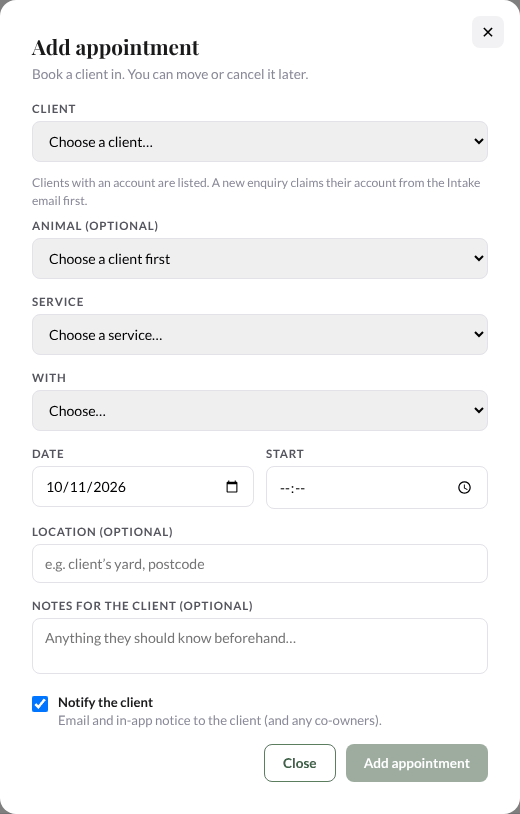
Select + Appointment (top right, in every view). Choose the client, the animal (optional), the service and who it is with (only people who offer that service are listed), then the date and start time. The form checks the time against working hours, other appointments and time blocks: ✓ No clashes, or a warning with Add anyway.
If the dog has a package running on that date, Under <package> is already ticked, so the appointment is part of the package and has no separate price. Untick it for an extra you will charge for.
Add a location and notes for the client if you like, and leave Notify the client ticked to send them an email with a calendar file (co-owners get it too) and, later, the 24-hour reminder. If you untick it, neither is sent. Select Add appointment.
Appointment details and payment
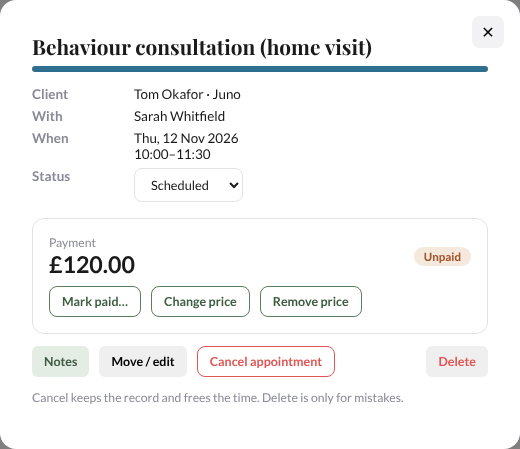
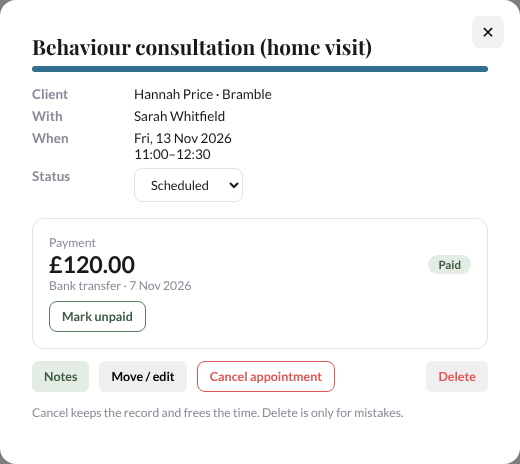
Select an appointment to open it: client and dog, who with, when, where and the status (Scheduled, Completed or No-show; set Completed after the session). The Payment box shows the price and whether it is paid: Set price (with a separate travel amount), Mark paid… (card, bank transfer, cash or other, and the date), Change price or Remove price. Card payments through the app are not switched on, so record payments here as they come in.
When you mark a payment paid (here, or for a package), the client is emailed a receipt a few minutes later: "Receipt: £<amount> paid to Willow Lane Behaviour", with what it was for, how and when it was paid and a reference (R-…). Your note on the payment is never included. Marking it unpaid in the first few minutes stops the receipt; correcting it later sends nothing. The Payment box then shows Receipt R-…: emailed to the client <date and time>. Receipts can be switched off in Settings › Emails (Payment received (receipt)).
Move, cancel or delete
At the bottom of an appointment, Client messages lists the emails for it (sent, due, skipped or failed).
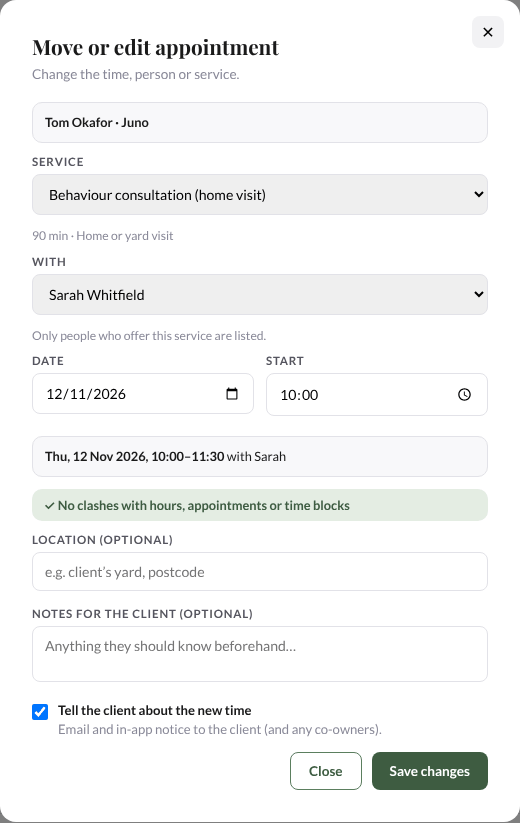
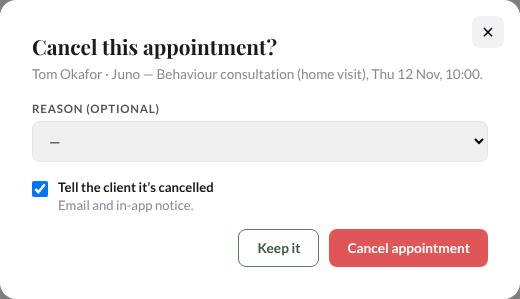
Move / edit changes the time, person or details; tick Tell the client about the new time to email them. Cancel appointment keeps the record and frees the time: choose a reason and whether to tell the client. Delete is only for mistakes. Clients can also cancel appointments booked in the calendar themselves, in the app, until they start; you get "Client cancelled" (it says if it was inside your notice period).
Time blocks
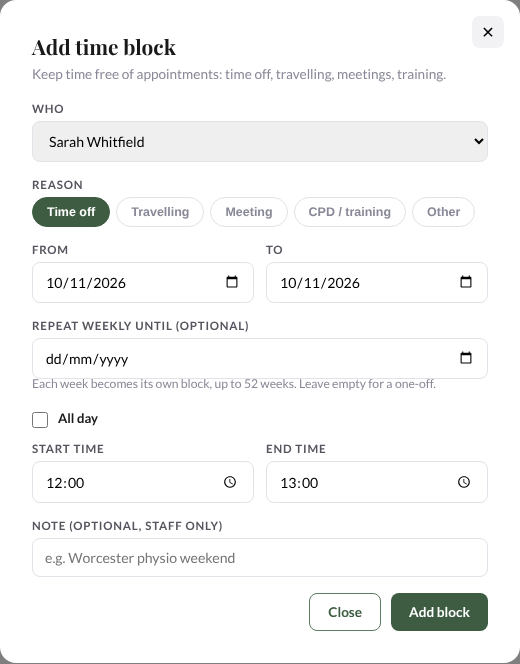
+ Time block keeps time clear: choose who (admins can block time for anyone), a reason (Time off, Travelling, Meeting, CPD / training, Other), the dates, all day or a start and end time, and a staff-only note. Repeat weekly until repeats it every week for up to a year. If the block covers an appointment you are warned before it is added.
After the session
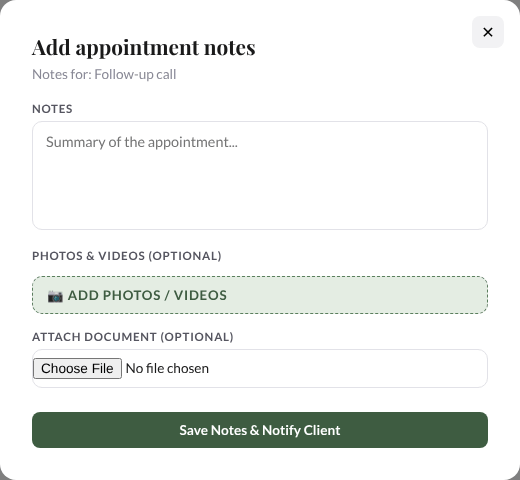
Select Notes on the appointment to write up the session. Add photos or videos and a document if you like, then Save Notes & Notify Client: the appointment is marked Completed, and the client gets "Consultation notes available: <title>" and can read them in the app.
The list view
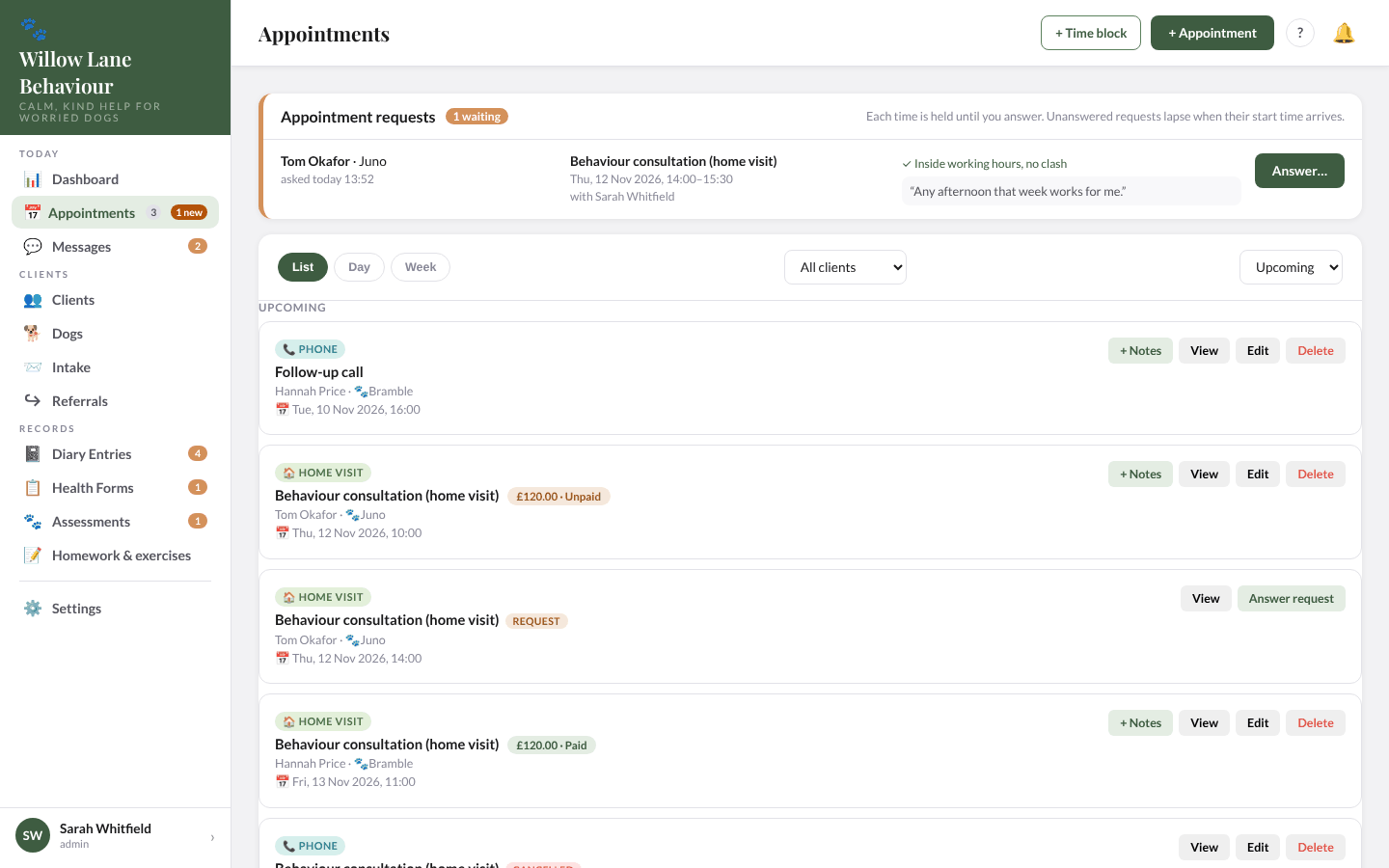
List shows Upcoming, Requests not booked (declined, withdrawn or lapsed), and Past appointments, with filters for one client and for upcoming, all or past.
10. Appointment requests
Clients can ask for an appointment in their app: they choose a service, a person (or anyone available) and one of the free times the calendar offers, and agree to your cancellation policy. Each request holds its time until you answer. "New booking request: <service>, <day> <time>" is emailed to every admin and to the person asked for (or the person the app chose, for anyone available); the dashboard shows it, and it appears in the Appointment requests box at the top of Appointments ("N waiting"). A client can withdraw a request (you are not emailed; it just goes), and can send at most five in a day.
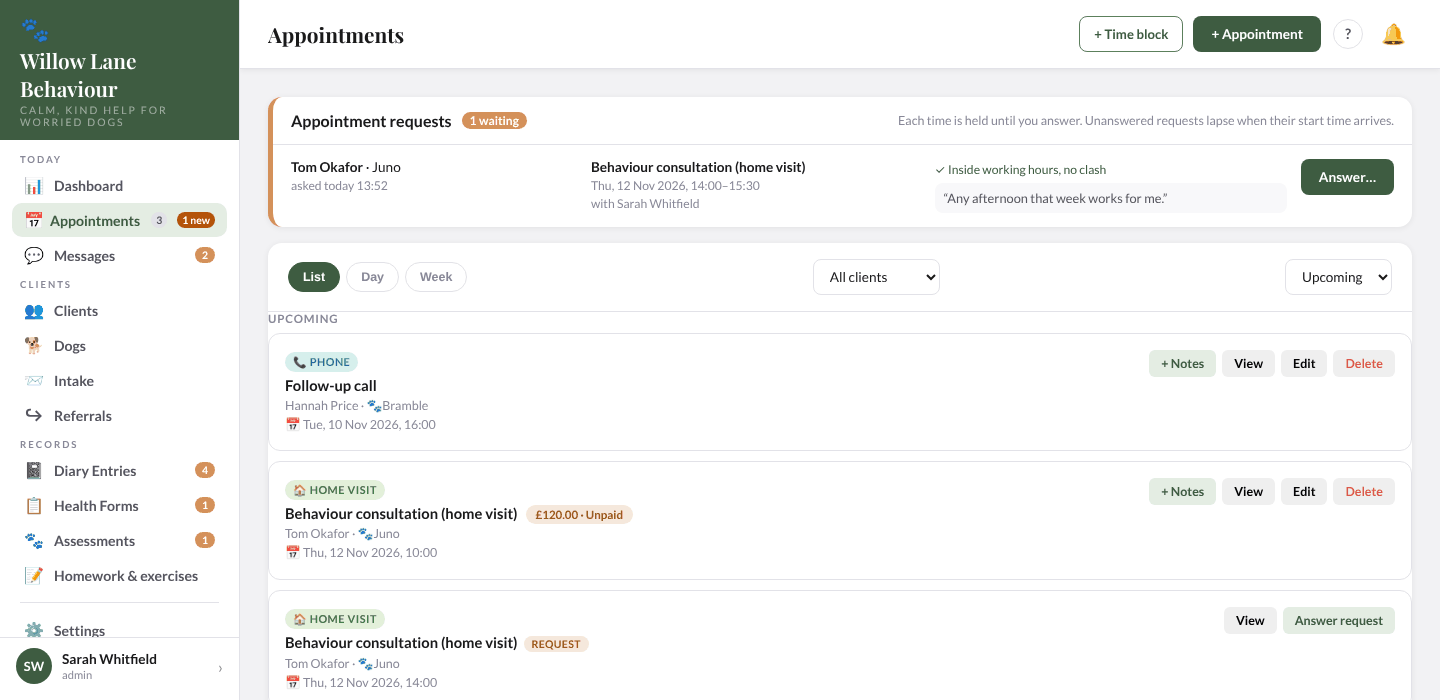
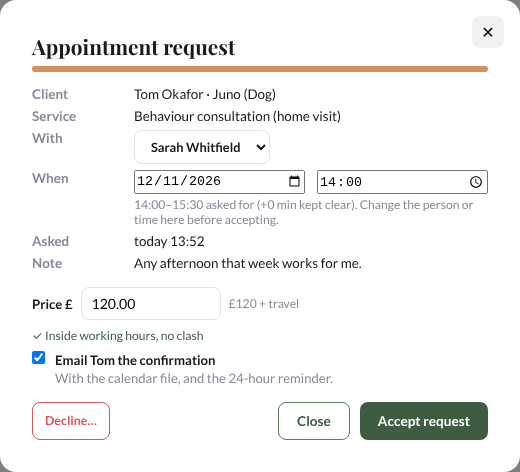
Select Answer… to see the client, service, who with, when, where and their note. You can change the person, date and time, and set the Service £ and Travel £ (the estimate the client saw is shown, and the travel worked out now). Leave Email <client> the confirmation ticked (unticking it also stops the 24-hour reminder) and select Accept request.
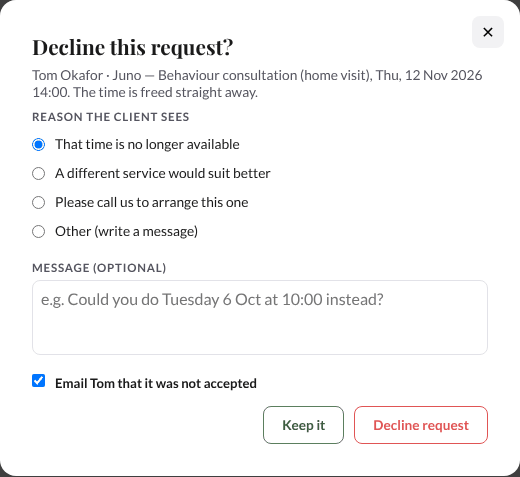
Decline… opens Decline this request?: choose a reason (the time is no longer available, a different service would suit better, please call us, or Other), add a message if you like, and leave Email <client> that it was not accepted ticked to tell them. Then Decline request (or Keep it). A request nobody answers lapses when its start time arrives and the client is told.
11. Appointment set-up
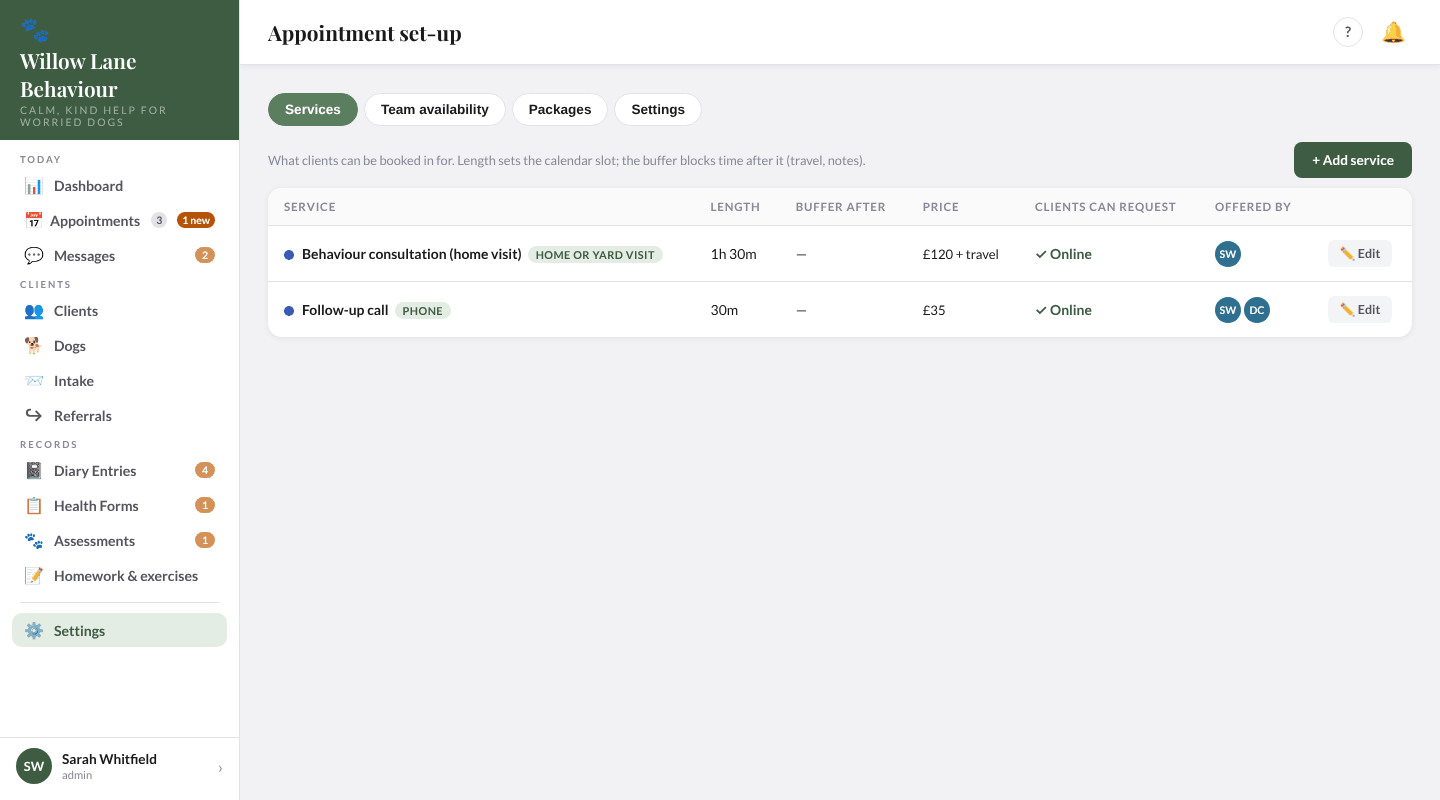
Appointment set-up (in Settings) has four tabs: Services, Team availability, Packages and Settings.
Services
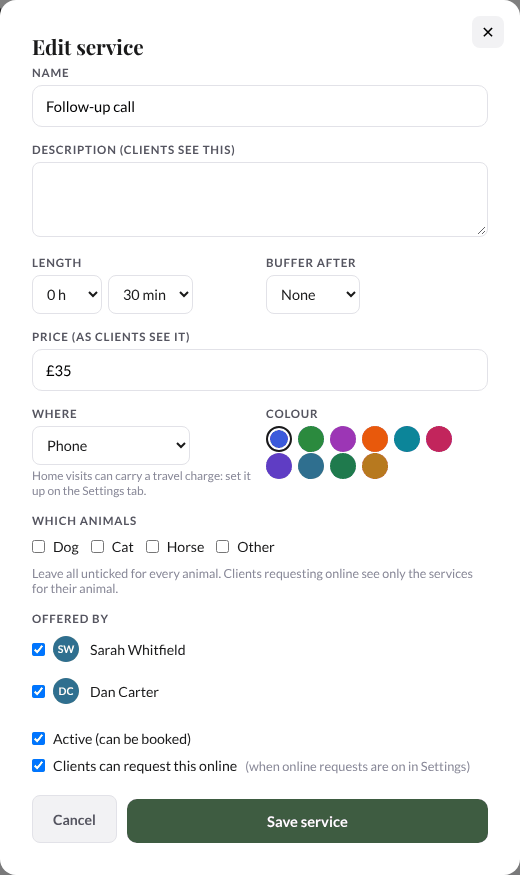
Each service has a length, a buffer kept clear after it, the price as clients see it, whether clients can request it online, and who offers it. Select ✏️ Edit (or + Add service; admins only) to set the name, a description clients see, length, buffer, price text, where it happens (home or yard visit, online, clinic or phone), a colour, which animals it is for, who offers it, whether it is active and whether clients can request it online.
Team availability
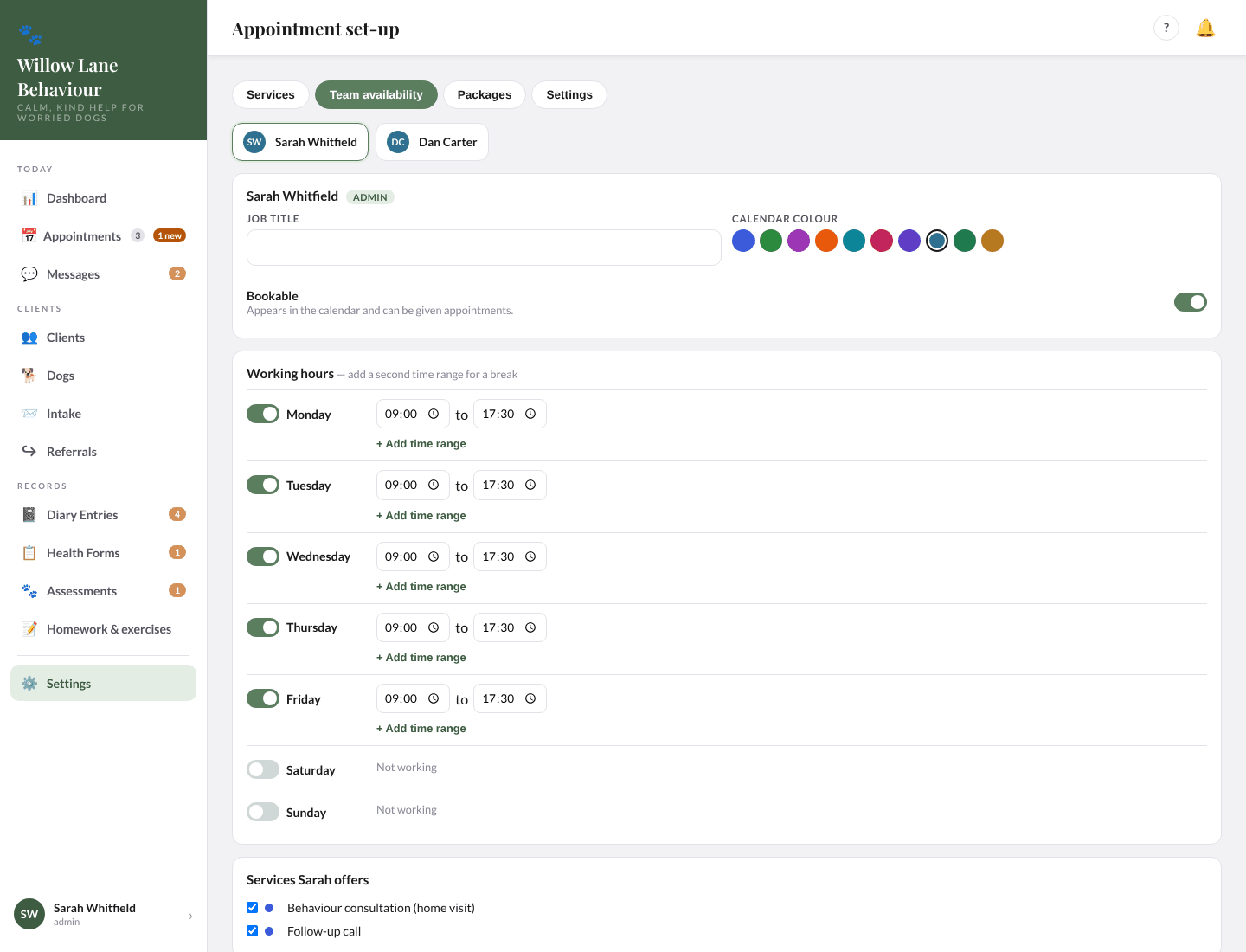
Choose a person to set their job title, calendar colour, whether they can be booked, their working hours for each day (up to six time ranges a day) and the services they offer. Staff can change their own hours; admins can change anyone's.
Packages
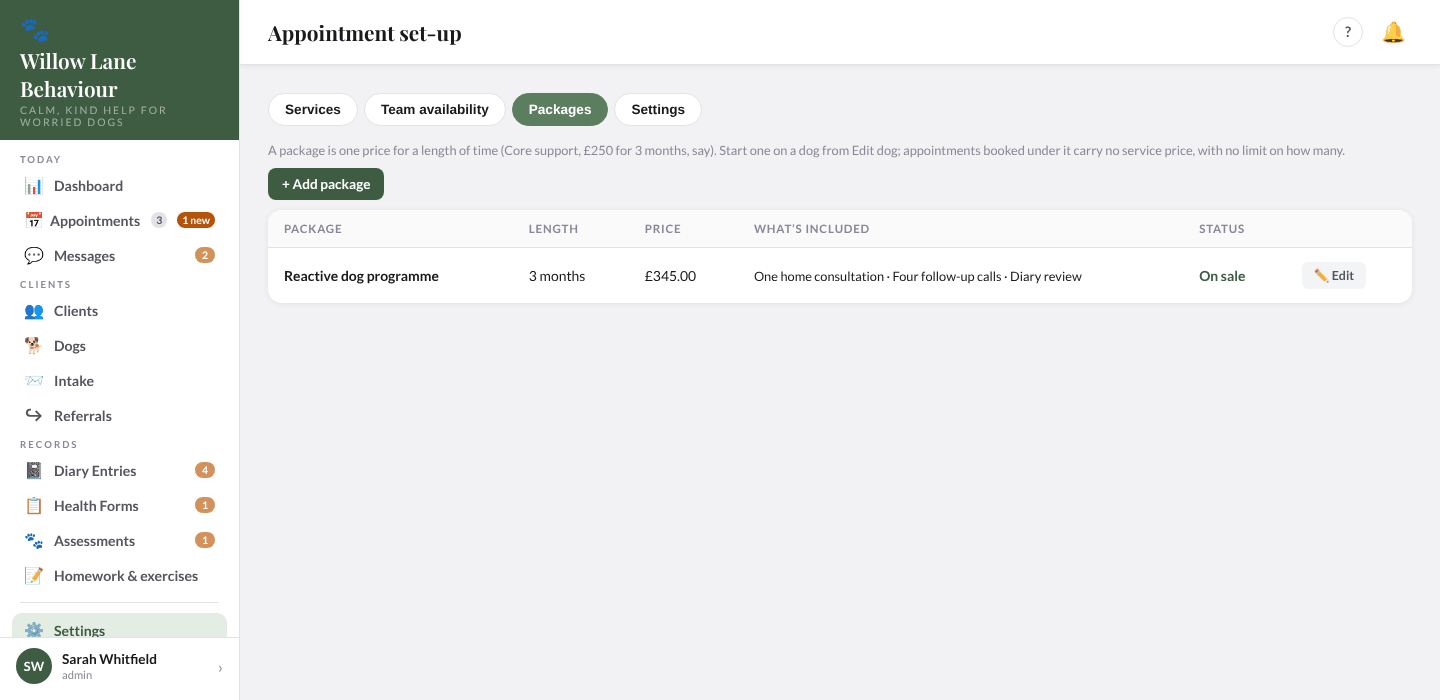
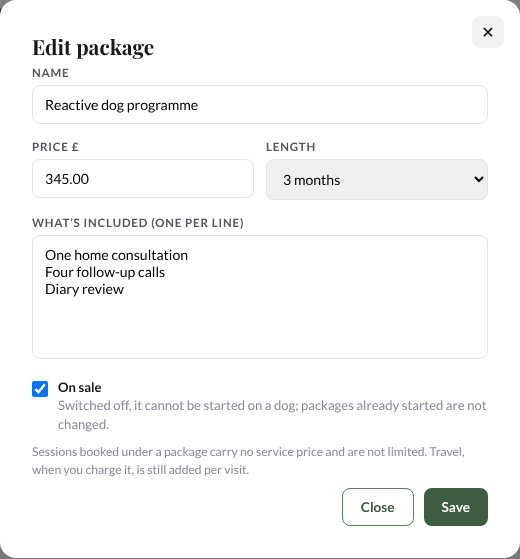
Your packages are listed with their length, price, what is included and whether they are on sale. + Add package or Edit (admins) sets the name, price, length (1, 2, 3, 4, 5, 6, 9 or 12 months) and what's included, one item per line. Switch a package off to stop selling it; packages already running carry on. Start one for a dog from Edit Dog. Two weeks before a package ends, staff and admins (not physios) get "<dog>'s <package> ends in N days".
Settings
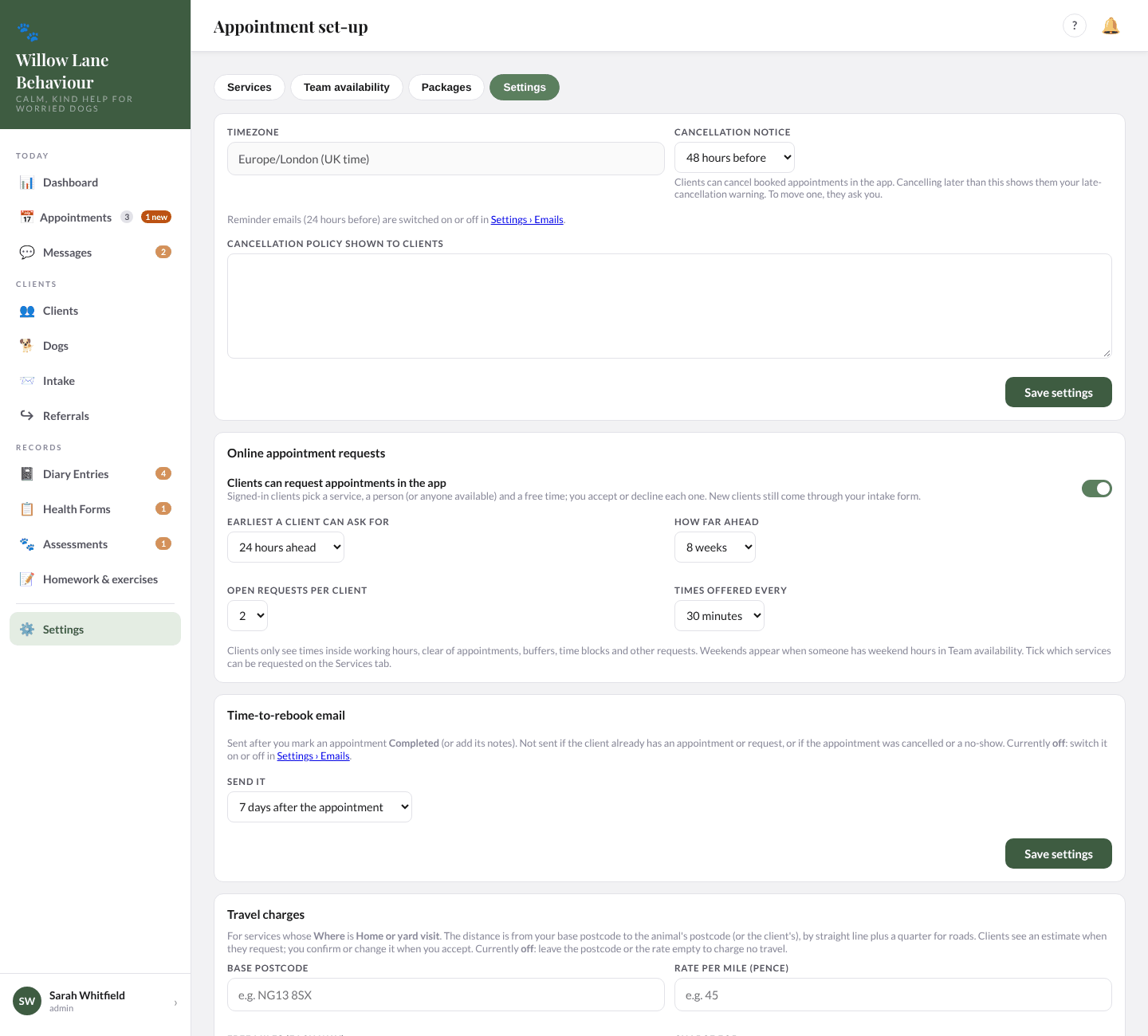
Cancellation notice (how long before an appointment a client can cancel without the late warning; yours is 48 hours) and the cancellation policy clients see. You have no policy text yet, so clients see only the notice period.
Online appointment requests (on: Clients can request appointments in the app): how much notice a client must give (yours is 24 hours), how far ahead they can ask, how many requests one client can have open, and how often times are offered (every 15, 30 or 60 minutes). Times are only offered inside working hours, clear of appointments, buffers and time blocks. Travel charges are not set up, and the Time-to-rebook email is off: switch the email on in Settings › Emails and set its timing here (3, 7, 14, 28 or 42 days after an appointment marked Completed).
12. Messages
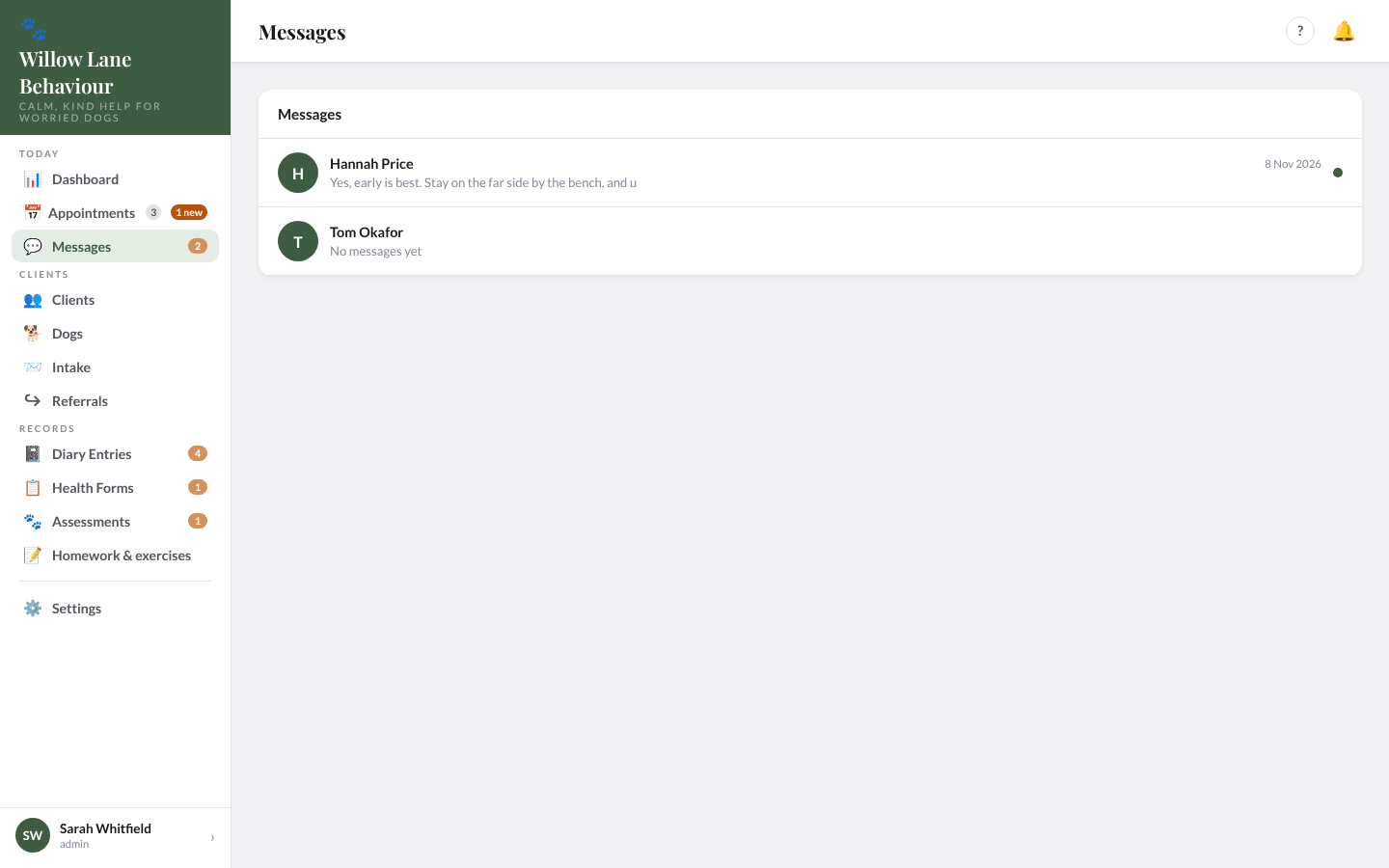
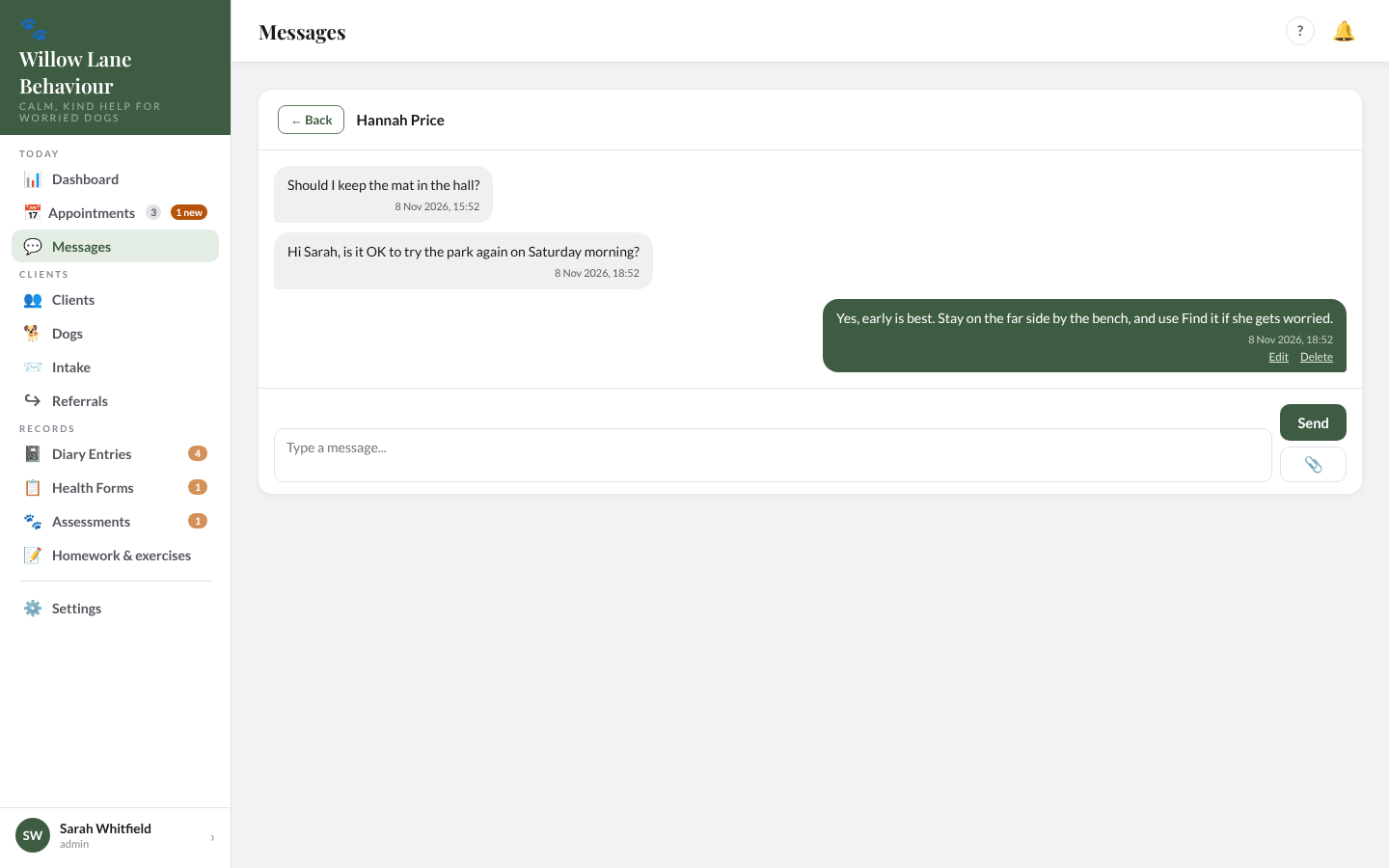
Messages lists conversations with clients, newest first; a dot marks unread. Select one to open it. Type a message and press Enter to send (Shift+Enter for a new line), or attach a file with 📎 (up to 25 MB). ✓✓ means the client has read it. The list refreshes every 30 seconds.
13. Intake
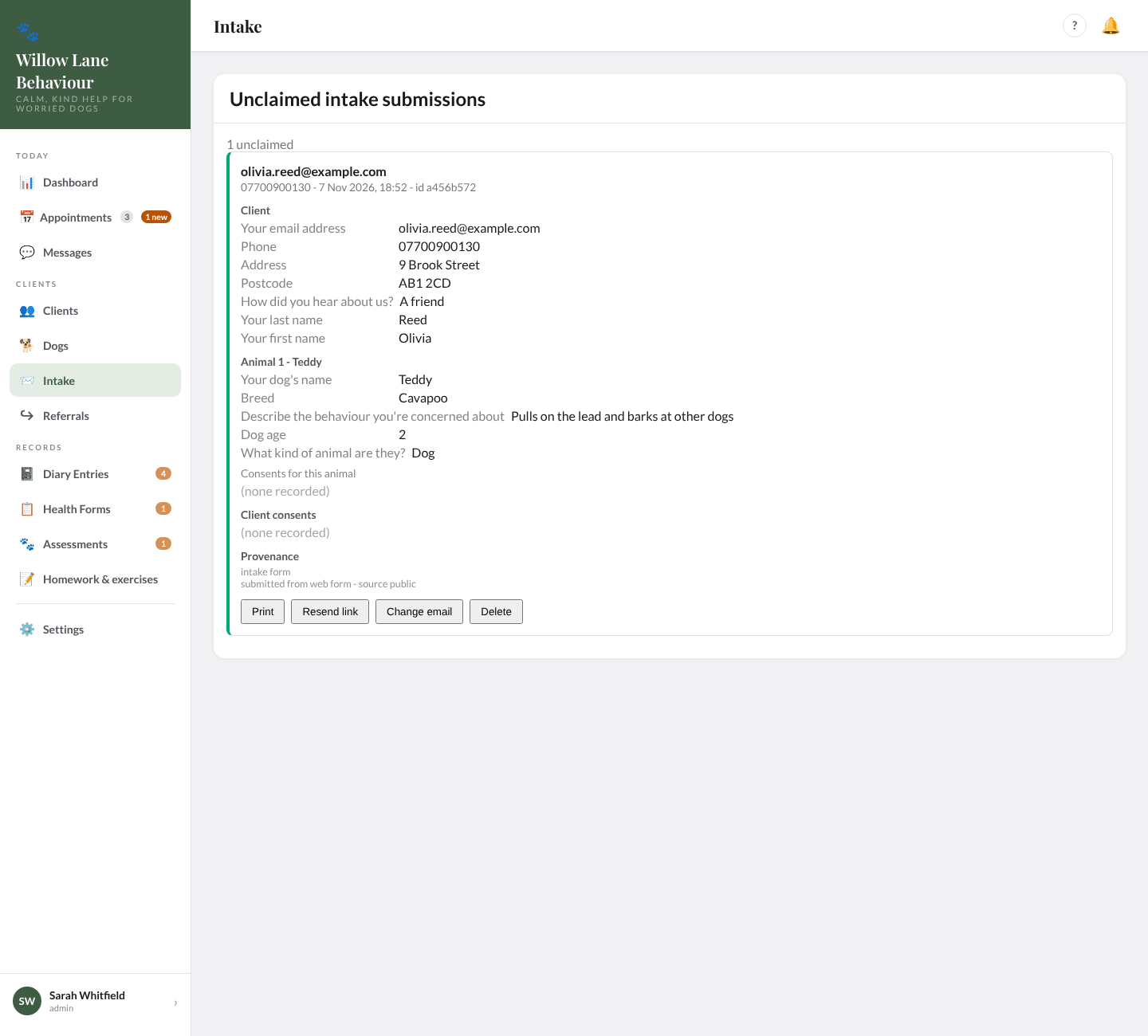
When someone fills in your intake form, they are emailed a link to set up their account (it works for 7 days) and you are told. Until they use it, the submission waits here, showing everything they sent: their details, each dog, and the consents they agreed to.
- Print prints that submission, or saves it as a PDF.
- Resend link (called Send a new link once the old one has run out) emails a fresh link that works for 7 days. Any earlier link stops working.
- Change email (admins) corrects a mistyped address and sends a new link to it. It can be changed up to five times, and not to an address that already has an account.
- Delete removes a submission you don't want.
An existing client who joins the app through your join form (the short version of the intake form, at your form's address with ?join=1) is marked Existing client (join form). If the email already has an account in Clients, a note says so: setting a password from this submission will be refused, so send them a set-up link from their client record instead (📧 Welcome) and copy across anything new.
Once the client sets their password, the submission becomes their account, with their dogs, answers and consents, and leaves this list. With nothing waiting, the page offers Open the intake form.
14. Referrals and shared care
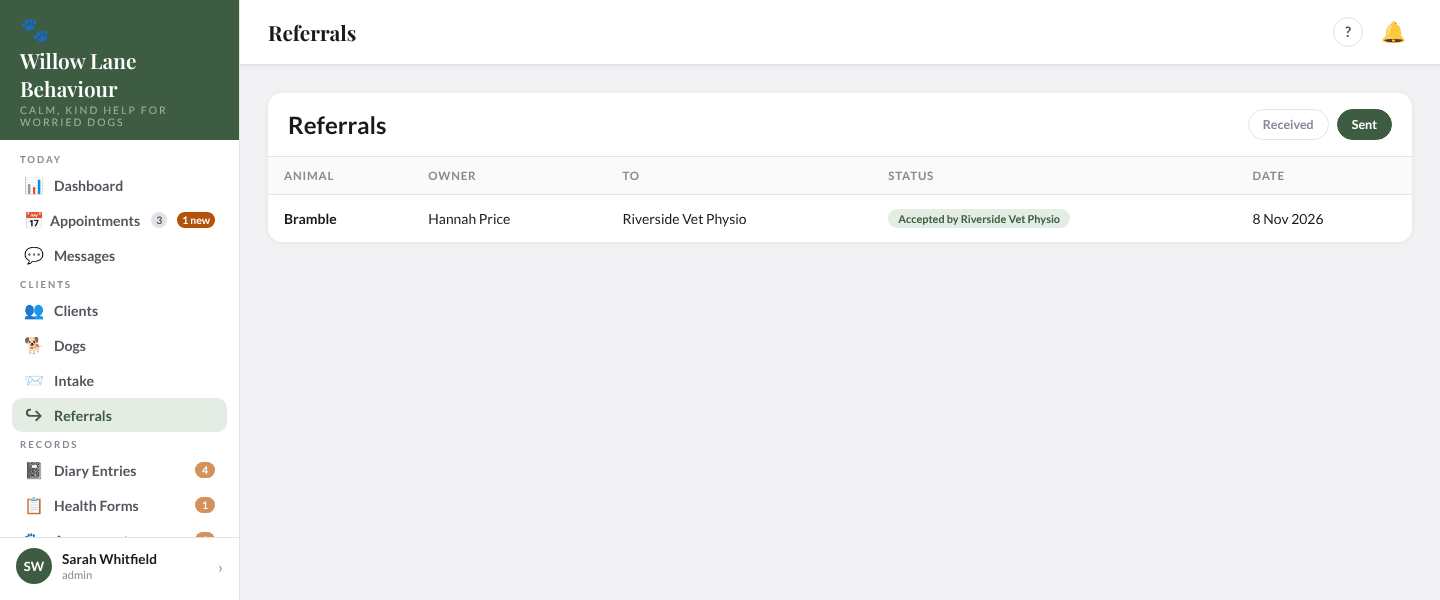
Willow Lane Behaviour and Riverside Vet Physio are linked, so you can refer a dog to them with the client's agreement, and they can refer one to you. Everything goes directly between the two practices' apps. Referrals in the menu shows both directions, with a number for referrals waiting for your answer.
Refer a dog
On the dog's page, open ⋯ More and select ↪ Refer to a linked practice (or use ↪ Refer to another practice in Edit Dog). In Refer to another practice:
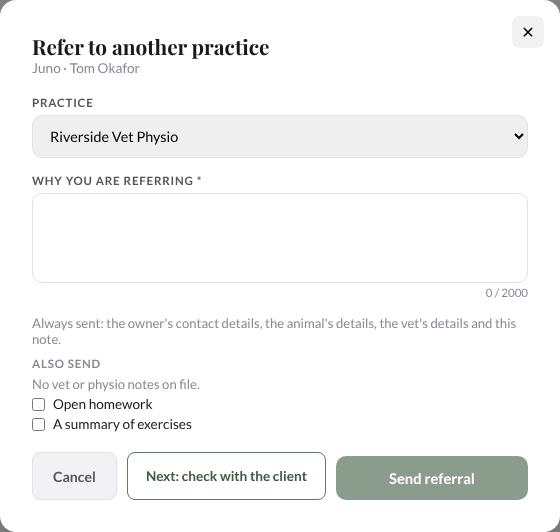
- Choose the practice and write Why you are referring (up to 2,000 characters). The owner's contact details, the animal's details, the vet's details and your note are always sent.
- Under Also send, tick any vet or physio notes to go with it (up to 20, 10 MB in total), Open homework and A summary of exercises.
- Select Next: check with the client. The form shows exactly what to tell the client: what Riverside Vet Physio will receive, that Riverside Vet Physio can then set exercises and homework that appear in the client's Willow Lane Behaviour app, and that the client's exercise session logs and the messages about them go back to Riverside Vet Physio; that they can say no; that either practice can stop the sharing at any time; and that Riverside Vet Physio keeps its own copy under its own privacy notice.
- Tell the client, in person, and if they agree tick I have spoken to <owner> and they agree to this referral. Then Send referral. Changing the practice or what goes with it after the check means checking with the client again.
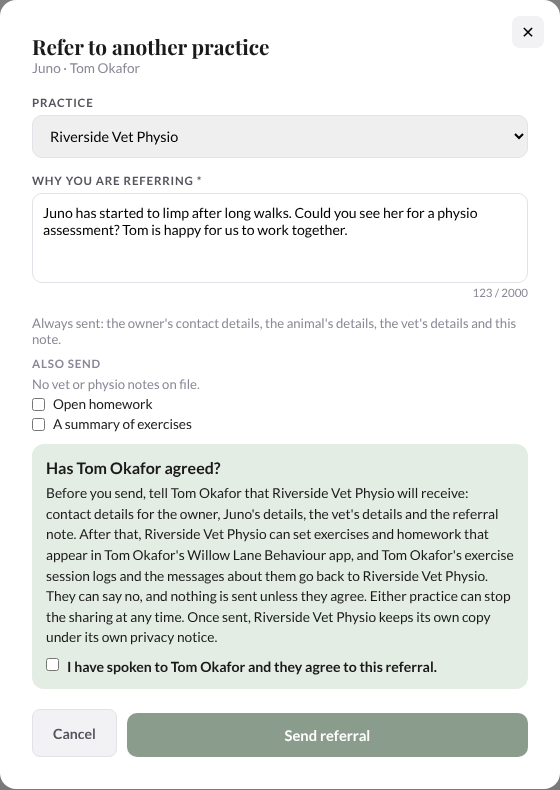
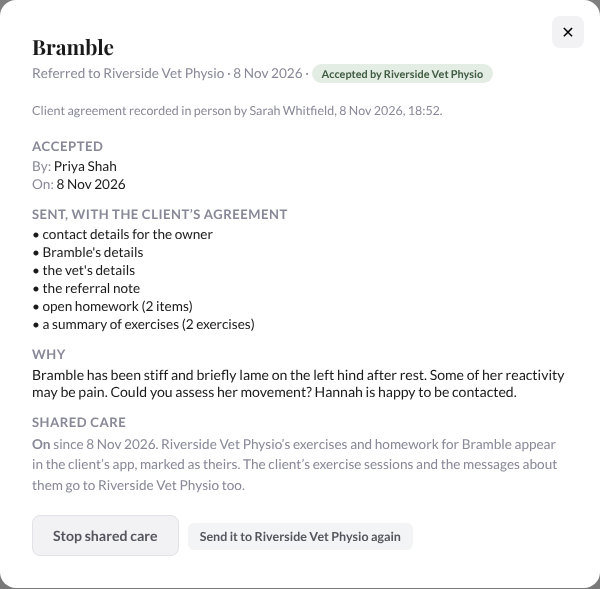
The referral then shows Waiting for Riverside Vet Physio. If it can't be delivered it is retried for about four hours, then shows Not delivered (straight away if Riverside Vet Physio's app refuses it), and you can refer again. Only one referral per dog can wait at each practice at a time. The referral's page records "Client agreement recorded in person by <name>, <date and time>", what was sent and why, and the other practice's answer; whoever sent it gets a notification when they accept or decline. A referral they don't answer within 30 days is declined automatically ("Not answered in time").
Answer a referral
A new referral sends every staff member and admin a notification, "New referral from Riverside Vet Physio". Open it under Referrals › Received (Waiting for you) to see the owner, the dog, the vet, any open homework and exercises, the documents and why it was sent.
- Accept referral adds the dog to your list (always as a new dog record), files the documents under its vet and physio notes, and tells Riverside Vet Physio. If the owner's email matches one of your clients the dog is added to their record (if that email belongs to an archived client, restore them from the Archive first; if it belongs to someone who is not a client, sort that out in Clients first); if only the phone matches you choose between their record and a new client. A new client gets an account, and you can tick Email <owner> a link to set their password now, or leave it unticked if they will keep using Riverside Vet Physio's app.
- Decline referral needs a reason, which Riverside Vet Physio sees. It asks first: the details and documents that came with it are then deleted, keeping only the names, who declined, when and why.
Shared care
Once a referral is accepted, shared care lets the practice that accepted it look after the dog in its own app while the client keeps using the app of the practice that referred them:
- The exercises (with their video links) and homework (with handouts up to 10 MB each; larger handouts are not sent) that the accepting practice sets appear in the client's app, marked From <that practice>. When it adds or rewords something, the client is told by the referring practice's app ("<that practice> has updated <dog>'s plan").
- The client's exercise session logs on those exercises (without their photos), and the replies about them, go to the accepting practice, whose staff are told of each new session; its replies and reviews come back to the client, who is emailed about them by the referring practice's app.
- Either practice can tick a shared homework item done.
- For that dog the accepting practice's own app does not send the client plan updates, replies or review notices. Anything else it does for that client, such as booking an appointment, adding session notes or media, sending a message or a welcome email, does reach them from the accepting practice.
For a referral sent with the client's agreement (as above), shared care starts by itself when the referral is accepted (unless the dog is already shared with that practice under another referral). Each referral page has a Shared care part showing whether it is on, and since when; the dog's Referrals line in Edit Dog shows a shared care pill.
At Willow Lane Behaviour (the referring practice) the shared items show a from Riverside Vet Physio chip in Edit Dog and Homework & exercises. Only Riverside Vet Physio can change or remove them: their Edit, Remove, 📎 and 🗑 are gone, but you can still tick their homework done. Replies written at Riverside Vet Physio can't be edited or deleted here.
Stop shared care (either practice; it asks first) hides the accepting practice's exercises and open homework from the client's app (done items stay), keeps them as a record, and stops anything more going either way; the other practice is told. Each practice lifts only its own stop: the referring practice with Start again: check with the client (and the client's agreement), the accepting practice with Resume shared care. If the accepting practice stopped it, the referring practice sees "Only <practice> can lift their stop". Send it to <practice> again (referring side) re-sends the start if the other practice does not show it as on.
A referral made before shared care existed has a one-off step at the referring practice: Start shared care: check with the client shows what to tell the client, then tick I have spoken to <owner> and they agree to this sharing. and Start shared care.
Referral and shared-care notices to staff (new referral, accepted, declined, shared care started, stopped or resumed) appear under the 🔔 bell only; they are not emailed.
Back to top15. Settings
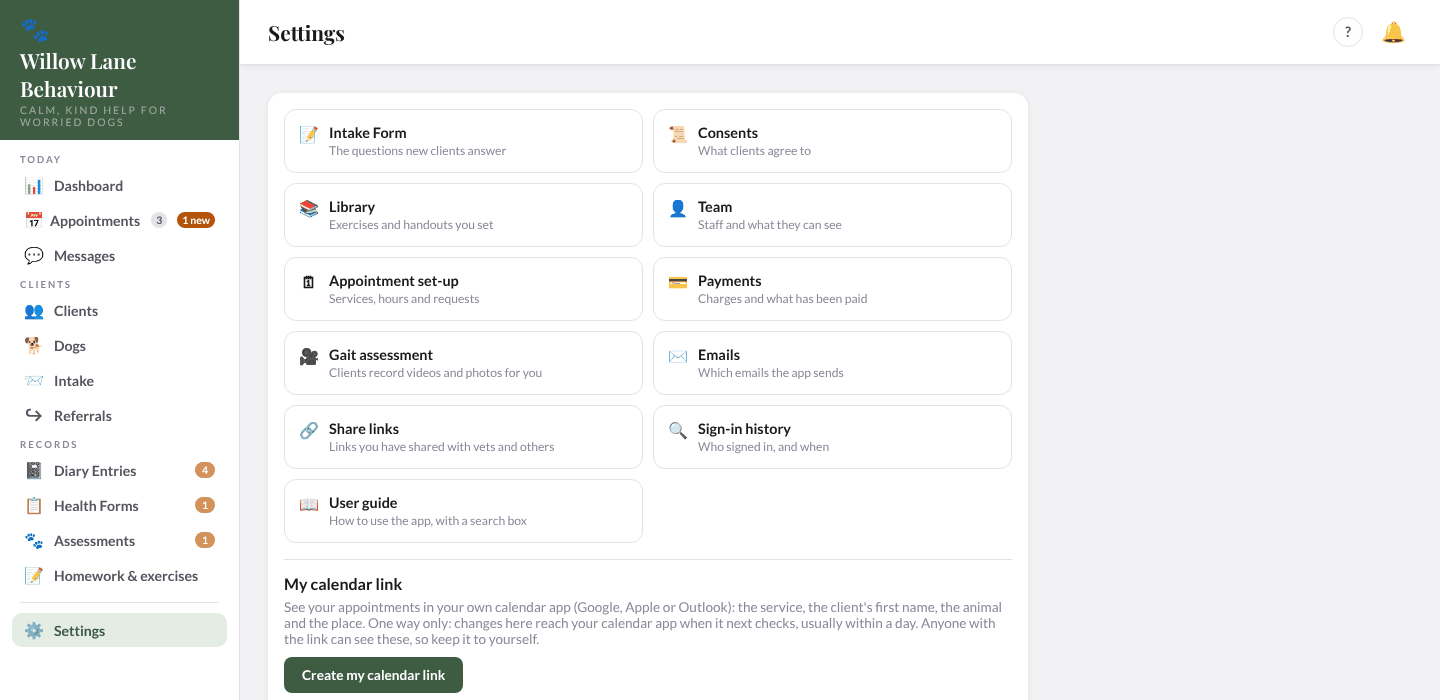
Select Settings in the menu (or your name at the bottom of it) to open a page of cards: Intake Form, Consents, Library, Team, Appointment set-up, Payments, Gait assessment, Emails, Share links and Sign-in history (some are for admins only), then My calendar link and Sign out.
Intake form
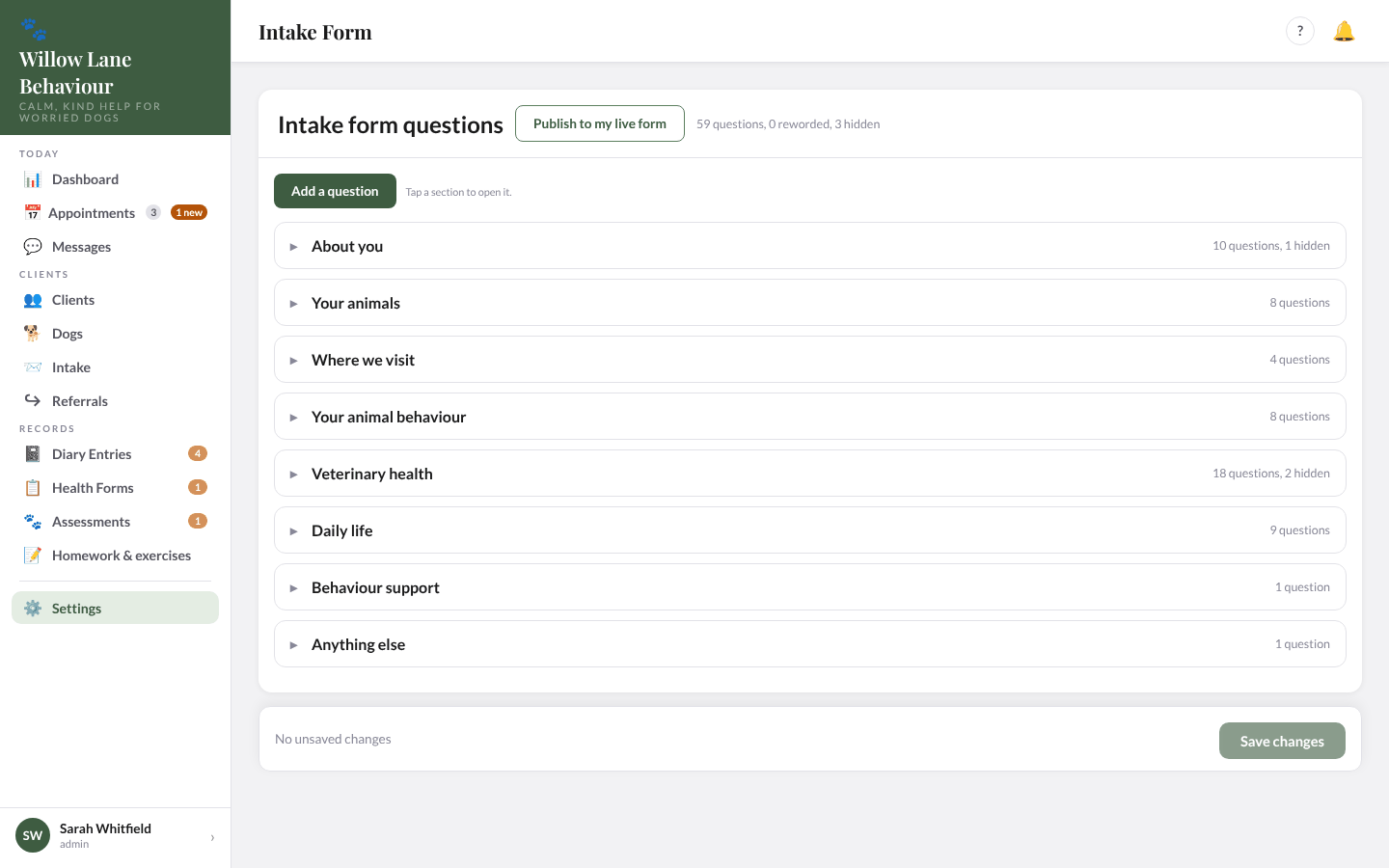
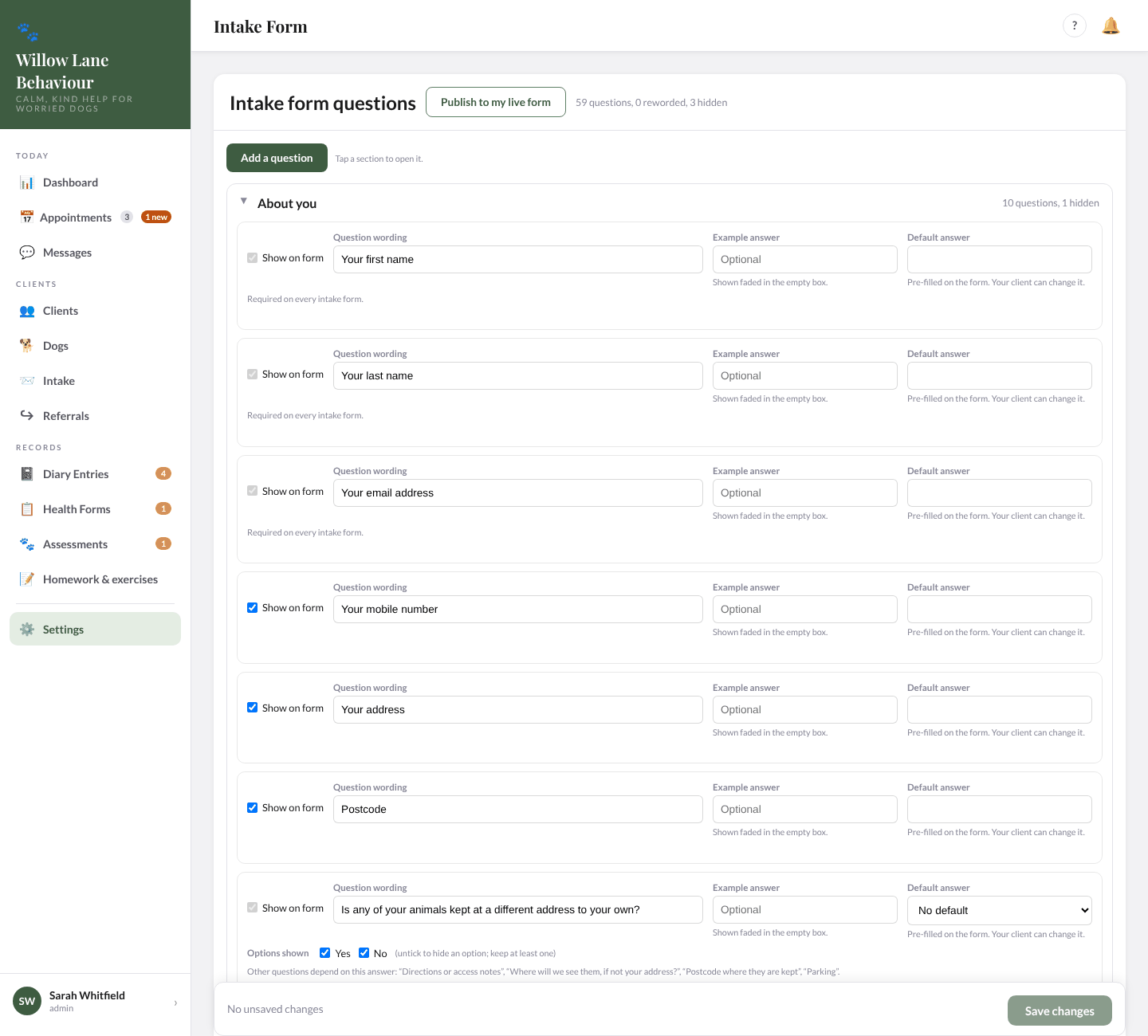
Choose the questions on your intake form. The page is in folding sections (closed when you open it), each showing how many questions it has and how many are hidden. In an open section, each question lets you:
- tick Show on form (some questions are always asked, or other questions depend on them, and can't be hidden);
- change the Question wording (the standard wording is shown under it once you have changed it, with Reset to standard);
- add an Example answer (shown faded in the empty box) or a Default answer (filled in for the client, who can change it);
- choose which species an animal question is for under Ask for (none ticked means every species), and for your own questions, which Section they go in.
Add a question adds your own. Your changes are not saved as you go: the bar at the bottom counts them ("N unsaved changes") with Discard and Save changes. Moving to another page asks before throwing them away; after a reload or a sign-out in the same browser tab, unsaved changes come back. Saved changes reach clients only when you select Publish to my live form, which asks you to confirm.
Consents
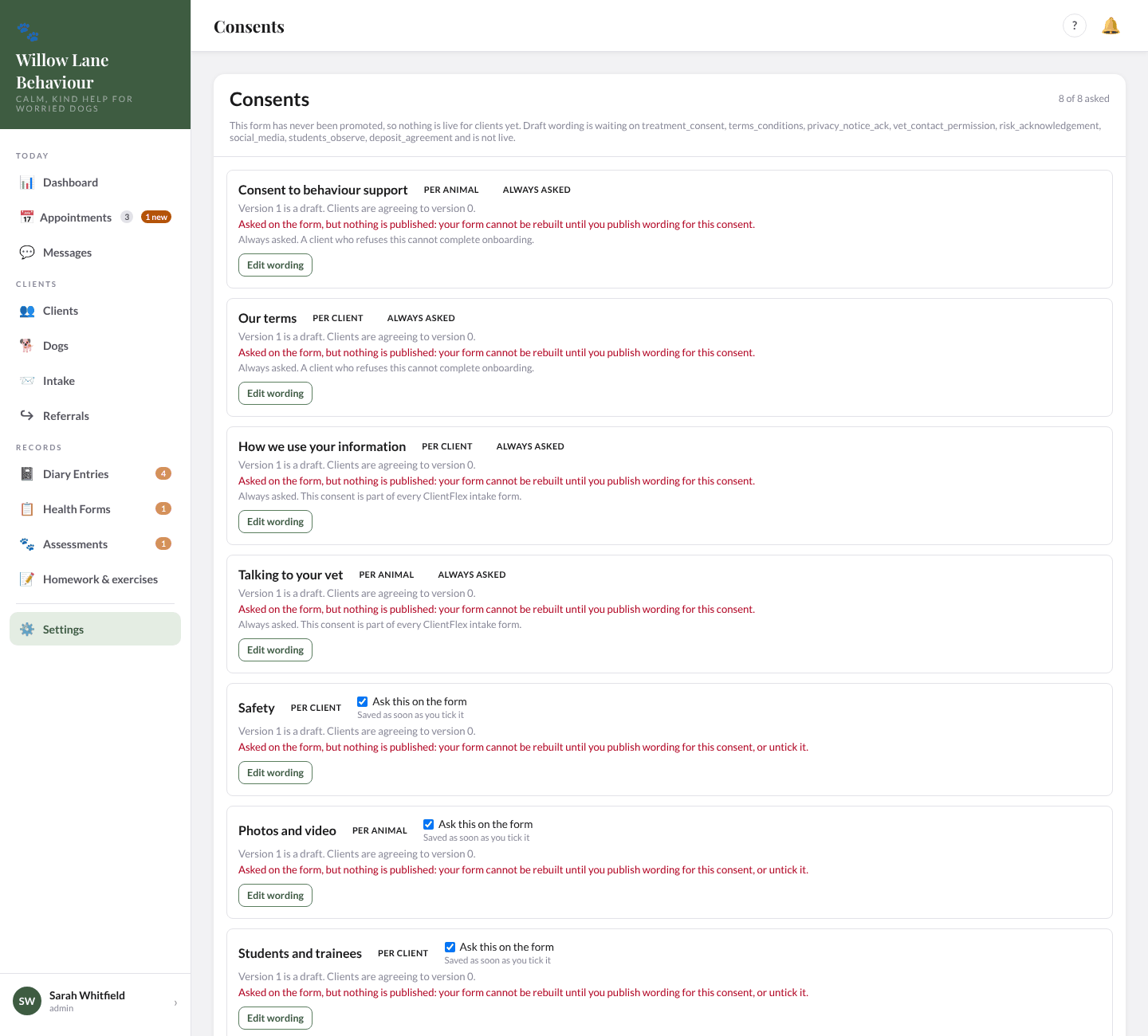
The consents clients agree to on the intake form, each Per client or Per animal. Some are always asked; tick Ask this on the form to ask the others (saved at once). Edit wording (or Write wording if there is none yet) opens the title, heading and wording; Save wording, then Publish version N. A published version can't be changed or unpublished: each change is a new version, and clients' answers keep the version they agreed to. New wording, and newly asked consents, reach clients only after you select Publish to my live form on the Intake form page.
Library
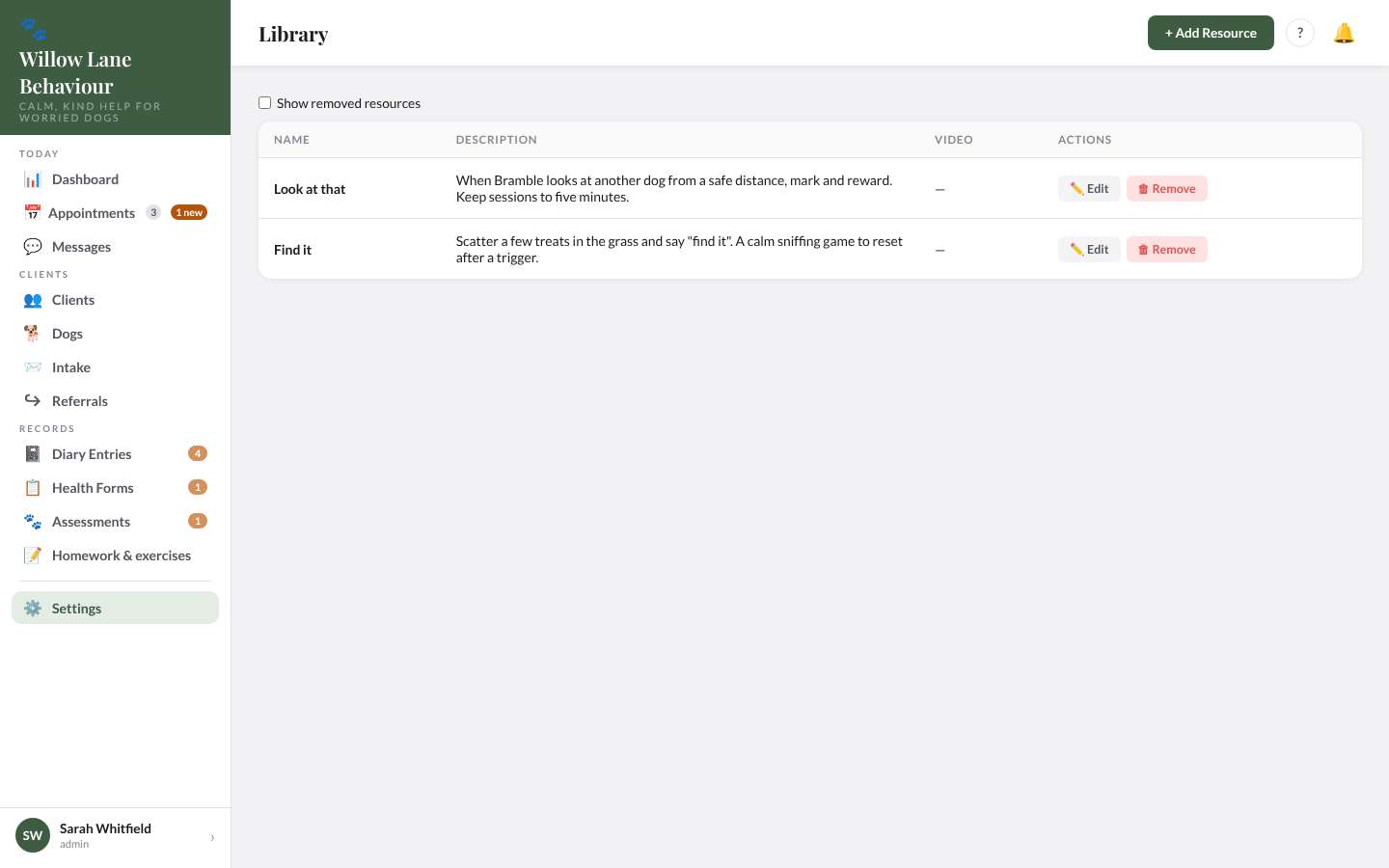
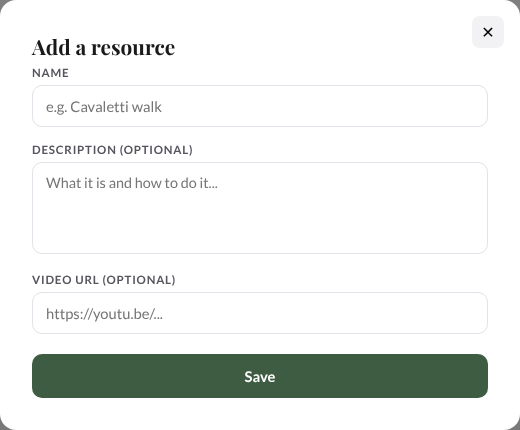
Your exercise library: name, description and an optional video link. + Add Resource adds one; Edit, or 🗑 Remove (prescriptions already given keep working, and Show removed resources lets you ↩ Restore it). Exercises set by Riverside Vet Physio for a shared dog are not listed here.
Team
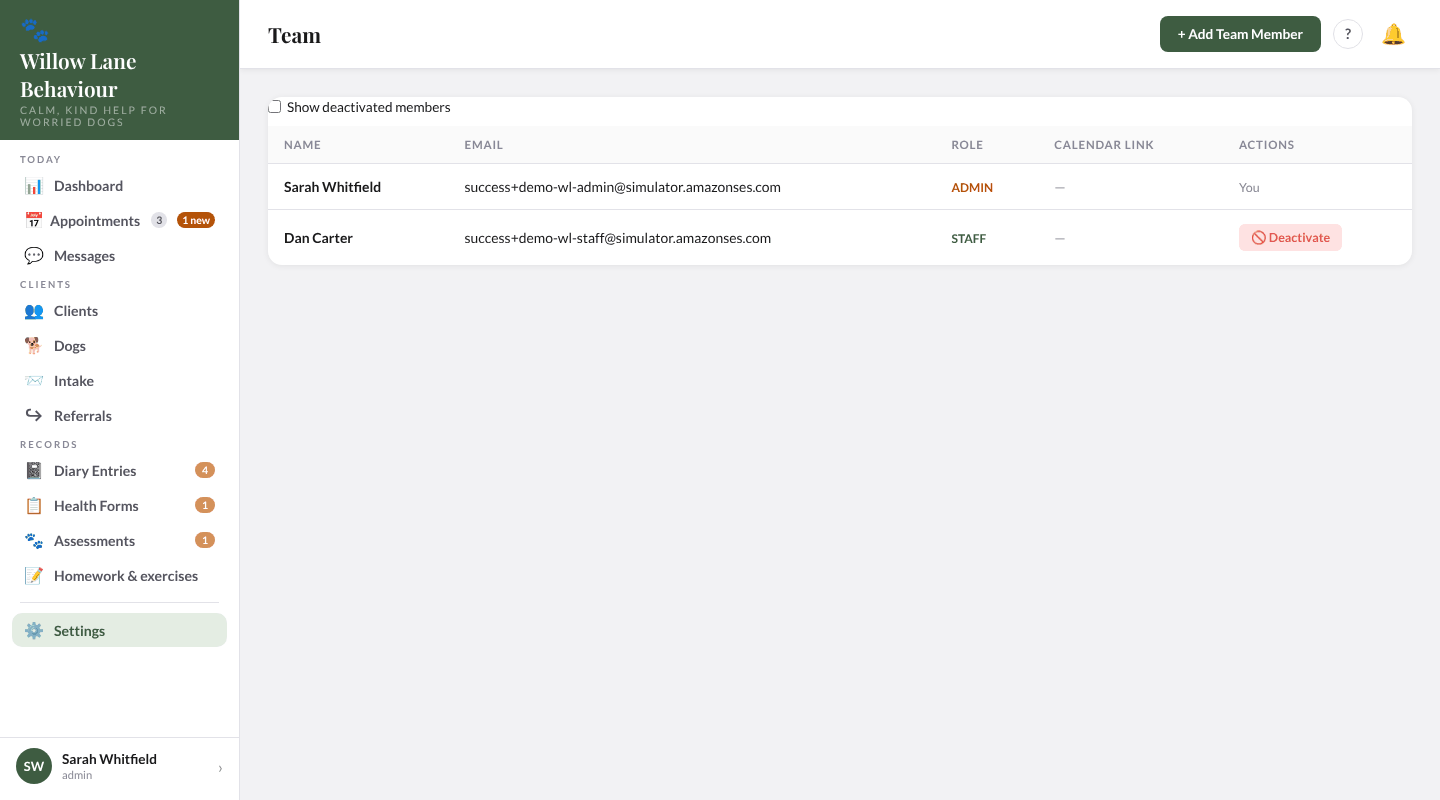
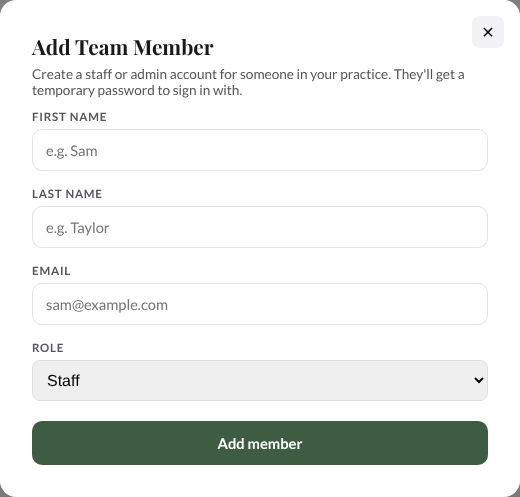
Admins see the team: name, email, role and whether each person has a calendar link (with Remove). + Add Team Member creates a staff or admin account and shows a temporary password once, to pass on. 🚫 Deactivate stops someone signing in (it asks first; your own row has none); tick Show deactivated members to find them and Reactivate them.
Payments
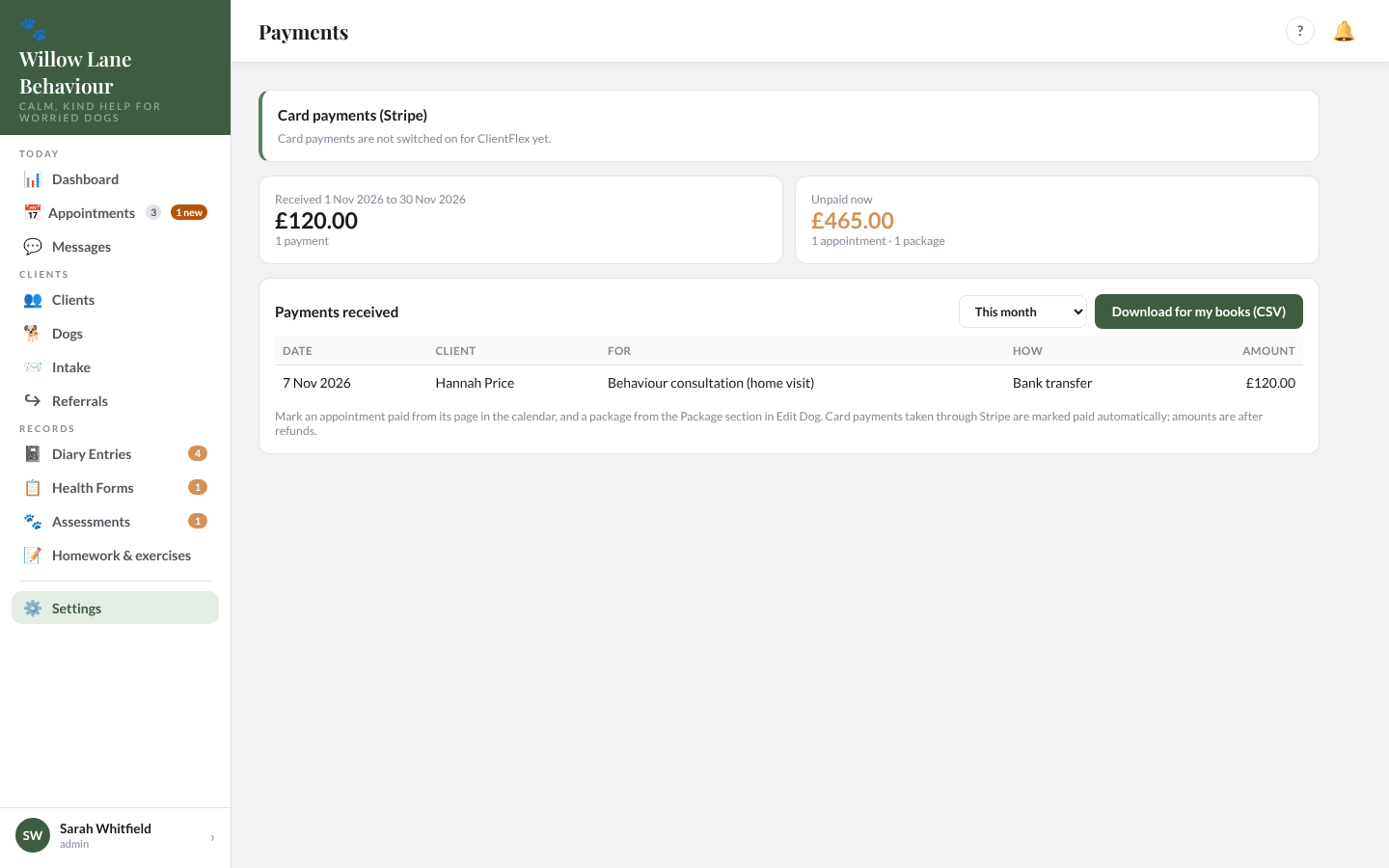
Admins see what has been received in a period and what is unpaid now (appointments and packages). Choose this month, last month, this tax year or your own dates, and Download for my books (CSV). Card payments through the app (Stripe) are not switched on for you yet.
Gait assessment
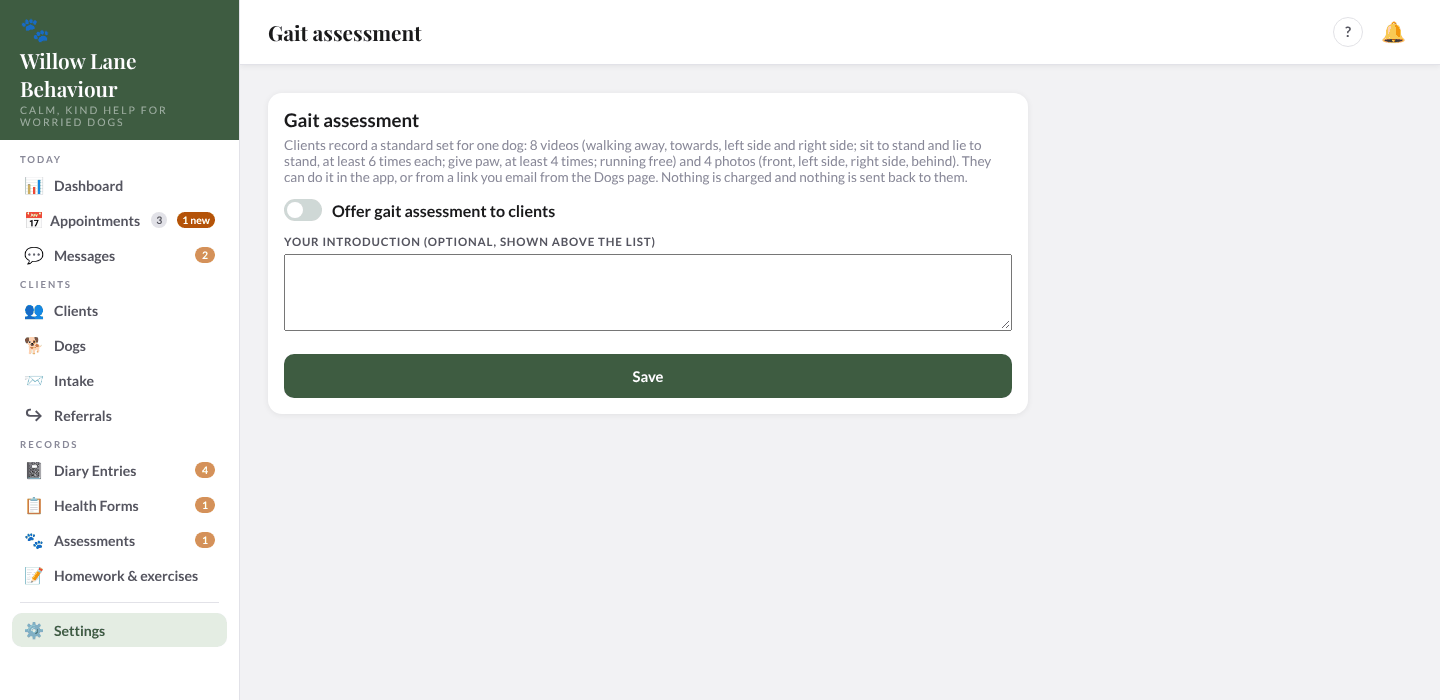
Gait assessment is switched off for you. Switched on, it lets clients record a set of 8 short videos and 4 photos of their animal before you meet (walking away, towards and side-on, sit to stand, lie to stand, give paw, running free, and photos from four sides), in the app or from a link you email them; you watch the sets in a new Gait page in the menu, and each animal's page gets a Gait tab. Admins switch it on with Offer gait assessment to clients and can write an introduction clients see first.
Emails
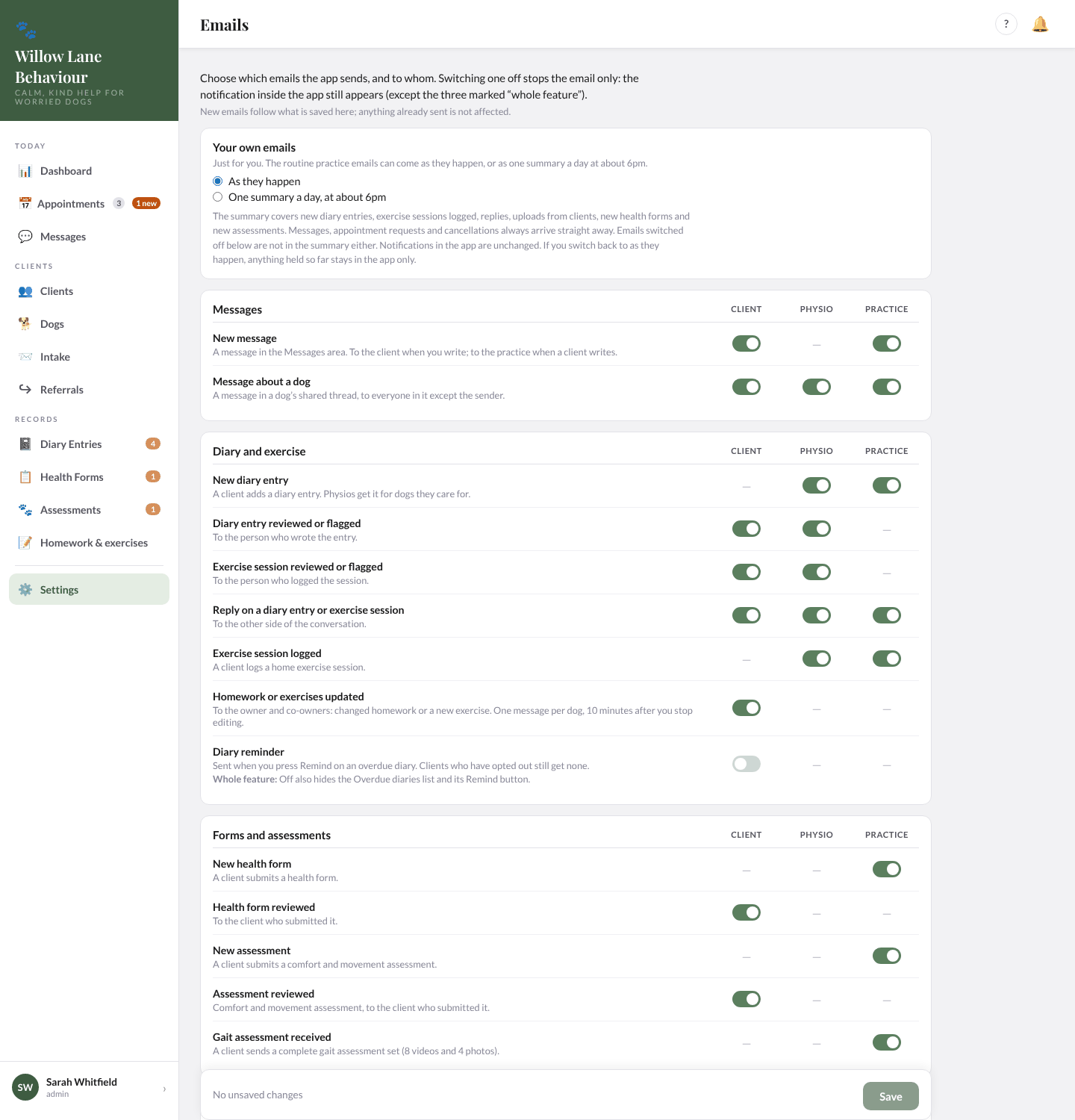
Choose which emails go out, for each type and each group: Client, Physio and Practice, in sections (Messages; Diary and exercise; Forms and assessments, which includes Gait assessment received; Files and media; Appointments (list); Appointments (calendar); Packages; Payments, with Payment received (receipt), on unless you switch it off). A dash means that group never gets that email. Switching one off stops the email only and the notification in the app still appears, except for those marked as a whole feature (the 24-hour reminder, the rebook email and the diary reminder), which stop altogether. Account emails (welcome, password reset, registration links) are always sent. Under Your own emails you can have practice emails as they happen, or the routine ones (new diary entries, sessions, replies, client uploads, new forms and assessments) as one summary a day at about 6pm; messages, requests and cancellations always arrive straight away. Only admins can change the switches: the bar at the foot counts your changes, then Save changes.
Share links
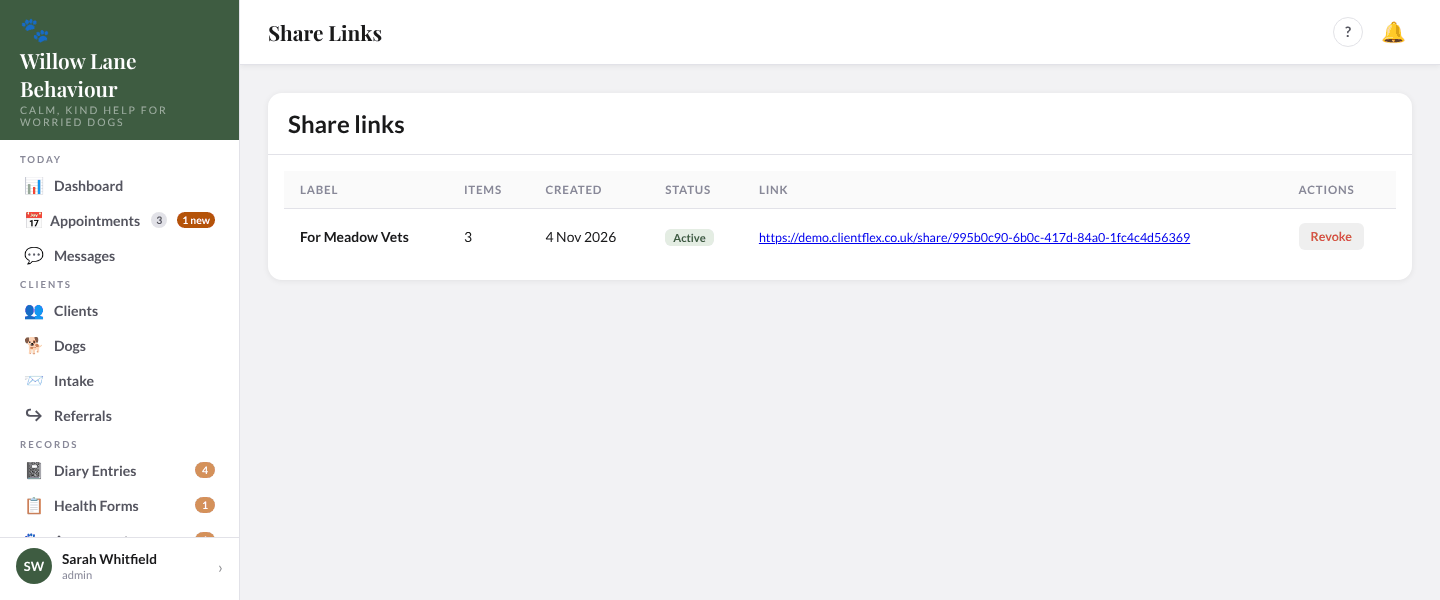
Share links lists every link made from a client's media, with Share with vet on an assessment: its label, how many items, when it was made, whether it is active, and the link. Select Revoke to turn one off; the page then tells anyone who opens it that the link has been turned off. A photo or video deleted since the link was made is no longer shown on it.
Sign-in history
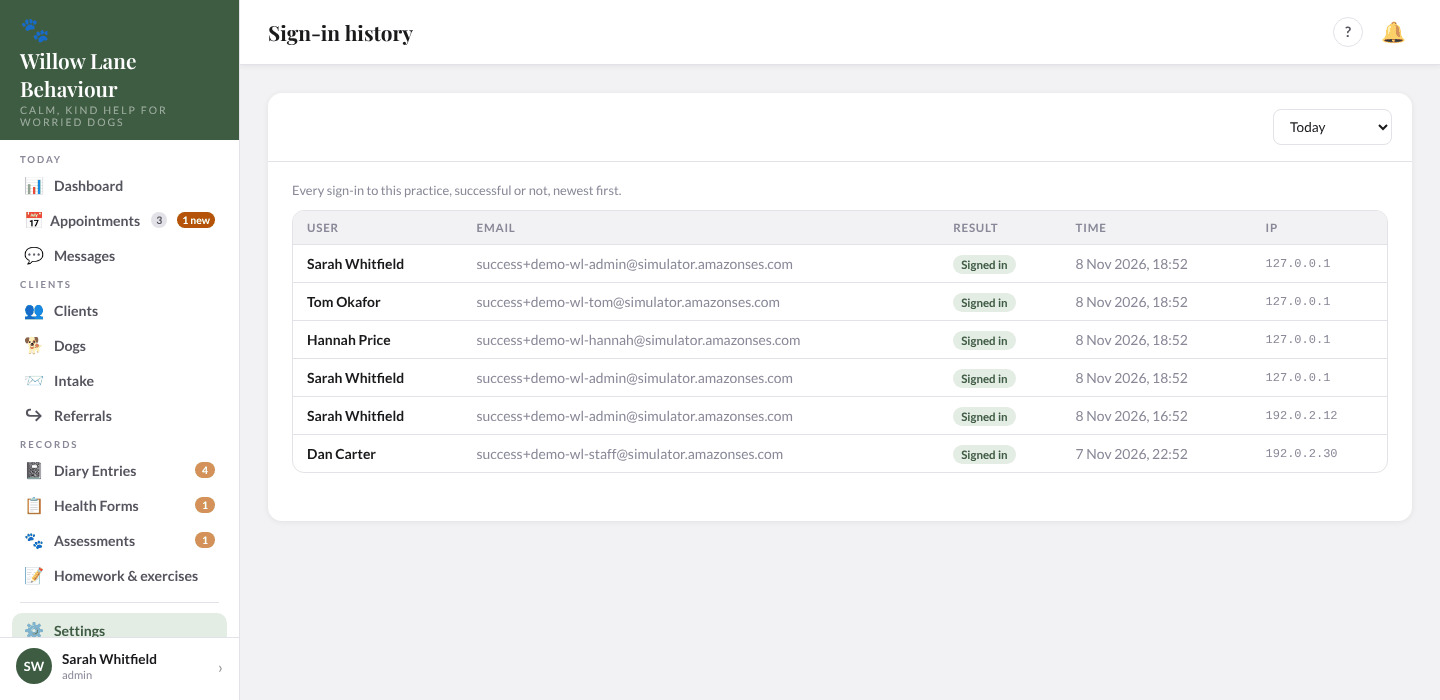
Admins can see every sign-in to the practice, successful or not, newest first, for Today (the last 24 hours), the last 7 days or the last 30 days (up to 200 at a time).
My calendar link
Select Create my calendar link to add your bookings to your own calendar app (Google, Apple or Outlook): copy the link and follow the instructions shown. Reset link makes a new one and stops the old; Remove link turns it off.
Back to top16. Quick reference: emails
Which emails go out can be changed in Settings › Emails. Referral and shared-care notices to staff are in the app only; what shared care sends the client is described under Referrals and shared care.
What reaches you
| When | |
|---|---|
| New intake form submitted | Someone fills in your intake form (to the practice owner only) |
| New diary entry / New exercise session | A client logs one |
| New diary reply, New message | A client replies or messages |
| New health form / New assessment | A client sends one |
| New media | A client uploads photos or videos |
| <dog>'s <package> ends in N days | Two weeks before a package ends (staff and admins) |
| Client cancelled | A client cancels in the app (admins and the person booked) |
What reaches the client
| When | |
|---|---|
| Welcome / Complete your registration | You send a welcome, or they fill in the intake form |
| Appointment booked, moved or cancelled | You book, move or cancel (when you tick to tell them); booked and moved include a calendar file |
| Reminder | 24 hours before an appointment (not if Notify the client or Email the confirmation was unticked, or it was booked less than 24 hours ahead) |
| <dog>'s plan has been updated | About 10 minutes after you add or reword homework, attach a handout, or add an exercise |
| Consultation notes available | You save notes and notify |
| Your health form / assessment has been reviewed | You mark it reviewed (or flag an assessment) |
| Your diary entry / exercise session has been reviewed or flagged | You review it |
| New diary reply / New message | You reply or message |
| New media | You upload for them |
| Receipt: £<amount> paid to Willow Lane Behaviour | A few minutes after you mark a payment paid (appointment or package) |
| A gentle reminder about <dog>'s diary | You select Send reminder on the dashboard |
| Request received / Request not accepted | They send a request / you decline it (if you tick to tell them) or it lapses |